A practical guide to permanent redaction, hidden data removal and safer PDF sharing
PDF files often contain personal data, account numbers, addresses, signatures, internal notes or confidential business information. Before sending a document outside your organization, you may need to remove selected content while preserving the rest of the page. Adobe Acrobat Pro includes redaction tools designed to mark sensitive content, apply the redactions permanently and remove selected hidden information from the delivery copy.
This guide explains how to redact a PDF in Acrobat, how to search for repeated names or numbers, how to redact text and images, how to remove hidden data and how to review the final file. It also explains why drawing a black rectangle over text is not a secure redaction and when a legal, privacy or compliance review should be involved.
What PDF Redaction Means
Redaction is the controlled removal of information from a document before it is shared. A proper PDF redaction removes or permanently obscures the selected content so it cannot be recovered through ordinary selection, copy and paste or editing of the delivery file.
Redaction is different from highlighting, drawing, covering, cropping or changing the text color. Those visual techniques may hide information while leaving the original characters or image data inside the PDF. A recipient may be able to select the text, remove the covering object, copy the content or inspect an earlier version.
Acrobat’s redaction workflow normally separates marking from applying. Marking lets you review proposed redactions. Applying commits the changes to a new or processed file. Use the review stage carefully because applying redactions is intended to be permanent for that copy.
What You Should Redact
The information to redact depends on the purpose of the disclosure and the rules that apply to the document. Common examples include:
- Government identification numbers and passport details.
- Bank account, card and payment information.
- Personal addresses, phone numbers and private email addresses.
- Patient, employee, student or customer identifiers.
- Confidential contract terms or internal pricing.
- Names of protected witnesses or people involved in a sensitive matter.
- Passwords, access tokens and security questions.
- Personal signatures when the recipient does not need to see them.
- Internal comments, draft notes and tracked-review information.
- Images or table cells containing information that should not be disclosed.
Do not redact automatically just because information looks personal. Define the disclosure purpose first, then decide what the recipient is authorized to receive. Over-redaction can remove context and make a document unusable.
Before You Redact a PDF
- Keep an untouched copy of the original in a restricted location.
- Confirm that you have authority to change and disclose the document.
- Identify every category of sensitive content, not only the obvious names and numbers.
- Check both text and images. A scanned page may contain information that is not searchable.
- Review comments, attachments, bookmarks, layers, form fields and metadata.
- Decide whether the redacted copy needs a visible redaction reason or custom appearance.
- Work on a copy and use a clear filename such as document-redacted-review-1.pdf.
A redaction plan is especially important for long legal, financial or HR files. List the terms, identifiers and page ranges that need review. Search can find repeated text, but it cannot replace human review of images, context and unusual formatting.
How to Mark Text for Redaction in Adobe Acrobat
The current Acrobat desktop workflow uses the Redact or Protect a PDF tools. The exact location can vary by version, but the process is generally similar.
- Open the PDF in Adobe Acrobat Pro.
- Open All tools and choose Redact a PDF or the redaction tool.
- Choose Mark for Redaction or the equivalent marking command.
- Select text, a line, a paragraph or an area of the page that contains sensitive content.
- Review each marked area before applying the redactions.
- Choose Apply Redactions when the review is complete.
- Save the result as a new file and keep the original unchanged.
When selecting text, include the complete sensitive value. For an account number, check whether the label, separators or nearby digits reveal information that should also be hidden. For a name, review repeated references, headers, footers, captions and tables.
How to Find and Redact Repeated Information

Long documents often repeat the same name, account number, case reference or phrase. Use Acrobat’s search-and-redact feature when available, then review every match before applying the changes.
- Open the redaction tool and choose the search or find-text option.
- Enter the exact word, phrase or identifier you need to review.
- Search the current document or the page range required by your workflow.
- Select the matches that should be marked for redaction.
- Inspect each occurrence in context. Do not redact a similar word that is not sensitive.
- Search for variations, abbreviations, different spacing and common OCR errors.
- Apply the redactions only after the complete result has been reviewed.
Search for more than one representation of the same data. A person may appear with a full name, initials, job title or email address. An account number may include spaces or hyphens in one location and not another. Redaction is a content-review task, not only a find-and-replace action.
How to Redact Images, Scanned Pages and Tables
Text search cannot find information inside a page image unless OCR has created a text layer. Even with OCR, inspect the visible page because recognition may be incomplete or inaccurate.
Scanned pages
Use the redaction mark area tool to select the visible region containing the sensitive content. Include enough surrounding area to ensure that the entire value is covered. Zoom in and check that the mark is aligned with the page image.
Tables
Redact the complete cell or value that should not be disclosed. Check whether the same value appears in a total, footnote, column heading or summary. Do not accidentally cover the table structure if the recipient needs to understand the remaining information.
Photographs and screenshots
Use a redaction area over faces, identity cards, screens, addresses or other visual details. Check the image at full size and inspect cropped edges. A partial crop may leave a readable fragment of the sensitive information.
How to Apply Redactions and Save the Final Copy
Applying redactions is the point at which the selected content is permanently removed or obscured in that output file. Use a new filename and keep the original as the controlled source.
- Review all redaction marks page by page.
- Choose Apply Redactions.
- Confirm the warning that the action may be permanent for the output.
- Choose whether Acrobat should sanitize or remove hidden information when the option is available.
- Save the result as a new PDF, not over the original.
- Close the file and reopen the saved output for verification.
Redaction appearance settings may let you choose a fill color, border, overlay text or reason. Appearance helps the recipient understand that content was intentionally removed, but appearance is not the security mechanism. The applied redaction is what matters.
Remove Hidden Information and Metadata

A PDF can contain data that is not visible on the page. Comments, attachments, hidden layers, embedded files, form data, document metadata and previous content may reveal information about the document or its authors.
Use Acrobat’s hidden-information removal or sanitization feature when the workflow requires it. Review what the tool identifies before removing it because metadata can also be useful for internal records. The final delivery copy should contain only the information the recipient is authorized to receive.
- Inspect document properties and metadata.
- Check comments, annotations and attachments.
- Review hidden layers and form fields.
- Look for embedded files or scripts when relevant.
- Remove unwanted information through the approved sanitize or remove-hidden-data workflow.
- Reopen the saved delivery copy and inspect it again.
Sanitizing metadata is not the same as redacting visible text. Use both when both types of information create a risk.
Why Drawing a Black Box Is Not Secure Redaction

A black rectangle, highlight, white text or opaque shape may sit above the original content as a separate object. If the underlying text remains in the PDF, someone may be able to select it, copy it, move the covering object or open an earlier version. The page may look redacted while the data is still present.
Never use a drawing tool as a substitute for Acrobat’s redaction workflow when the information is confidential. Use Mark for Redaction and Apply Redactions, then verify the saved output with search, selection and a second viewer.
How to Verify That a Redaction Is Permanent
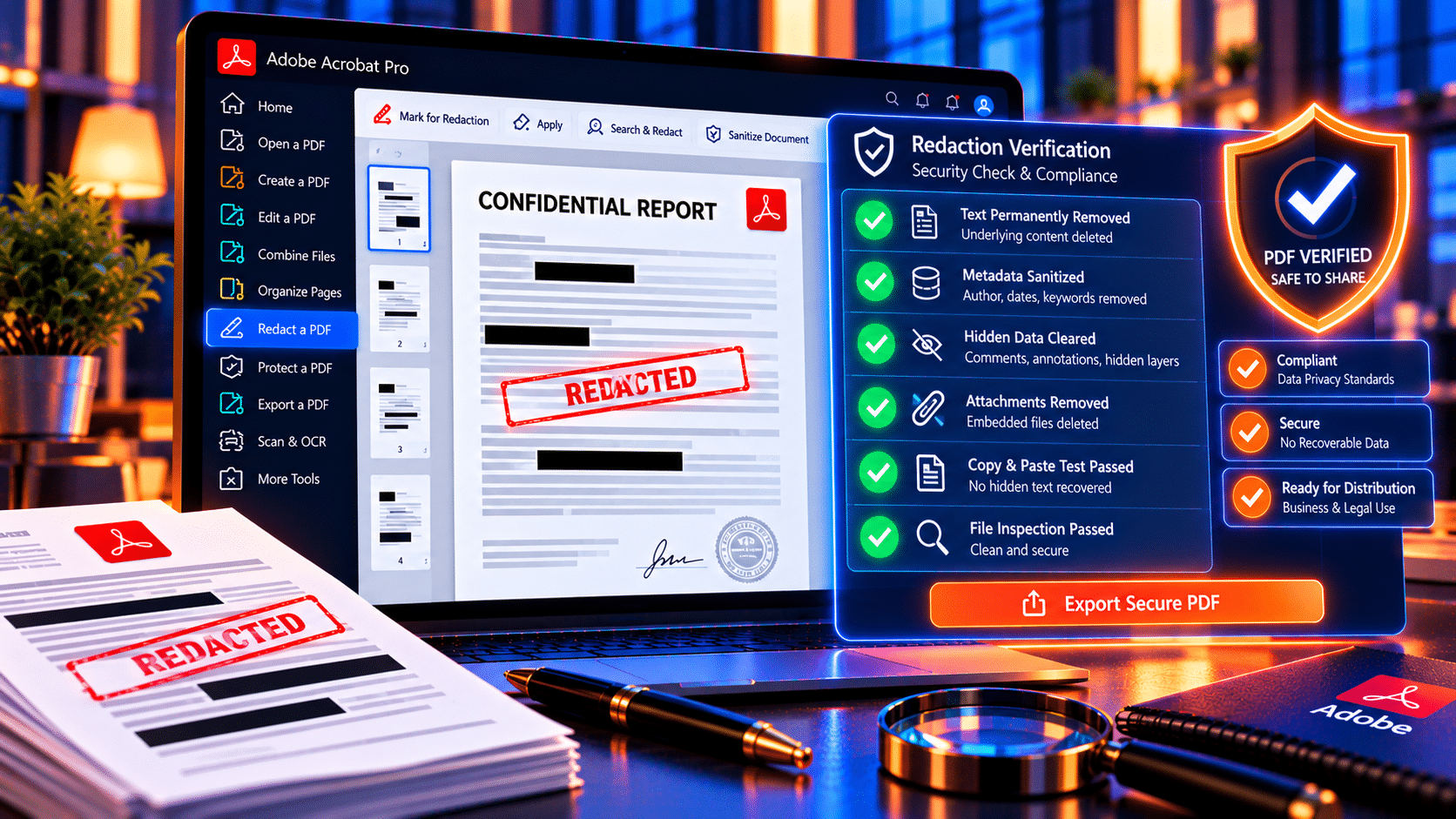
A visual check is necessary but not sufficient. Use several checks on the final delivery copy:
- Open the saved redacted copy, not the working file with marks.
- Search for the exact redacted names, numbers and phrases.
- Try to select and copy text from the redacted area.
- Check page images and scanned regions at high zoom.
- Inspect the document properties, comments, attachments and hidden data.
- Open the file in another compatible PDF viewer when the risk is high.
- Confirm that the redaction did not remove required context or change page order.
- Keep a record of who reviewed the final file and when.
Do not test by trying to reverse the redaction on the only copy. Keep a controlled original and a separate delivery file. If the document is part of a legal or regulated process, follow the organization’s formal review and release procedure.
Redaction Workflows by Use Case
Legal document review
Define the disclosure scope, search for names and identifiers, inspect exhibits and images, apply redactions and have a second reviewer check the final PDF. Keep the unredacted original under restricted access.
Human resources
Redact personal contact information, compensation details, identifiers and unrelated employee data before sharing records. Check headers, spreadsheets, comments and attachments because the sensitive value may appear more than once.
Finance and customer records
Redact payment details, account identifiers and unnecessary customer information. Validate that totals and business context remain understandable after the redaction.
Public records and reports
Use a documented redaction policy so similar records are handled consistently. Search for recurring identifiers and maintain a review log for the released copy.
Common Redaction Mistakes
- Covering text with a black shape instead of applying redaction.
- Redacting only the first occurrence of a name or number.
- Forgetting that the same information appears inside an image or attachment.
- Sharing the marked working file instead of the applied redacted copy.
- Overwriting the original and losing the unredacted source.
- Failing to remove metadata, comments or embedded files.
- Assuming OCR found every word in a scanned document.
- Not checking the final output in another viewer.
- Redacting so much context that the released document becomes misleading.
- Sending an older unredacted version from an email attachment or shared folder.
Redaction and Privacy Checklist
- The disclosure purpose and authorized recipient are clear.
- The original PDF is preserved securely.
- Text, images, tables and scanned pages were reviewed.
- Repeated names, numbers and phrases were searched.
- Redactions were marked and then applied through Acrobat’s redaction tool.
- Hidden information and metadata were reviewed or sanitized.
- The final PDF was saved under a new filename.
- Search and copy tests did not reveal redacted content.
- Required context remains readable.
- The final file was shared through an approved channel.
Frequently Asked Questions
How do I redact a PDF in Adobe Acrobat?
Open the PDF in Acrobat Pro, choose the Redact tool, mark the sensitive text or area, review the marks, apply the redactions and save a new copy. Check the final file before sharing it.
Is drawing a black box over text enough?
No. A black box may cover the text visually while leaving the original content underneath. Use Acrobat’s Mark for Redaction and Apply Redactions workflow.
Can I redact a scanned PDF?
Yes. You can mark visible areas manually. OCR can help search for printed text, but inspect the page image because OCR may miss or misread sensitive content.
Does redaction remove metadata?
Not necessarily. Redaction handles selected page content. Review and sanitize hidden information, comments, attachments and metadata separately when needed.
Can redactions be undone?
Applied redactions are intended to be permanent in the processed copy. Keep an authorized original separately if you may need the unredacted content for internal records.
Does PDF redaction guarantee legal compliance?
No. It is a technical document action. Legal and compliance requirements depend on the information, jurisdiction, industry and release process. Use qualified professional guidance for high-risk disclosures.
Conclusion
Adobe Acrobat Pro can help remove sensitive information from PDFs when you use its actual redaction workflow. Mark the content, review every occurrence, apply the redactions, sanitize hidden information when appropriate and verify the saved delivery copy. Do not rely on black boxes, highlights or other visual overlays.
A secure redaction process combines the right Acrobat tool with careful content review, controlled originals, privacy-aware sharing and a final quality check. That approach is essential for legal files, HR records, financial documents, customer data and any PDF that will leave the organization.
Need Acrobat Pro tools for secure PDF redaction? Review Adobe Acrobat Pro DC 2025 for Windows on KeyUpMart and confirm the current license and compatibility details before purchase.