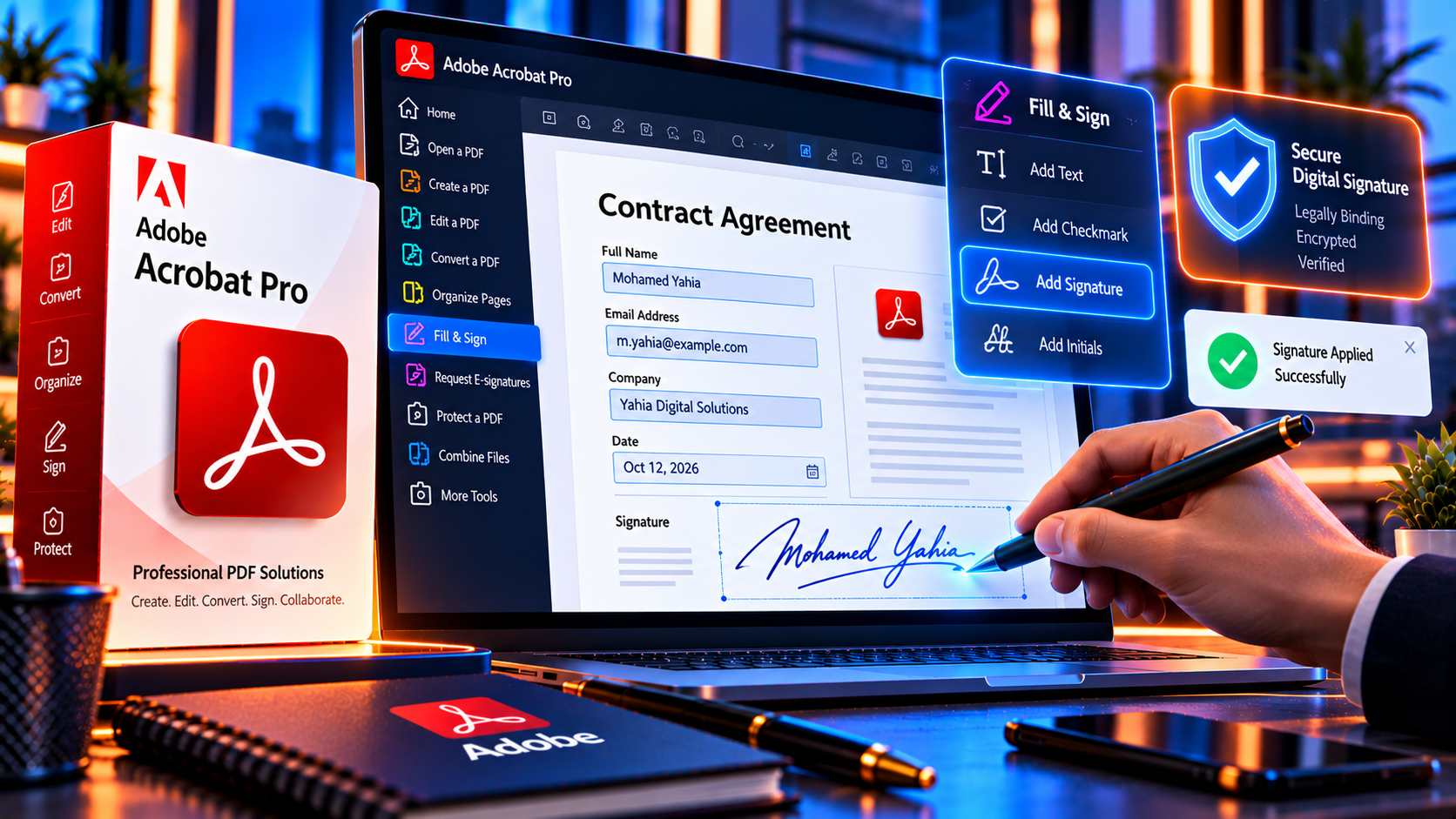
Printing a form, writing on it, scanning it and emailing it back is often slow and difficult to track. Adobe Acrobat can let you fill many PDF forms on screen, add a signature or initials, save a completed copy and prepare a document for electronic approval. For more structured workflows, Acrobat and Adobe’s e-signature services can also help send documents to multiple people and track completion.
This guide explains how to fill and sign a PDF with Acrobat Pro, how to create and apply a signature, how to work with interactive and flat forms, what electronic and digital signatures mean, and how to check a signed document before sharing it. It also explains when a simple Fill & Sign workflow is enough and when a business needs a dedicated agreement-signing process.
What You Can Do with Adobe Acrobat Fill and Sign
Acrobat can support several common PDF form tasks:
- Enter text into interactive form fields.
- Type into a flat or scanned form when the layout requires manual placement.
- Add checkmarks, crosses, dots and other simple form marks.
- Create a reusable signature and initials.
- Draw a signature with a mouse, trackpad or touch device.
- Insert an image of a handwritten signature when appropriate.
- Save a completed form as a new PDF.
- Print or share the completed document through an approved workflow.
- Prepare fillable form fields in Acrobat Pro when a source PDF is not interactive.
These features are different from sending a document for a full signature ceremony. A local Fill & Sign workflow lets you complete a file. A dedicated e-signature service can add recipient routing, authentication, reminders, audit information and completion tracking, depending on the service and plan.
Electronic Signature vs Digital Signature
Electronic signature
An electronic signature is an electronic mark or action used by a person to indicate agreement or approval. It can be typed, drawn or inserted as an image, depending on the workflow. The legal effect depends on the applicable law, the document type, the parties and the evidence collected around the signing process.
Digital signature
A digital signature uses certificate-based technology to bind a signature to the signer and help detect later changes to the document. It is more technical than simply placing a visual signature on a page and may require a certificate authority, trusted identity process or organizational setup.
Do not describe every typed or drawn mark as a legally equivalent digital signature. For employment, financial, legal or regulated documents, check the requirements that apply in the relevant jurisdiction and follow your organization’s approved signing process.
How to Fill an Interactive PDF Form in Acrobat
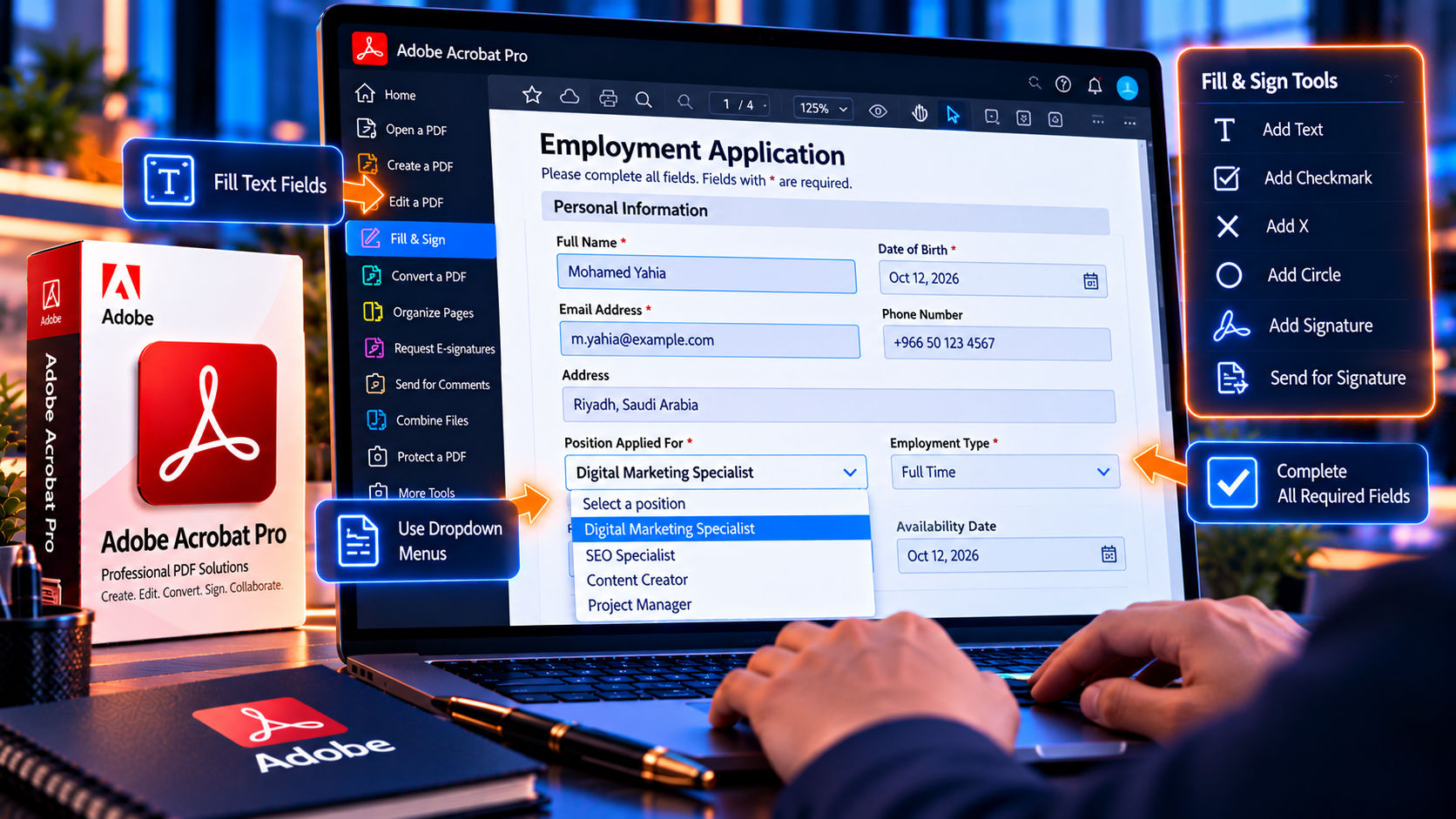
An interactive PDF contains fields created by the form author. You can usually click a field, type a value and move to the next field with the keyboard.
- Open the PDF in Adobe Acrobat.
- Choose Fill & Sign or select a form field directly.
- Click a text field and enter the requested information.
- Use the Tab key to move through fields in sequence when the form has a logical tab order.
- Select checkboxes, radio buttons or dropdowns as required.
- Review dates, names, addresses and numbers before moving on.
- Save a completed copy with a new filename so the blank original remains available.
Helpful form-filling habits
- Use the same spelling of your name that appears on the related agreement or identification.
- Use the required date format and check the time zone when a deadline matters.
- Do not leave mandatory fields blank unless the form explicitly allows it.
- Avoid adding sensitive information to a field that is not intended for it.
- Zoom in to inspect small fields, but check the final page at normal viewing size.
- Save frequently when completing a long form.
How to Fill a Flat or Scanned PDF Form
Some PDFs look like forms but contain only text and lines. They have no interactive fields, so clicking the page does not place the cursor in the expected location. Acrobat can still help you add text and marks manually through Fill & Sign.
- Open the flat or scanned PDF in Acrobat.
- Choose Fill & Sign from the tools area.
- Select Add text or the text tool, then click near the appropriate line or box.
- Type the information and adjust the text size if necessary.
- Use checkmark or cross controls for simple selections.
- Move each entry into position and inspect the page at 100 percent zoom.
- Save the result as a new completed copy.
Manual placement requires more review than an interactive form. Text can shift when opened in another viewer or printed, especially if the scan is skewed. Keep entries within the visible field area and avoid covering instructions, labels or existing text.
How to Create a Signature in Adobe Acrobat
Acrobat can let you create a signature for use in Fill & Sign. The available choices may include typing a name, drawing a signature or inserting an image. Choose a method that is allowed by the document owner and your organization’s process.
- Open Fill & Sign and choose Add signature or Sign yourself.
- Select Type, Draw or Image, depending on the method you want to use.
- Type your name, draw with a pointing device or select a clean signature image.
- Review the appearance and choose whether Acrobat should remember the signature on the device or account.
- Place the signature in the designated signature area.
- Resize it only enough to fit the field without covering nearby text.
- Add initials separately if the document requires them.
Signature image tips
- Use a clear image with a plain background.
- Crop excess whitespace before placing the signature.
- Do not use another person’s signature image.
- Protect reusable signature assets from unauthorized access.
- Do not reuse a saved signature for a document you did not review.
A visual signature is evidence of an electronic signing action, but the strength of the evidence also depends on how the document was delivered, who controlled the signing account or device and whether the process recorded identity and document integrity.
How to Add Initials, Dates and Checkmarks
Many forms require more than one signature. Use the initials tool for each initial field, add the date in the format requested by the form and place checkmarks only beside the intended options.
- Use initials that match the signer’s chosen signature identity.
- Add the date after the form content is final.
- Do not date a document on behalf of another person.
- Check that a checkmark is visually inside the correct box.
- Review all pages for signature blocks, initials and required attachments.
If the form includes a statement such as “I certify” or “I agree,” read the text before signing. A signature should not be treated as a decoration or a shortcut around the document’s terms.
How to Create a Fillable PDF Form in Acrobat Pro
If a PDF does not contain fields, Acrobat Pro can help prepare a fillable form. This is useful for internal forms, applications, questionnaires and repeatable business documents.
- Open the source document in Acrobat Pro.
- Choose Prepare a form or the form-creation tool.
- Select the source PDF or another supported document.
- Let Acrobat detect likely fields, then inspect every detected field.
- Add or remove text fields, checkboxes, radio buttons, dropdowns and signature fields as needed.
- Set field names, required status, alignment and formatting.
- Arrange the tab order so the form can be completed logically.
- Preview the form, save it and test it with a copy before distribution.
Automatic field detection is a starting point, not a final review. Rename fields clearly, remove duplicate or accidental fields and check that two fields do not share a name when they should hold different values. A well-built form is easier to complete and easier to process later.
How to Send a PDF for Multiple People to Sign
If several people must sign the same agreement, placing a signature on the PDF yourself is usually not the right workflow. Use an approved e-signature service that can identify recipients, route the document in order, send reminders and record completion events.
- Prepare the final agreement before sending it for signature.
- Identify each signer and confirm the email address or approved identity method.
- Place signature, initials, date and required text fields in the correct locations.
- Set the signing order when one person must sign before another.
- Add a clear message and deadline if the service supports it.
- Review recipient permissions and avoid giving one signer access to unrelated documents.
- Send the agreement and monitor the status through the approved service.
- Download or archive the completed document and audit record according to policy.
Do not edit the agreement after it has been signed unless the signing process explicitly allows a controlled revision. A material change normally requires a new version and new signatures.
How to Verify a Signed PDF
After signing, review the file before forwarding it or storing it as the final record.
- Confirm that the signer name, date and signature appear in the intended fields.
- Check that no text was hidden or covered by the signature.
- Inspect every page for missing initials, attachments or required selections.
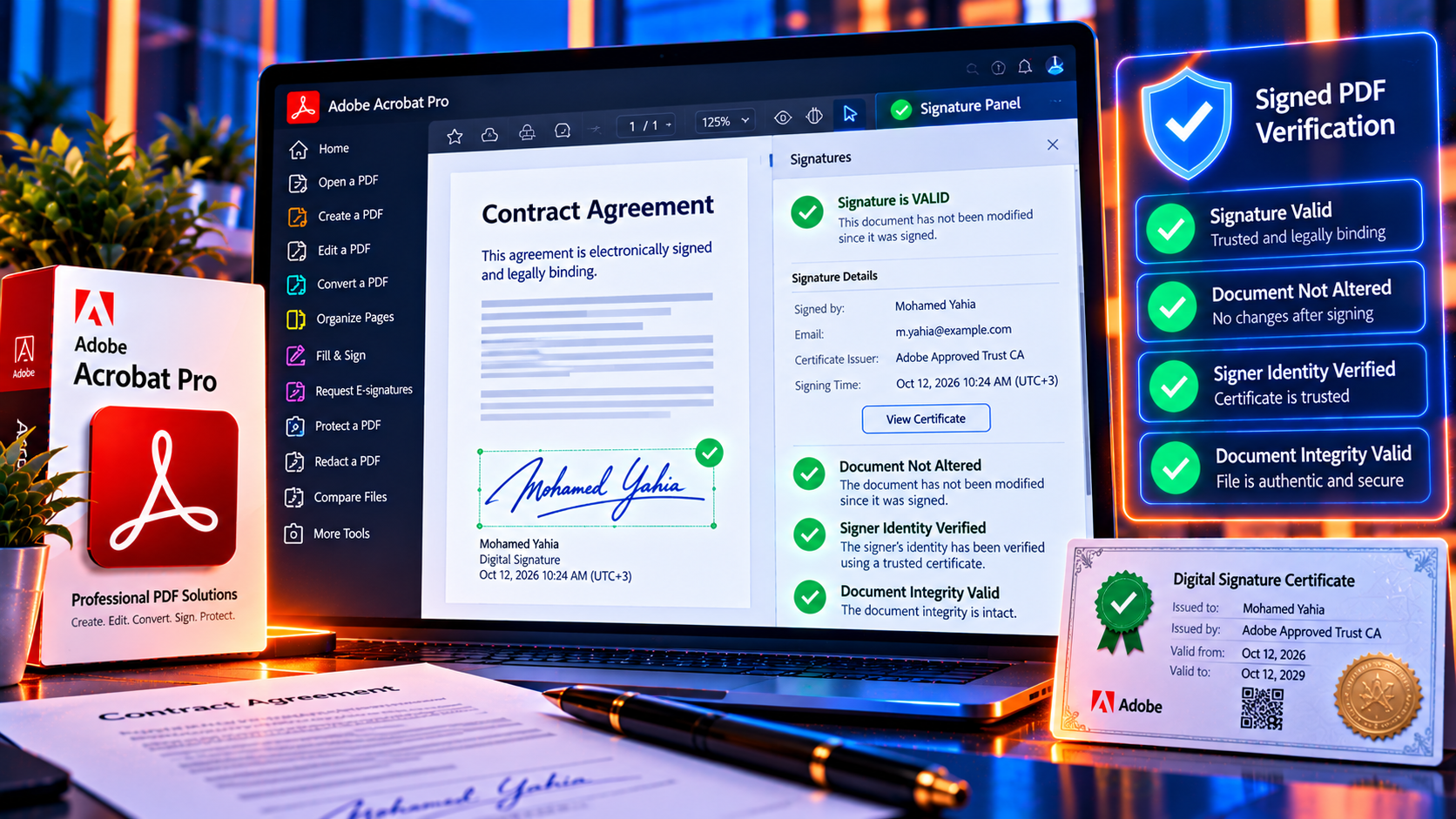
- Use Acrobat’s signature or certificate panel when the PDF contains a certificate-based digital signature.
- Look for warnings that the document changed after signing.
- Confirm that the final filename and version match the approved agreement.
- Store the completed file and any audit record in the approved location.
A visual signature alone cannot prove that a file was unchanged after signing. Certificate-based signatures and dedicated e-signature workflows can provide stronger integrity and audit evidence, but the appropriate method depends on the agreement and applicable requirements.
Common Problems When Filling and Signing PDFs
The fields are not clickable
The PDF may be flat or scanned. Use Fill & Sign to place text manually, or use Prepare a form in Acrobat Pro to create fields. If the file is protected, ask the owner for an authorized version.
The signature is too large or covers text
Select the signature and resize it proportionally. Move it inside the intended field and check the page at normal zoom. If the field is too small, ask the document owner for a corrected form rather than hiding nearby content.
The form will not save changes
The PDF may be read-only, certified or protected. Use Save As to create a permitted copy if allowed, or contact the owner. Do not attempt to bypass security controls.
The recipient cannot see the filled information
Some form values may be stored as interactive fields and may not display correctly in every viewer. Flattening can improve compatibility, but it removes field editability. Save an editable working copy and test the final delivery file before sending it.
The signature is not legally accepted
The document may require a particular signature method, identity verification, certificate or signing service. Check the agreement and the rules that apply in the relevant jurisdiction. Replace a simple Fill & Sign workflow with an approved e-signature process when required.
Electronic Signature Security and Privacy
- Review the complete document before signing.
- Use an account or device protected with a strong password and multi-factor authentication where available.
- Do not share saved signature assets or signing credentials.
- Verify recipients and avoid sending completed forms to the wrong email address.
- Protect documents containing identity, financial, health or employment data.
- Use an approved e-signature service for contracts that require audit evidence.
- Store completed documents and audit records according to retention policy.
- Do not assume that a password-protected PDF proves who signed it.
Legal validity varies by country, industry and document type. This article explains Acrobat features, not legal advice. Consult qualified legal or compliance professionals when the signature has financial, employment, regulatory or contractual consequences.
Final Fill and Sign Checklist
- The correct and final PDF version was opened.
- All required fields were completed accurately.
- Names, dates, amounts and identification details were checked.
- The signature method matches the document’s requirements.
- The signature and initials are placed in the correct fields.
- No text is covered or cut off.
- The saved PDF opens correctly in a second viewer or on the recipient’s device.
- The signing record or audit trail was saved when required.
- The final file was shared through an approved channel.
- An editable or blank original was stored separately from the completed copy.
Frequently Asked Questions
Can I fill and sign a PDF with Adobe Acrobat?
Yes. Acrobat provides Fill & Sign tools for entering text, adding marks and placing a signature. Interactive forms are easier to complete, while flat or scanned forms may require manual placement.
How do I create a signature in Acrobat?
Open Fill & Sign, choose to add a signature and type, draw or insert an image according to the available options and your organization’s policy. Review and place the signature in the correct field.
Is an electronic signature the same as a digital signature?
No. An electronic signature can be a typed, drawn or inserted mark. A digital signature uses certificate-based technology to bind the signature to an identity and help detect changes to the document.
Can I sign a scanned PDF?
Yes. You can place text and a signature on a scanned PDF using Fill & Sign. For repeated use, create fillable fields in Acrobat Pro or request a more accessible source form.
Can multiple people sign the same PDF?
Yes, but a routed e-signature workflow is usually better than passing a manually signed attachment between people. Use an approved signing service when you need recipient identity, order, reminders or an audit trail.
Does signing a PDF prevent later edits?
A certificate-based digital signature can help detect changes, but a visual signature does not by itself prevent editing. Use the appropriate signature and document-control workflow for the risk.
Conclusion
Adobe Acrobat makes it practical to fill forms, add initials and signatures, save completed PDFs and prepare documents for electronic approval. The best workflow depends on the form: use Fill & Sign for a simple individual completion, Prepare a Form for repeatable fillable documents and a dedicated e-signature workflow when multiple recipients, identity checks or audit records are required.
Always review the complete document before signing, keep the blank original, protect completed files and check the legal or organizational requirements that apply. A clean signing process is about more than placing a signature image on a page.
Need Acrobat Pro tools for PDF forms and signing workflows? Review Adobe Acrobat Pro DC 2025 for Windows on KeyUpMart and confirm the current license and feature details before purchase.