A complete guide to exporting PDFs, preserving formatting, using OCR and checking converted files
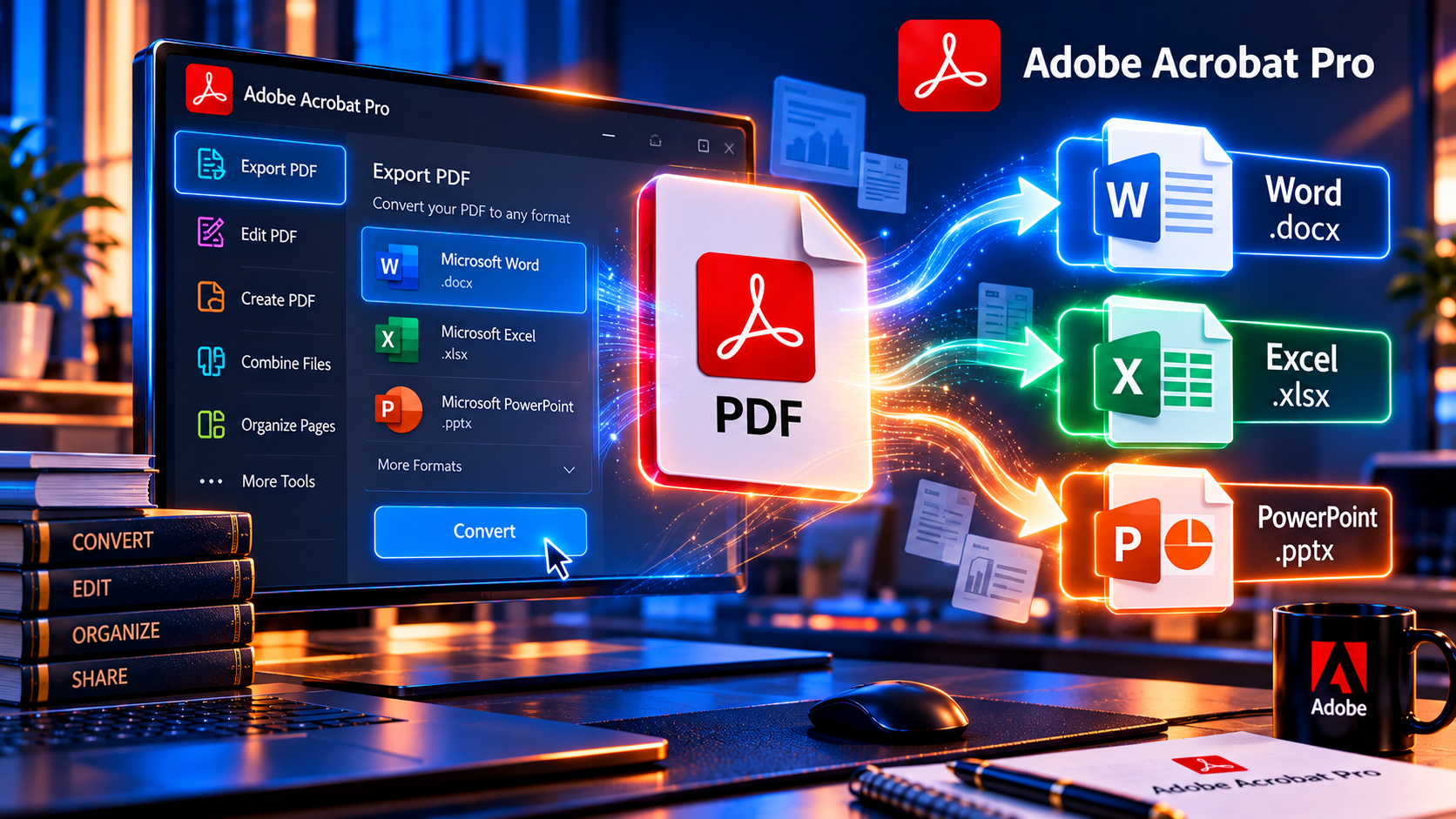
Need to edit a report, reuse a spreadsheet table or turn a PDF presentation into editable slides? Adobe Acrobat can export many PDFs to Microsoft Word, Excel and PowerPoint formats. The quality depends on how the PDF was created, the complexity of its layout and whether the pages contain selectable text or scanned images. A good conversion workflow includes choosing the right format, running OCR when needed and reviewing the result before sharing it.
This guide walks through PDF conversion in Acrobat Pro, explains the differences between exporting to DOCX, XLSX and PPTX, and gives practical ways to improve accuracy. It also covers batch work, privacy, common conversion problems and when a converted file needs manual cleanup.
What Adobe Acrobat PDF Conversion Can and Cannot Do
Acrobat converts PDF content into formats that can be edited in Word, Excel or PowerPoint. It can recognize text, paragraphs, tables, images and many layout elements, then map them to the target application. This is useful when you need to revise a document rather than recreate it from scratch.
A PDF is designed to preserve how a page looks, not necessarily how its content is structured. A visually aligned page may contain text positioned as separate fragments, tables drawn from lines and individual text boxes rather than genuine paragraphs or cells. Conversion software has to infer the underlying structure. For that reason, no PDF converter can promise perfect formatting for every source file.
Text-based PDFs usually convert more cleanly than low-resolution scans. Complex columns, unusual fonts, forms, footnotes, equations, charts and decorative layouts may need correction. Treat the exported document as an editable starting point and compare it with the original PDF before relying on it.
Before You Convert a PDF
A few checks before export can prevent avoidable errors:
- Make a copy of the source PDF and keep the original unchanged.
- Confirm that you have permission to edit or convert the document.
- Check whether you can select and copy text in the PDF. If not, it may need OCR.
- Identify the target application and file type: DOCX, XLSX or PPTX.
- For scanned pages, make sure the text is upright, sharp and readable.
- If the PDF contains confidential information, use an approved local workflow and check your organization’s data rules before uploading it to an online service.
If the PDF is password-protected or has editing restrictions, you may need permission or the appropriate password. Do not try to bypass document restrictions without authorization.
How to Convert PDF to Word with Adobe Acrobat
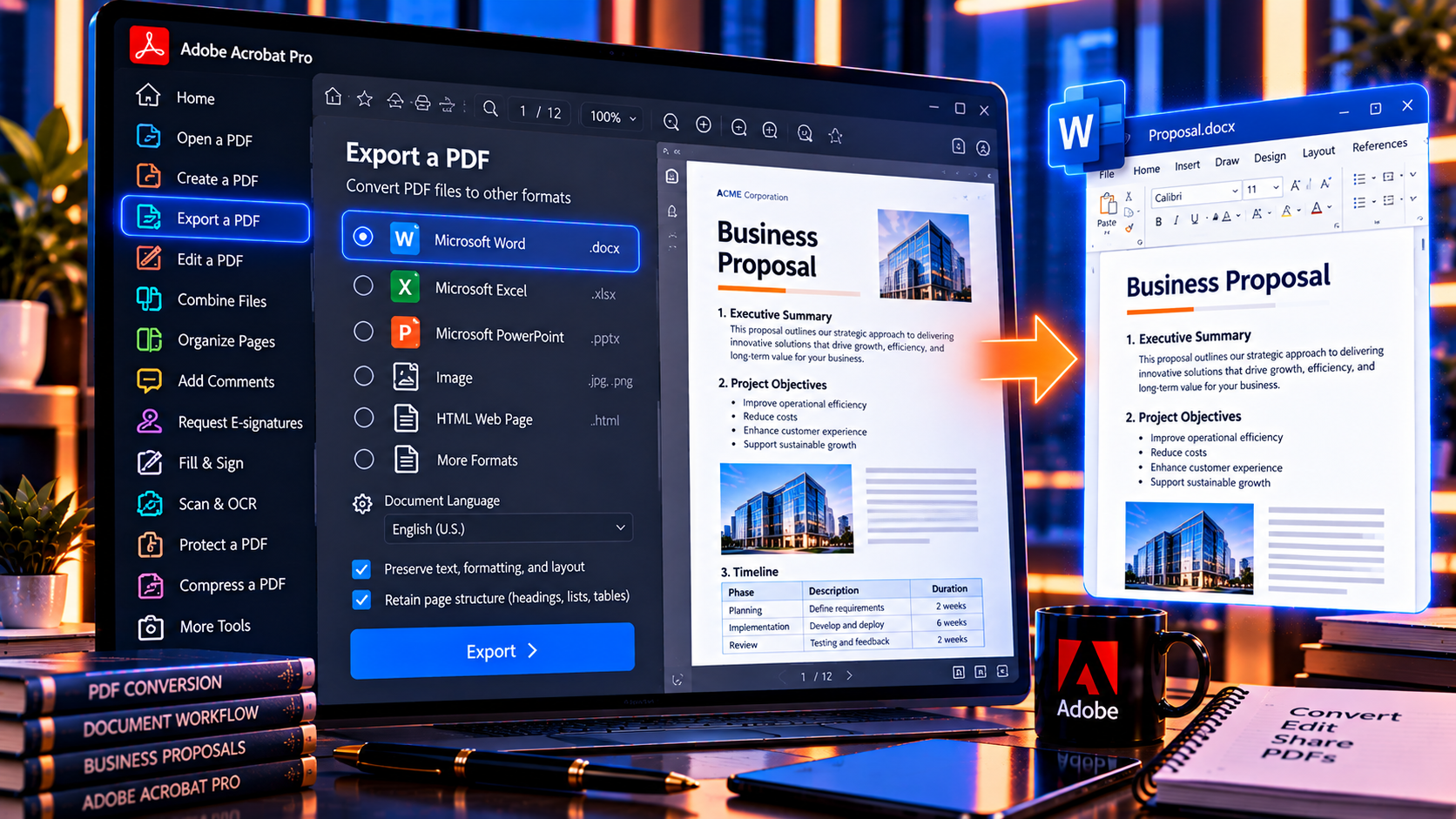
Use Word export when the PDF is primarily a report, letter, contract draft, article or other document made up of paragraphs and headings.
- Open the PDF in the Acrobat desktop application.
- Choose Export a PDF from the tools or right-side panel. Depending on the version, you may also find it under File > Export a PDF.
- Select Microsoft Word, then choose Word Document (.docx).
- If Acrobat offers export or layout settings, choose the option that best preserves the original page structure for your document.
- Select Export and choose a destination folder and filename.
- Open the DOCX in Microsoft Word and review every page before editing or sending it.
What to review in the Word file
- Heading levels and paragraph order
- Page breaks, margins, columns and text wrapping
- Tables, lists, footnotes, headers and page numbers
- Special characters, ligatures, symbols and non-Latin text
- Images, captions, hyperlinks and form fields
- Font substitutions and line spacing
If a page contains several columns or text boxes, check that the reading order is correct. A document can look similar to the PDF but still have paragraphs in the wrong sequence. Use Word’s navigation pane or select and copy a few paragraphs to confirm the structure.
How to Convert PDF to Excel with Adobe Acrobat
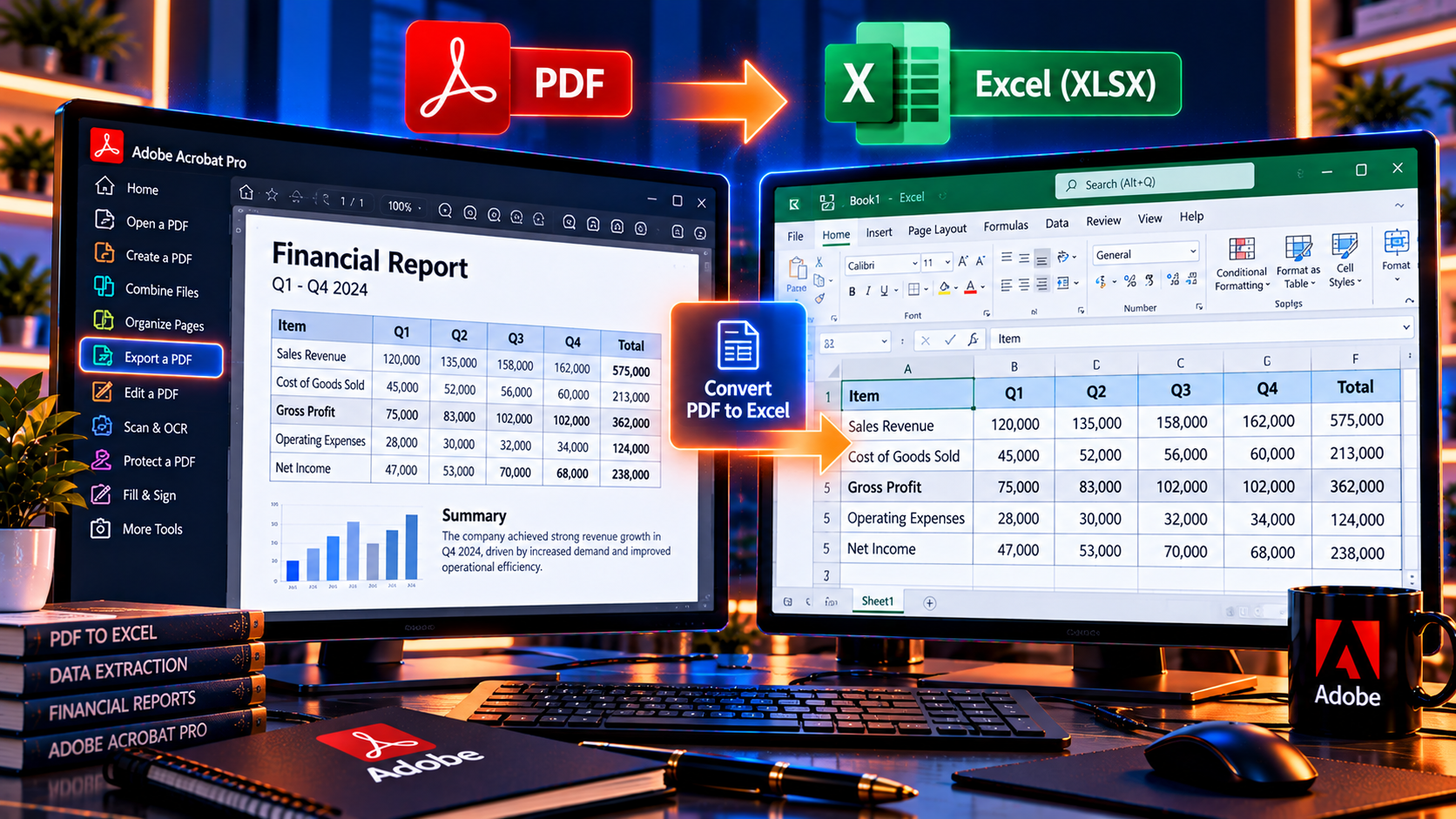
Use Excel export when the PDF contains tables or structured values you need to sort, filter, calculate or analyze. Acrobat can detect tabular content, but the result depends on how consistently the original table is laid out.
- Open the PDF in Acrobat.
- Choose Export a PDF and select Spreadsheet or Microsoft Excel Workbook (.xlsx).
- Choose the appropriate workbook format if Acrobat presents more than one option.
- Export the file and save it with a descriptive name.
- Open the XLSX in Excel and inspect the rows, columns and cell values before using them.
Important Excel checks
- Confirm that each value is in the correct row and column.
- Check dates, decimal separators, currency symbols and negative values.
- Look for merged cells, blank rows or repeated headers that may affect sorting.
- Verify totals independently instead of assuming formulas were reconstructed.
- Check that leading zeros in codes or identifiers have not disappeared.
- Compare a sample of cells against the source PDF, especially in long tables.
A PDF table is often only a visual arrangement. Export may put numbers into cells without rebuilding formulas, data types or relationships. Before making decisions from converted data, validate totals and key records against the source.
How to Convert PDF to PowerPoint with Adobe Acrobat
PowerPoint export is useful when you want to reuse slides or adapt a PDF presentation. Acrobat maps PDF pages to slides and attempts to make text and visual elements editable.
- Open the PDF presentation in Acrobat.
- Choose Export a PDF and select Microsoft PowerPoint Presentation (.pptx).
- Export the presentation and save the PPTX.
- Open it in PowerPoint and inspect the slide size, typography, images and text boxes.
- Test the slideshow and make sure key content remains readable at presentation size.
A PDF slide may export as a collection of separate objects rather than the original editable slide components. Backgrounds, grouped graphics, transitions, animations, speaker notes and embedded media may not be recreated as they existed in the source presentation. Plan time to rebuild or regroup elements if you need a polished deck.
How OCR Helps with Scanned PDFs
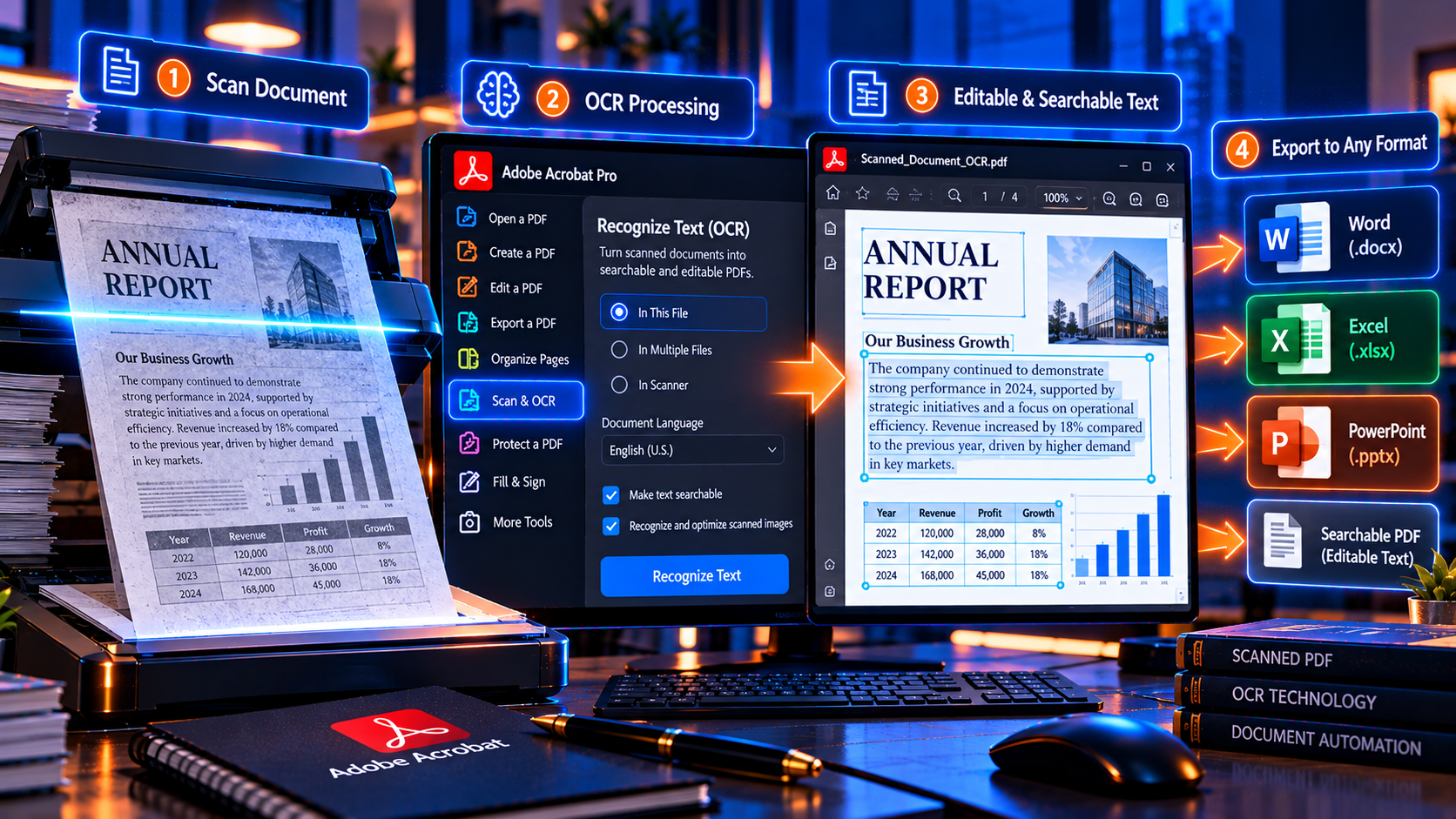
A scanned PDF is often a set of page images. You may be able to view the words but not select, search or copy them. OCR, or optical character recognition, analyzes the image and creates a text layer that conversion tools can use.
Run text recognition before export
- Open the scan in Acrobat and locate Scan & OCR or Recognize Text. Tool names and placement can vary by Acrobat version.
- Choose the pages to process and set the document language correctly when that option is available.
- Run text recognition, then use search or selection to confirm that Acrobat can read the recognized text.
- Correct obvious recognition errors where practical.
- Export the recognized PDF to Word, Excel or PowerPoint using the appropriate format.
OCR works best with clear, straight pages, good contrast and a suitable resolution. Skewed pages, handwriting, stamps, low contrast, complex tables and unusual typefaces can reduce recognition quality. OCR is not a verification step by itself. Compare important names, dates, totals and legal language with the page image.
How to Improve PDF Conversion Accuracy
Start from the best source file
If you can obtain the original Word, Excel or PowerPoint file, use it instead of converting the PDF. The source file preserves more structure and usually requires less repair. When the PDF is the only available copy, use the highest-quality version rather than a compressed screenshot or a file that has been repeatedly scanned.
Choose the destination format based on the content
Paragraph-heavy content belongs in Word. Tables and numeric records belong in Excel. Slide-oriented pages belong in PowerPoint. Choosing a format that does not match the source structure can make the export harder to edit.
Keep the conversion focused
For a large document, export only the pages you need when the tool allows page selection. This can make review faster and reduce unnecessary cleanup. If you need repeated conversions, test a representative file first and define a consistent naming and verification process.
Review against the PDF
Keep the PDF open beside the exported document. Compare page by page, paying special attention to tables, page breaks, text order and values that matter. Do not rely on visual similarity alone. In Excel, check the underlying cells. In Word, check the reading order. In PowerPoint, test the slide objects and presentation size.
Can You Convert Multiple PDFs at Once?
Acrobat includes ways to automate repeated document tasks, but the available batch and action features depend on the Acrobat edition and version. If your workflow involves many PDFs, first test the process on copies of a small sample. Confirm that output names, folders, page ranges, OCR language and export format are consistent before running a larger job.
Batch processing does not remove the need for quality control. Scanned forms, mixed page sizes and inconsistent table layouts can produce different results across a group. Keep a log of source filenames and exported files so you can trace a conversion back to its original document.
Privacy and Confidential Documents
PDFs often contain personal, financial, legal, medical or employee information. Before using any PDF converter, consider where the file is processed, whether it is uploaded to a cloud service and what your organization permits. A desktop workflow may be preferable for sensitive files, but local installation alone does not replace your organization’s security review.
- Use only an approved account, device and application for confidential work.
- Avoid free websites for files containing sensitive or regulated information unless your policy explicitly permits them.
- Do not email converted documents to an unintended recipient.
- Store exported files in an access-controlled location.
- Delete temporary copies according to your retention policy.
- Use redaction tools for permanent removal of sensitive content; drawing a black box over text is not secure redaction.
Common PDF Export Problems and Fixes
The exported Word file has broken spacing
This often happens when the PDF uses columns, positioned text boxes or fonts that are unavailable on your computer. Try a different layout preference if available, check for font substitution and repair paragraph styles after conversion.
The PDF text cannot be selected
The document may be scanned or image-based. Run OCR with the correct language, then confirm recognition before exporting. If the scan is blurry or skewed, improve the scan quality first when possible.
Excel places values in the wrong cells
The source may not contain a true table, or lines and spacing may confuse table detection. Check the original page, adjust the spreadsheet manually and validate totals, dates and identifiers before using the data.
The PowerPoint slide is difficult to edit
The PDF may have flattened or grouped visual elements. Ungroup objects where possible, replace text boxes that are difficult to manage, or rebuild the slide from the original source materials.
The export option is unavailable
Export features can depend on the application, plan, account status and platform. Confirm that you are using the desktop Acrobat application and a plan that includes the required export capability. Check Adobe’s current help and plan information for your version.
PDF Conversion Checklist
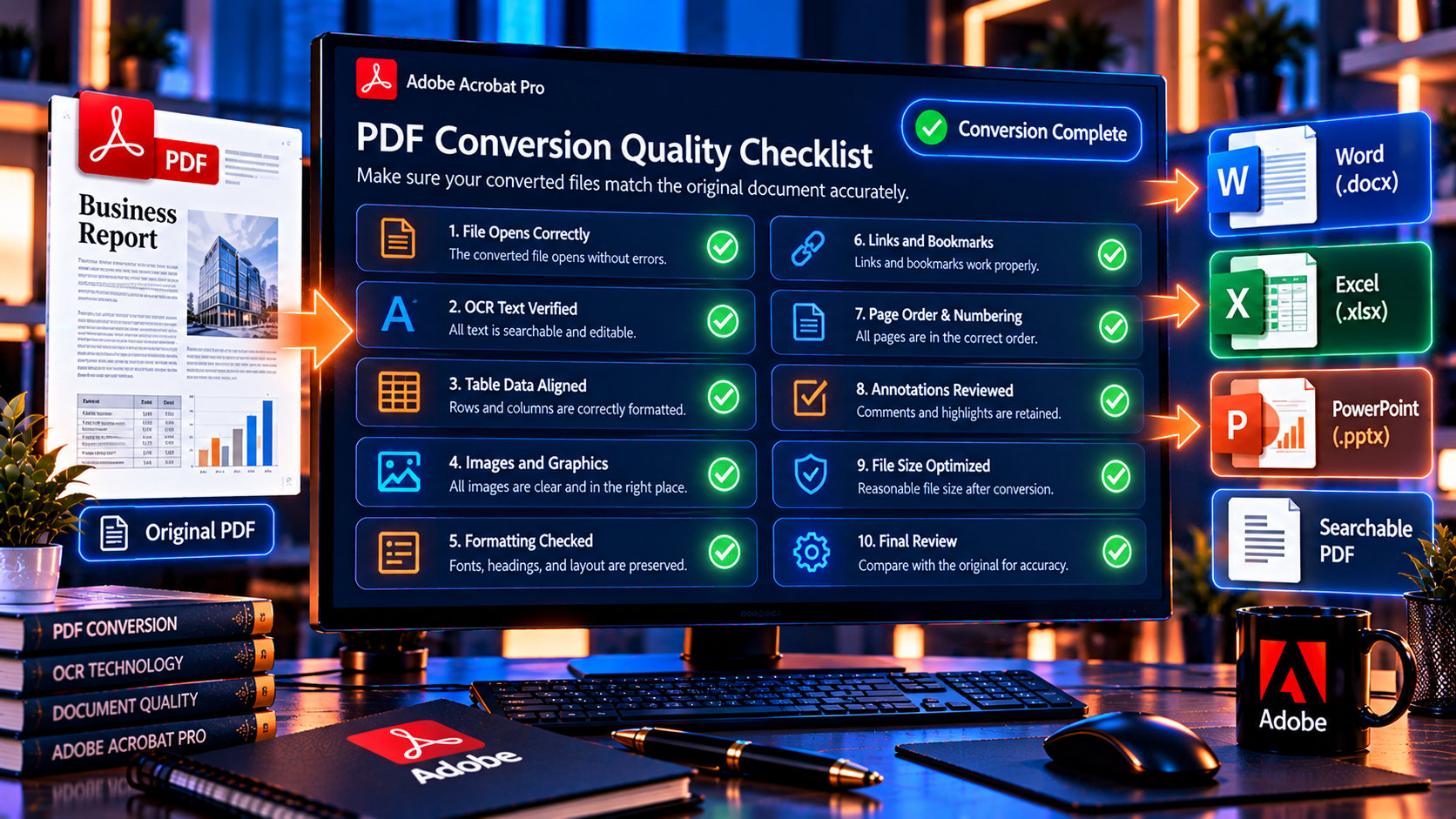
- The source PDF is preserved unchanged.
- The file is authorized for conversion.
- OCR was run when the PDF contained scanned pages.
- The correct destination format was selected.
- The exported file opens in the target application.
- Text, tables, values and page order were checked against the PDF.
- Important totals or legal details were verified independently.
- Sensitive content is stored and shared appropriately.
- The final filename and version are clear.
- The editable output and original PDF are stored according to policy.
Frequently Asked Questions
Can Adobe Acrobat convert PDF to Word?
Yes. Acrobat Pro can export many PDFs to Microsoft Word format, including DOCX. The exported document should be reviewed because complex layouts and scanned pages may not convert perfectly.
Can I convert a PDF to Excel with Acrobat?
Yes. Acrobat can export PDFs to Excel workbooks. Check the cell structure, data types, dates and totals because visual PDF tables do not always map cleanly to spreadsheet cells.
Can Acrobat convert PDF to PowerPoint?
Yes. Acrobat can export a PDF to PPTX. Slides may require manual editing, and animations or other presentation features should not be assumed to transfer from a PDF.
Does a scanned PDF need OCR before conversion?
Usually. OCR creates a text layer from page images so that text can be searched and exported. Recognition accuracy depends on scan quality, language and page complexity.
Will PDF conversion preserve the original formatting?
It may preserve much of the visible layout, but exact formatting is not guaranteed. Tables, columns, fonts, footnotes and complex graphics commonly need review or repair.
Is an online PDF converter safe for confidential files?
That depends on the service and your organization’s security rules. Do not upload confidential or regulated documents to a website unless the service and process have been approved for that data.
Conclusion
Adobe Acrobat can make PDF content easier to reuse by exporting it to Word, Excel or PowerPoint. The most reliable results come from matching the destination format to the source content, running OCR on image-only scans and checking the exported file against the original PDF. Complex formatting and data should always be reviewed before the converted file becomes the new working copy.
For sensitive documents, include privacy and access controls in the workflow. For important tables, validate the values independently. For presentations, expect to adjust slide elements after export. These simple checks turn PDF conversion from a one-click assumption into a dependable document process.
Need Acrobat Pro features for PDF export and document workflows? Review Adobe Acrobat Pro DC 2025 for Windows on KeyUpMart and confirm the current license, compatibility and product terms before purchase.