A complete guide to combining documents, extracting pages, reordering files and building cleaner PDF workflows
Working with multiple PDF files becomes much easier when you can combine, split and organize pages in one place. Adobe Acrobat provides tools for merging reports, separating selected pages, rearranging a document, deleting unwanted content and preparing a final PDF for sharing or archiving.
This guide explains how to merge PDF files in Acrobat, split a large document into smaller files, extract pages for a new document and organize page order without losing the original. It also covers file naming, bookmarks, page rotation, protected PDFs, privacy and quality checks so the final document is useful rather than merely assembled.
What You Can Do with Acrobat PDF Organization Tools
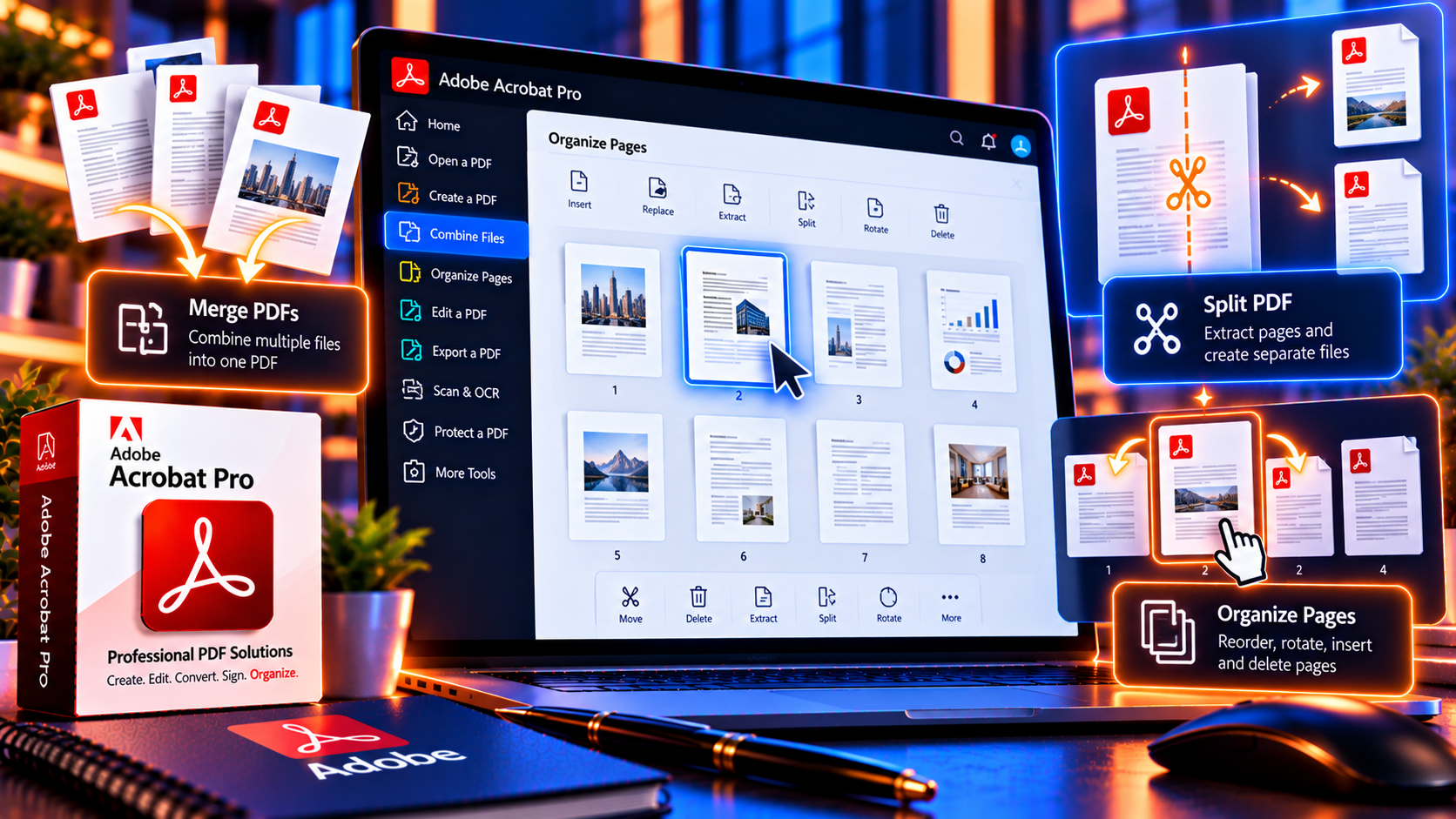
Acrobat’s page-organization workflow treats a PDF as a collection of pages that can be previewed and rearranged. Depending on your Acrobat edition and version, the Organize pages or similar tool can help you:
- Combine several PDFs and other supported files into one document.
- Reorder pages with drag and drop or page controls.
- Rotate pages that were scanned in the wrong orientation.
- Delete blank, duplicate or irrelevant pages.
- Extract selected pages into a new PDF.
- Split a long document into smaller files by page count, file size or bookmarks when supported.
- Insert pages from another document.
- Replace a page with an updated version.
- Create a cleaner file for distribution, printing or storage.
The exact menu labels can change across desktop versions and operating systems. If you do not see Organize pages, open All tools and search for organize, combine or split. Use the desktop application and confirm that your edition includes the required editing feature.
Before You Merge or Split PDF Files
A few minutes of preparation can prevent wrong page order, accidental overwrites and privacy mistakes.
- Create a working folder for the source PDFs and a separate folder for final files.
- Make a backup of the original documents before deleting or replacing pages.
- Use clear filenames that include the project name, document type, date and version.
- Decide the final page order before combining files.
- Check that you have permission to edit, extract or redistribute the documents.
- Remove or protect files that contain confidential information before sharing the final PDF.
- Confirm whether any source PDF is password-protected or restricted.
When source files come from different people, check their page sizes, orientation, scan quality and metadata. A combined file can contain A4, Letter, portrait and landscape pages. That is acceptable in some workflows, but it can create an awkward result when the document will be printed or presented as one consistent report.
How to Merge PDF Files in Adobe Acrobat
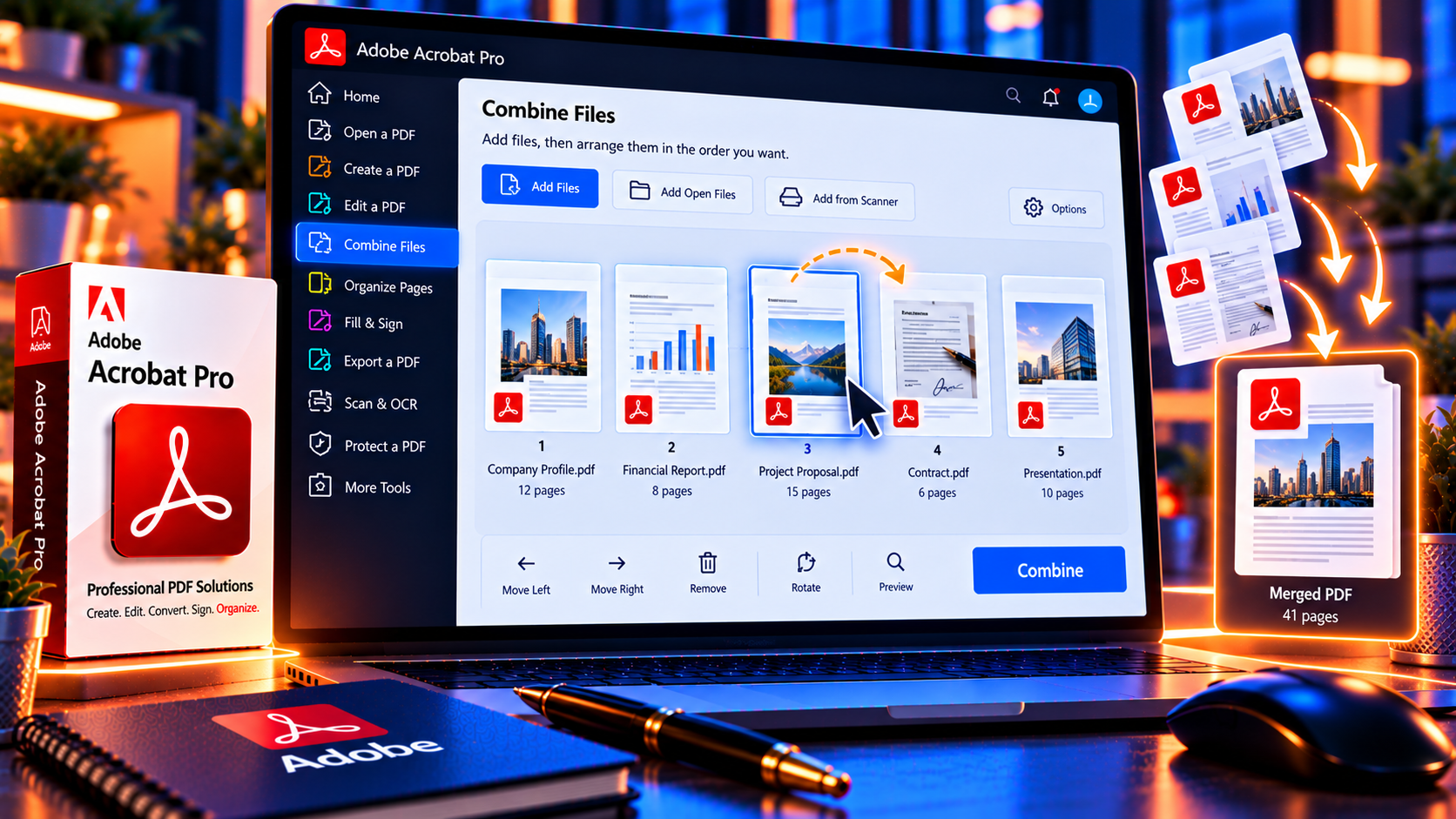
Use the combine workflow when you need one PDF containing several source documents, such as a proposal with appendices, an invoice package, a training manual or a project archive.
- Open Adobe Acrobat and choose the Combine files or Combine files into a single PDF tool.
- Select Add files and choose the PDFs, images or supported documents you want to include.
- Review the thumbnails in the combine window.
- Drag files into the correct order. Use the expand view when you need to inspect individual pages inside a source PDF.
- Remove any file or page that should not be included.
- Choose Combine and wait for Acrobat to create the new PDF.
- Save the result with a new filename, then open it and review the page sequence.
Tips for a clean merged PDF
- Put the cover or title page first.
- Place the table of contents after the cover when the project uses one.
- Keep appendices and supporting evidence at the end unless the reader needs them earlier.
- Use consistent page orientation when possible.
- Check that confidential drafts or duplicate pages were not included.
- Add bookmarks after the final page order is stable.
If the source files have different security settings, Acrobat may ask for passwords or may prevent certain pages from being combined. Do not remove protection without authorization. Ask the document owner for an editable or permitted copy instead.
How to Split a PDF into Smaller Files
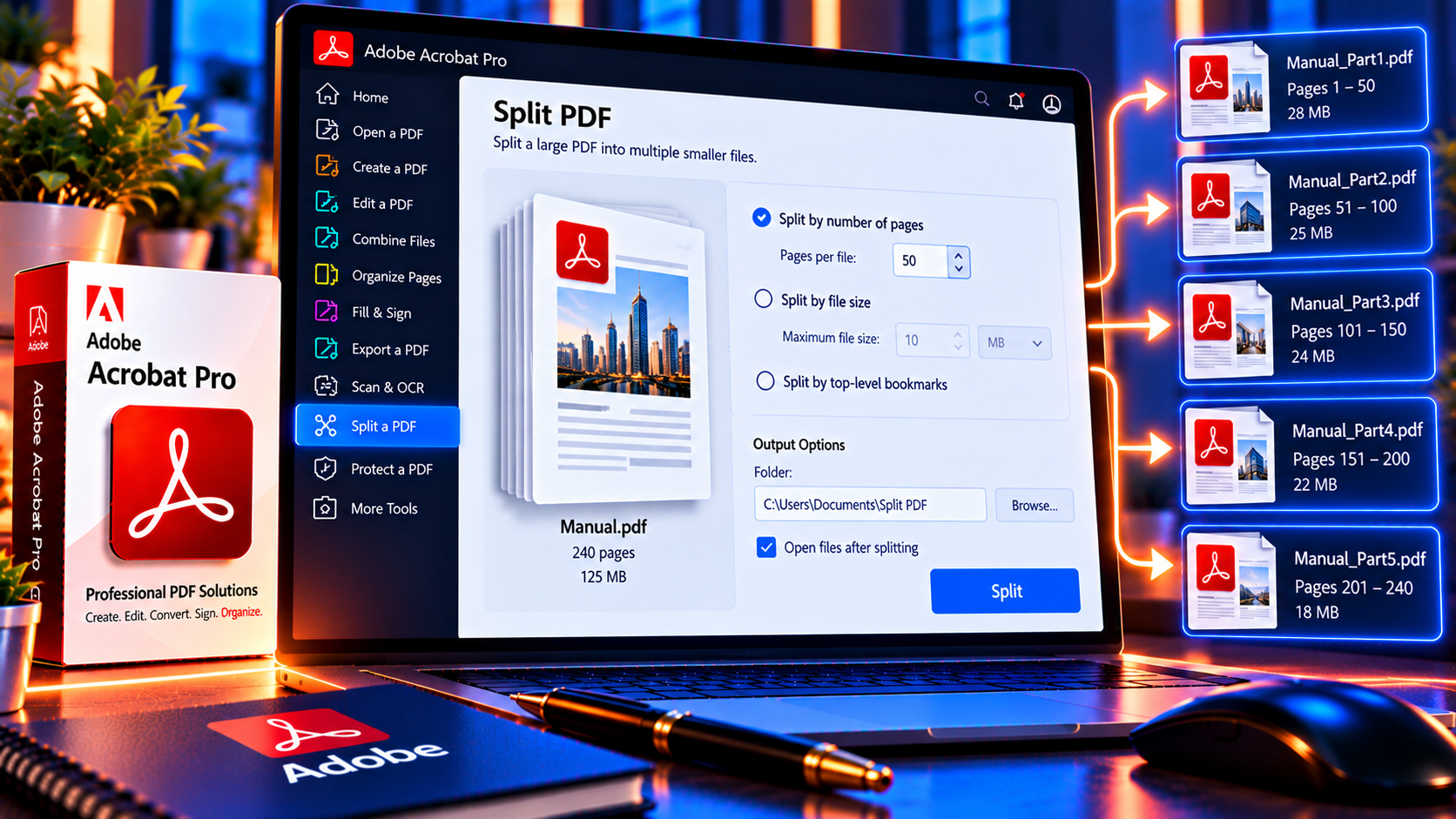
Splitting is useful when a PDF is too large to email, contains separate sections for different recipients or needs to be archived by chapter, invoice or case.
- Open the PDF and choose Organize pages or the Split tool.
- Select Split and choose the rule that matches your purpose.
- Use page count when every output should contain the same number of pages.
- Use file size when the receiving system has a strict upload or attachment limit.
- Use top-level bookmarks when the PDF has a reliable chapter or section structure and Acrobat supports that option.
- Choose an output folder and filename pattern.
- Run the split and open the resulting files to verify their first and last pages.
Splitting by file size can produce uneven page counts because pages vary in image and text complexity. Splitting by page count provides predictable page ranges but may not match logical chapters. Choose the rule that reflects how recipients will use the files.
How to Extract Selected Pages into a New PDF
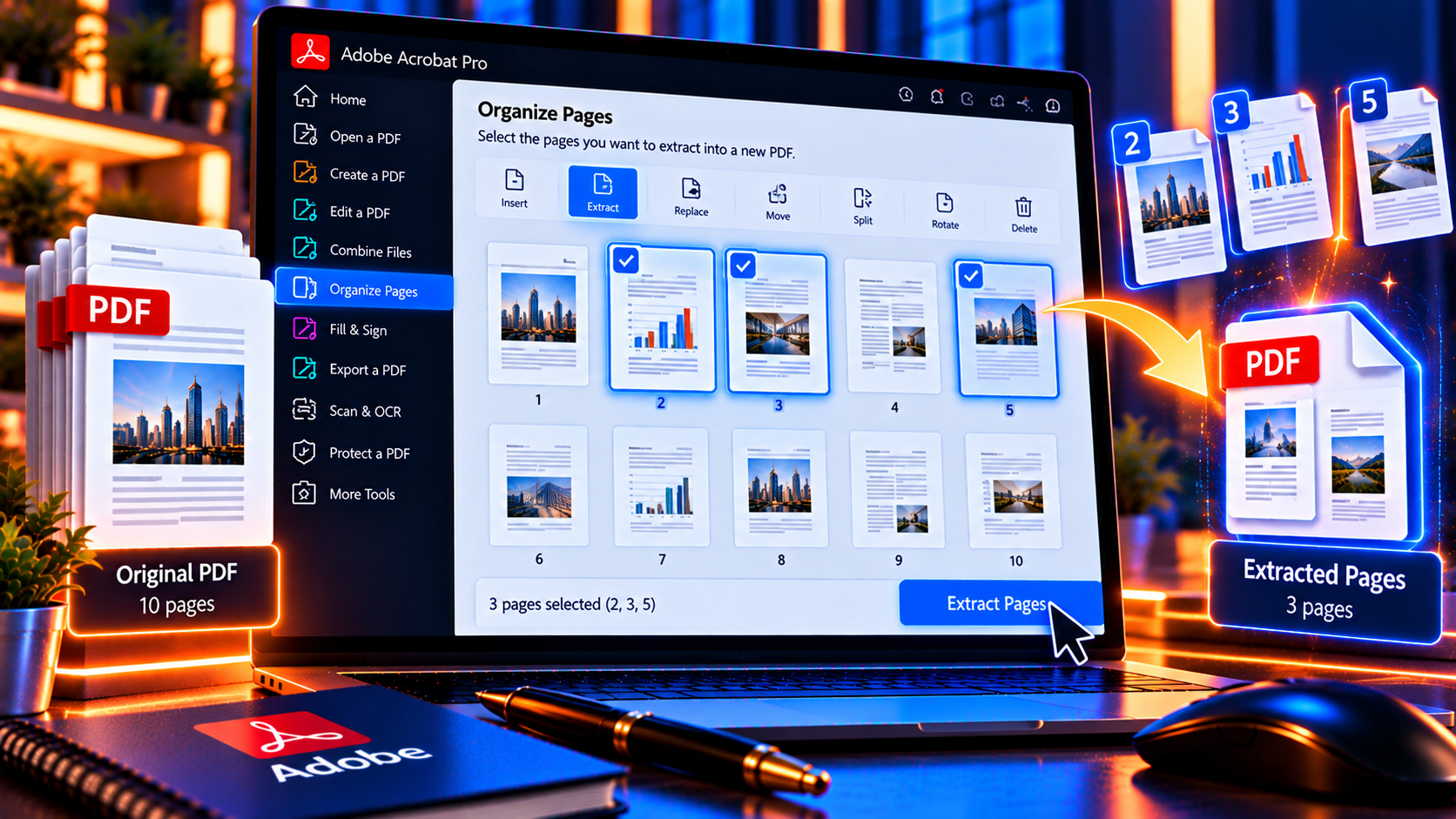
Extracting pages creates a separate PDF from selected pages while leaving the original available. This is useful for sending only a relevant section, preparing an evidence bundle or creating a short client copy.
- Open the PDF in Acrobat and choose Organize pages.
- Select the page thumbnails you want to keep.
- Choose Extract and select the output options available in your version.
- Decide whether the extracted pages should be removed from the original. Leave them in place when you want a copy only.
- Create the new PDF and save it with a clear filename.
- Open the extracted file and confirm that the page order, orientation and content are correct.
Extraction is not the same as redaction. If an unselected page contains sensitive information, verify that it is not included in the output and that no attachment, comment or hidden content should also be removed from the delivery copy.
How to Reorder, Rotate and Delete PDF Pages
Reorder pages
Open Organize pages, select a page thumbnail and drag it to the correct position. For long documents, work in sections and use page numbers or bookmarks to verify the result. After reordering, check that references such as “see page 12” still point to the correct content.
Rotate pages
Select the incorrectly oriented pages and use the rotate controls. Rotate only the pages that need correction, then save a new copy. A page can look correct in one viewer but print incorrectly if the rotation was not saved as part of the document.
Delete pages
Select blank, duplicate or unwanted pages and choose Delete. Make a backup before deleting. If the file is a signed or certified PDF, editing pages may invalidate the signature or certification, so check the document status first.
Insert or replace pages
Use Insert when adding a new page from another PDF or supported file. Use Replace when an old page should be swapped with an updated page. Verify that page numbers, headers, bookmarks and internal links still make sense after the change.
Organize a PDF with Bookmarks and Page Labels
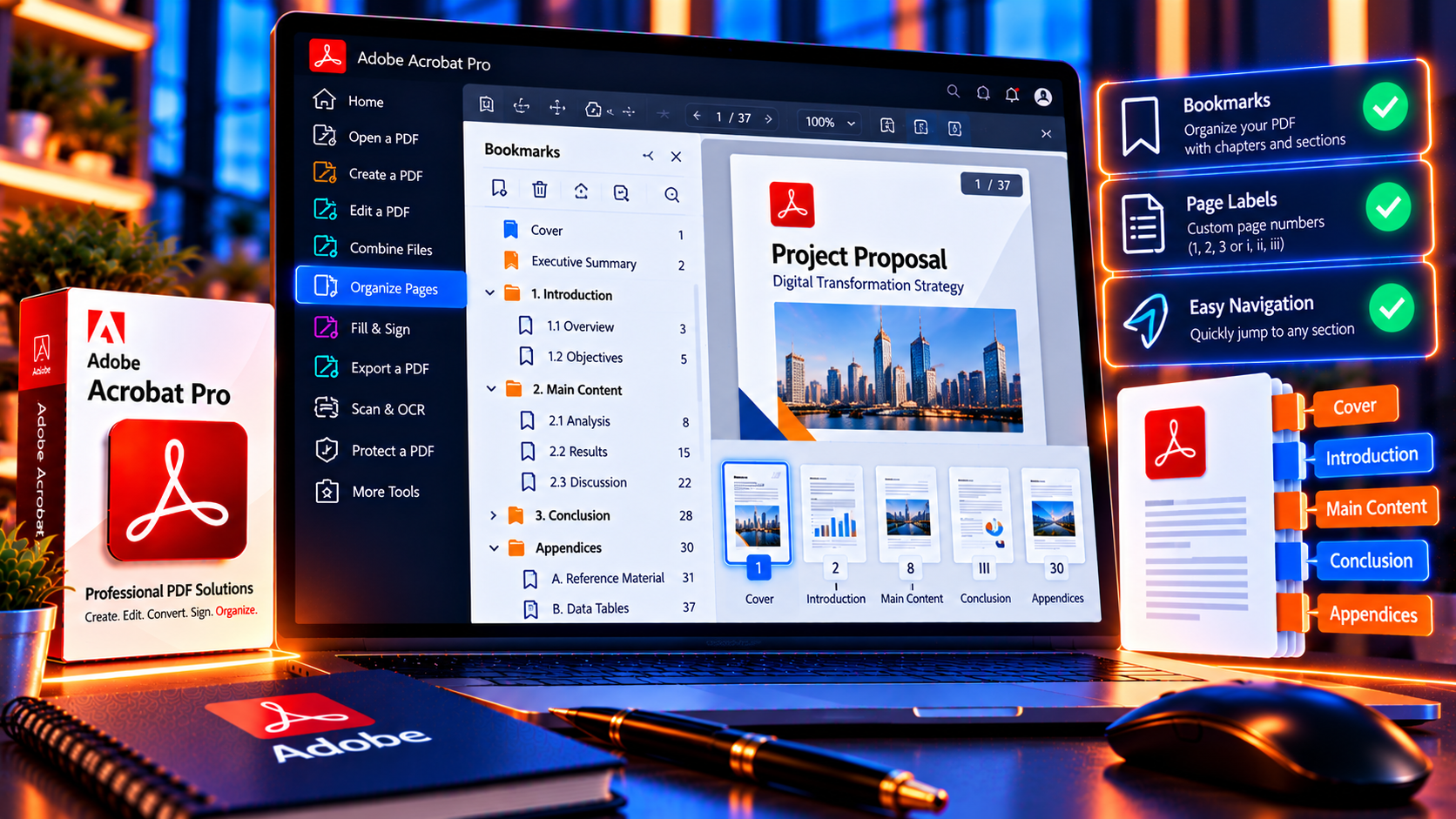
Bookmarks help readers move through long PDFs. Add bookmarks after the page order is final and use concise labels that match the section headings. A report might include bookmarks for Executive Summary, Scope, Findings, Recommendations and Appendices.
Page labels can make navigation clearer when a document includes a cover, an unnumbered contents page or sections with Roman numerals. Use labels consistently and check that the visible page number and PDF navigation number do not confuse the reader.
- Use a predictable hierarchy for chapters and subsections.
- Make bookmark labels short enough to scan in the navigation panel.
- Check that bookmarks point to the correct page after moving content.
- Remove obsolete bookmarks after deleting or replacing pages.
- Test the navigation in the saved final PDF rather than only in the working file.
Combine PDFs with Different Page Sizes and Orientations
Acrobat can combine pages with different dimensions, but the final document may look inconsistent. Before printing, review margins, crop boxes, page orientation and scaling. A landscape spreadsheet inside a portrait report may need a deliberate divider or a note explaining the change.
When mixed pages are acceptable
Mixed page sizes can be appropriate for technical drawings, legal exhibits, scanned receipts or appendices. Keep the original proportions when the content would become unreadable if scaled down.
When to normalize the document
Normalize page sizes when the PDF is a client-facing report, a print job or a document that should feel like one continuous publication. You may need to resize pages, adjust margins or rebuild the source file rather than forcing every page into the same frame.
How to Organize Large PDF Projects Efficiently
For repeated work, define a simple process instead of assembling every PDF from memory.
- Create a source manifest listing each input filename and its intended position.
- Use a consistent filename format for drafts and final exports.
- Keep source, working and delivery folders separate.
- Combine a small sample first when the project includes many files.
- Review the first and last page of every split output.
- Record any pages that were removed, replaced or extracted.
- Apply security settings only after page order and content are final.
- Archive the source files and the final PDF according to your retention policy.
A manifest is especially useful for invoice packages, legal bundles, audit evidence and training materials. It provides a simple audit trail and helps another person understand how the final PDF was assembled.
Privacy and Protected PDFs
PDF organization can expose information if you combine the wrong file or extract pages without checking the result. Review every output as if it were going to the final recipient.
- Do not merge confidential files merely because they are in the same working folder.
- Verify that extracted files contain only the intended pages.
- Check attachments, comments and hidden content before delivery.
- Respect passwords, editing restrictions and digital signatures.
- Avoid uploading sensitive documents to unknown online PDF tools.
- Use redaction for permanent removal of information that should not remain in the file.
- Apply password protection after the document is finalized and test the protected copy.
Deleting a page from a new delivery copy does not necessarily remove every trace from older versions, backups or email attachments. Manage the complete document lifecycle when confidentiality matters.
Common Problems When Merging or Splitting PDFs
The Combine tool will not accept a file
The source may be damaged, protected or in a format not supported by your Acrobat edition. Open the file separately, confirm it is valid and ask for permission if it is secured. Converting a file through an unapproved tool can create a privacy or quality problem.
The page order is wrong
Review thumbnails before combining and after the final PDF is saved. Use a filename manifest and make sure the sorting order of files is not being controlled by alphabetical names such as 1, 10, 2. Use leading zeros when numbering files.
Bookmarks or links no longer work
Moving or replacing pages can change destinations. Rebuild or update bookmarks and test internal links after the final organization step.
The PDF is too large after merging
Images and scans often drive file size. Review the source quality, optimize a copy where appropriate and avoid repeated lossy compression. If the recipient has a strict upload limit, split the file or use an approved file-sharing system.
A signed PDF cannot be edited
Digital signatures and certifications may become invalid if pages are changed. Keep the signed original unchanged and create a separate working copy only when permitted by the signing process.
Final PDF Organization Checklist
- The correct source files were selected.
- The page order matches the intended reading order.
- Unwanted and duplicate pages were removed from the delivery copy.
- Pages are rotated correctly and remain readable.
- Page sizes and orientations are acceptable for the intended use.
- Bookmarks and page labels point to the right places.
- Links, forms, attachments and comments were checked.
- The file opens correctly in a compatible PDF viewer.
- The file size meets the delivery requirement.
- Security, redaction and signature requirements were applied after editing.
- The original sources and final output were saved separately.
Frequently Asked Questions
Can Adobe Acrobat merge PDF files?
Yes. Acrobat provides a combine workflow for joining multiple PDFs and supported files into one document. Review the page order and final output before sharing.
How do I split a PDF into separate files?
Open the Split tool from Acrobat’s page organization tools, select a rule such as page count, file size or bookmarks when available, choose an output folder and review the resulting files.
Can I extract only a few pages from a PDF?
Yes. Select the pages in Organize pages, choose Extract and save the new PDF. Confirm whether the extracted pages should remain in the original document.
Can I delete or reorder pages in Acrobat?
Yes. Use Organize pages to move, rotate, delete, insert or replace pages, provided the document’s security and signature status allow the change.
Will merging PDFs reduce quality?
Combining files does not necessarily reduce quality, but optimization or repeated compression can affect images. Review the final file, especially if it includes scans or print artwork.
Can I merge password-protected PDFs?
You may need the required password or permission to combine a protected PDF. Do not bypass security restrictions. Ask the document owner for an authorized copy.
Conclusion
Adobe Acrobat makes everyday PDF organization practical: merge several documents into one file, split a long PDF into smaller outputs, extract selected pages and keep the final page order under control. The quality of the result depends on preparation and review as much as the button you choose.
Protect the original files, use a clear naming system, verify every output and apply security or redaction only after the content is final. With that process, Acrobat becomes useful for reports, contracts, invoice packages, case files, training manuals and other document workflows that need a reliable final PDF.
Need Acrobat Pro tools for organizing PDF files? Review Adobe Acrobat Pro DC 2025 for Windows on KeyUpMart and confirm the current license, compatibility and product terms before purchase.