





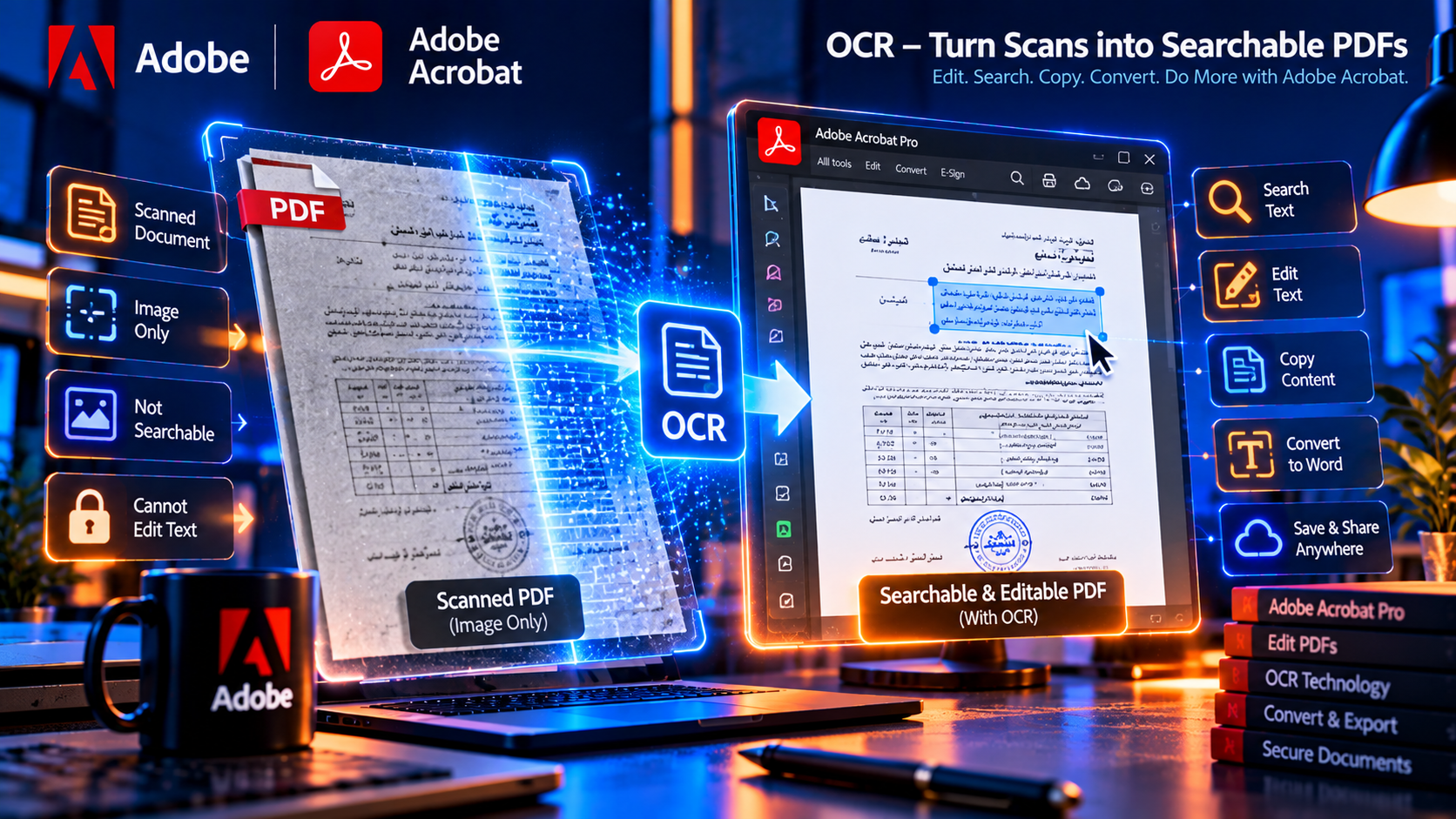
A practical guide to recognizing text, improving scan accuracy and creating usable PDF and Word documents
A scanned PDF can look like a normal document while behaving like a collection of images. You may not be able to select a sentence, search for a name or copy a table into another application. Adobe Acrobat OCR, or optical character recognition, can analyze those page images and create a text layer that makes the document searchable and more useful.
This guide explains how to use Adobe Acrobat OCR on scanned PDFs, how to choose the correct document language, how to improve recognition accuracy and how to convert recognized text into an editable Word file. It also covers tables, Arabic and multilingual documents, quality control, privacy and the limits of OCR.
What Is OCR in Adobe Acrobat
OCR stands for optical character recognition. It is a process that identifies shapes in an image and interprets them as letters, numbers, punctuation and words. Acrobat can place the recognized text in a searchable layer over the original page image, or use the recognition result when you export the PDF to an editable format.
OCR does not recreate the original source file perfectly. It makes an informed interpretation based on the scan quality, page layout, language, font and contrast. Clean typed pages usually produce better results than handwriting, stamps, faded carbon copies or pages photographed at an angle.
A searchable PDF and an editable document are related but different outcomes. A searchable PDF may preserve the original page appearance while adding invisible text for search and copy. An editable Word document attempts to rebuild paragraphs, tables and layout, which can require more manual correction.
When You Need Adobe Acrobat OCR
- The text cannot be selected with the cursor.
- Find or search returns no results for visible words.
- Copy and paste produces an image or nothing at all.
- You need to search a scanned archive by name, date or reference number.
- You need to convert a scan into an editable Word document.
- You need accessibility support for a document that currently contains only images.
- You need to extract data from a printed form or report.
If text can already be selected and searched, OCR may not be necessary. Running recognition over an already text-based PDF can introduce unnecessary changes or duplicate layers. Test the document first by selecting a sentence and searching for a distinctive word.
Prepare a Scanned PDF Before OCR
The quality of the input image strongly affects recognition. Before opening Acrobat, improve the scan when possible:
- Scan at a resolution that makes small text readable.
- Keep pages straight and avoid perspective distortion.
- Use even lighting for photographed pages.
- Remove shadows, fingers, clips and background surfaces.
- Use grayscale for ordinary text when color is not meaningful.
- Keep stamps, signatures and colored marks when they carry information.
- Crop unnecessary borders without cutting into the page.
- Separate mixed documents into logical files when practical.
A larger file is not automatically a better OCR source. A sharp, evenly lit grayscale page can be more accurate than a large but blurry color image. Preserve the original scan before cleaning or optimizing it.
How to Run OCR on a Scanned PDF in Acrobat
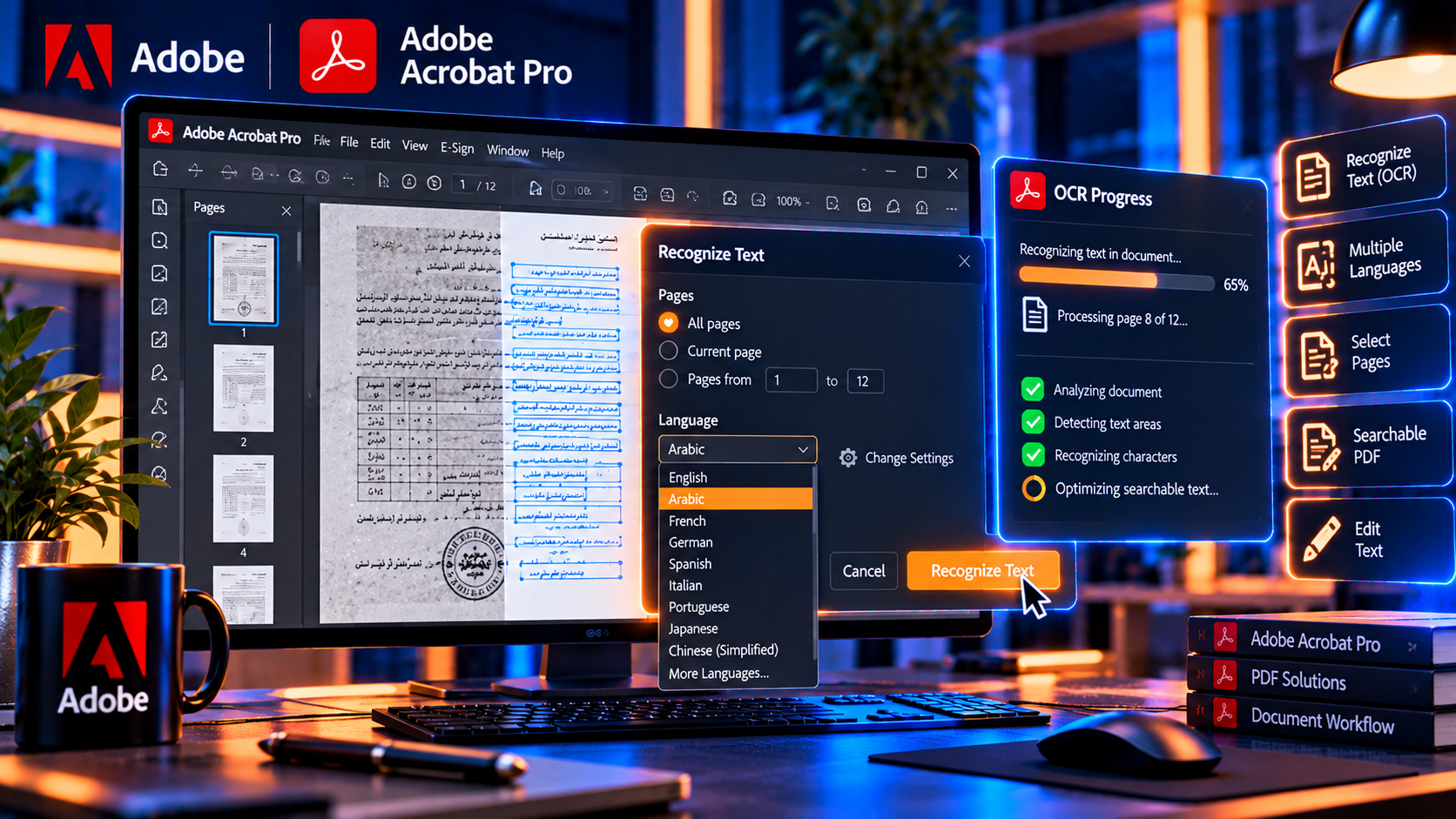
Acrobat versions may place OCR under Scan & OCR, Recognize Text or a related tool. The wording can change, but the workflow remains similar.
- Open the scanned PDF in Adobe Acrobat Pro.
- Open All tools and choose Scan & OCR or Recognize Text.
- Select the option to recognize text in the current file.
- Choose the pages to process: the entire document or a selected page range.
- Select the primary document language when Acrobat provides that option.
- Choose an output style if available, such as searchable image or editable text and images.
- Run recognition and wait for Acrobat to process the pages.
- Save a new copy of the recognized PDF instead of overwriting the original scan.
After processing, click and select text on several pages. Search for a word that appears in the document, then copy a short sentence and compare it with the page image. This quick check reveals whether OCR worked before you build a larger workflow around the file.
Searchable Image vs Editable Text and Images
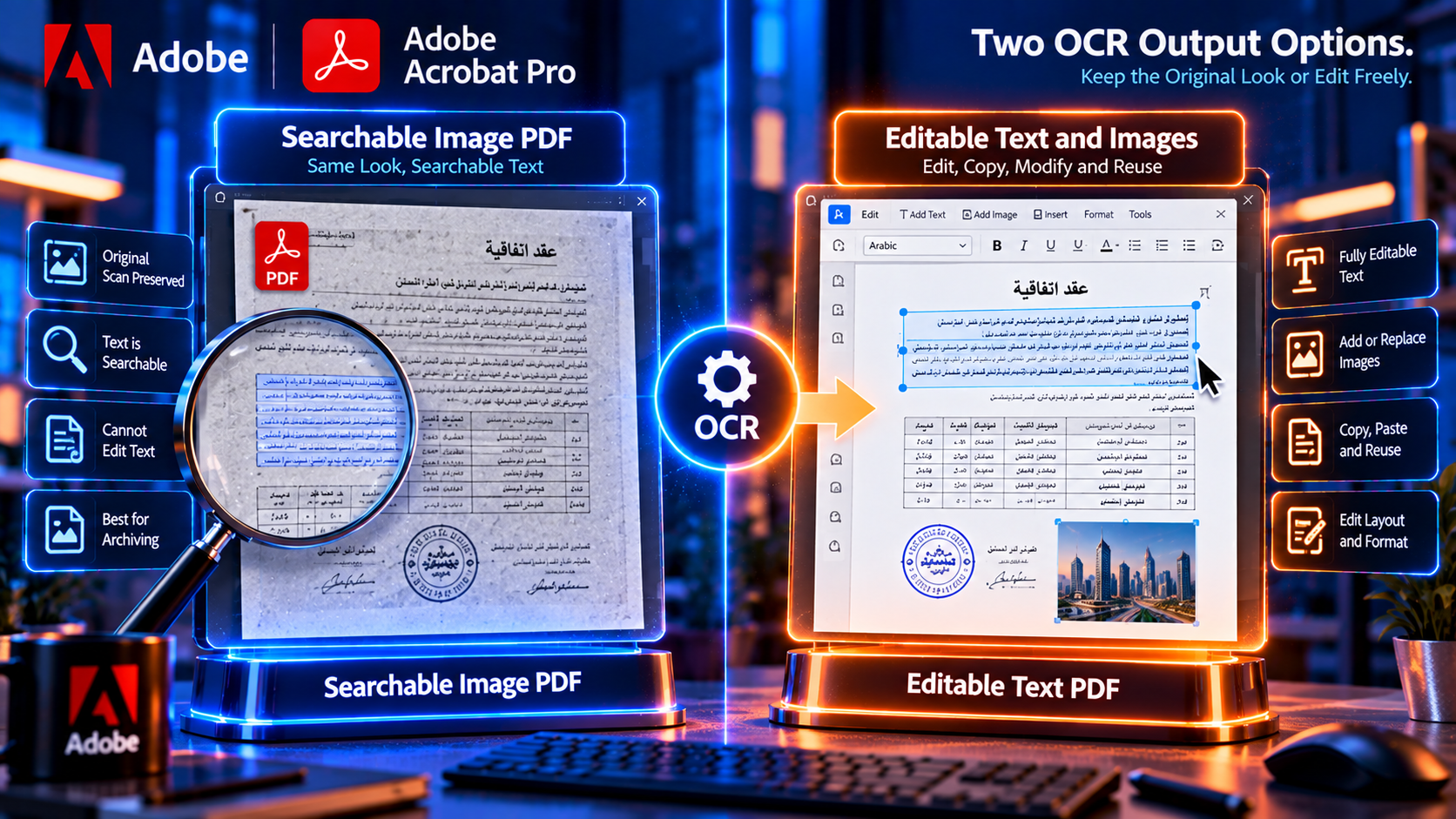
Searchable image
A searchable-image PDF keeps the scanned page visible as an image and adds a hidden recognized-text layer. It is useful for archives because the document still looks like the original while becoming searchable and selectable.
Editable text and images
An editable output attempts to create text objects and image objects that can be changed. This can be useful when you need to correct a paragraph, reuse content or export to Word, but the layout may require more cleanup than the searchable-image option.
Choose the output that matches the next task. For preservation and search, keep a searchable copy. For editing, create a separate working copy and review it carefully. Do not discard the original image-based file.
How to Choose the OCR Language
Recognition accuracy improves when the selected language matches the document. A language setting helps Acrobat interpret common letter shapes, spelling patterns and word boundaries.
- Choose the dominant language when a document is mostly one language.
- Use a suitable multilingual setting when the page mixes languages.
- For Arabic, preserve the correct reading direction and inspect connected letters carefully.
- For documents with English names inside Arabic text, check both language areas.
- Review numbers, dates and currency symbols because OCR can confuse similar characters.
- If a language is not available or the text is highly specialized, expect more manual correction.
Multilingual pages can be difficult because language direction, fonts and punctuation interact. Run a small test on representative pages before processing a long archive. If the document contains Arabic, English and numbers, review the reading order rather than checking only individual words.
Convert an OCR PDF into an Editable Word Document
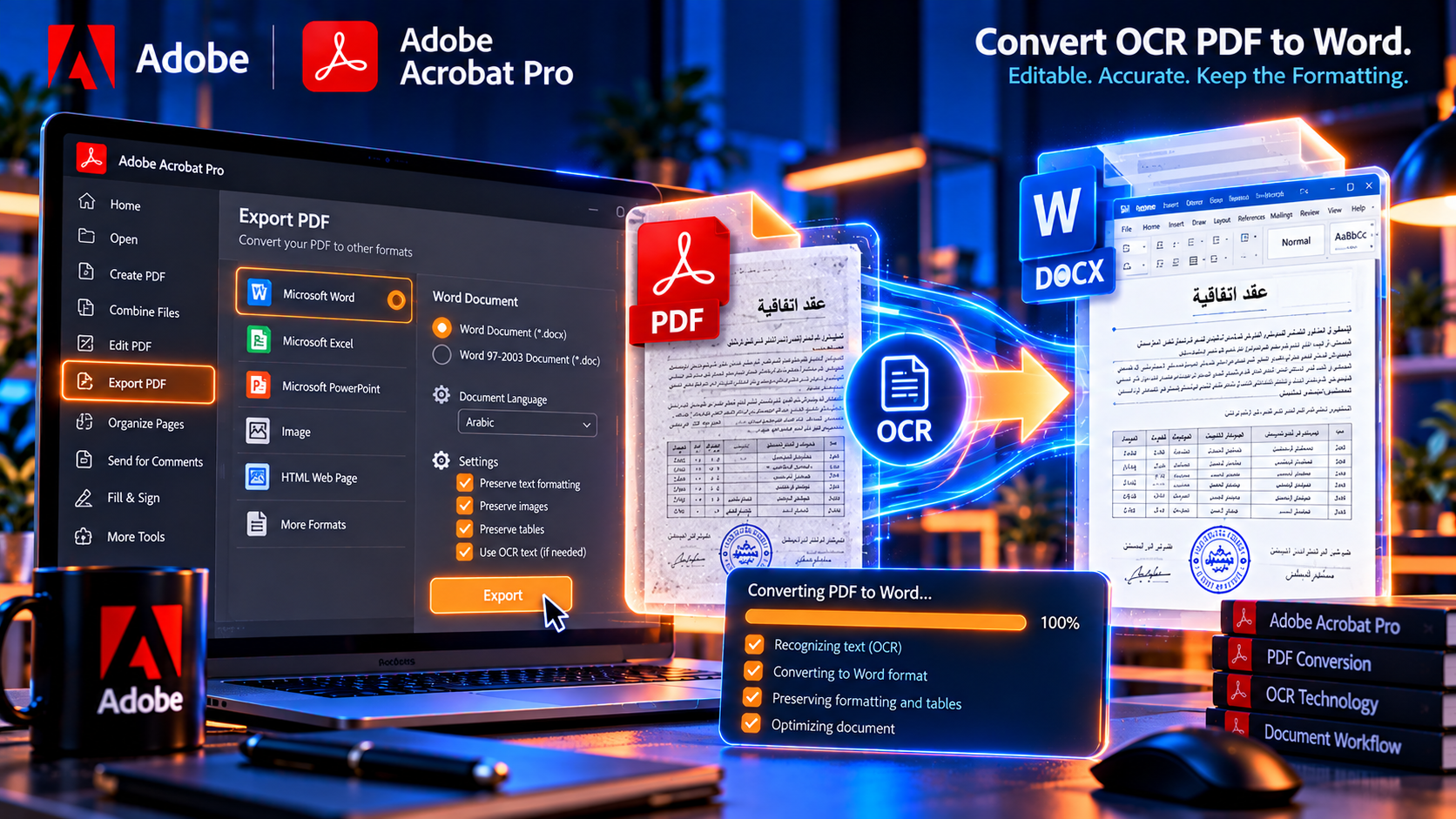
Once the PDF has a reliable text layer, you can export it to Microsoft Word through Acrobat’s export tools.
- Open the OCR-processed PDF in Acrobat.
- Choose Export a PDF and select Microsoft Word or Word Document (.docx).
- Select the pages or document options available in your version.
- Export the file to a new destination.
- Open the DOCX in Microsoft Word and compare it with the original PDF.
- Correct paragraphs, headings, tables, page breaks, images and reading order before using the document.
OCR and Word export are two separate interpretation steps. A searchable PDF may be accurate enough for search but still export with unusual paragraph breaks. For a legal, financial or technical document, verify names, figures, dates and clauses manually.
OCR for Tables, Forms and Columns
Tables
Tables are difficult because OCR must identify both the text and the relationship between rows and columns. Lines, merged cells, footnotes and repeated headers can confuse the table structure. If you export the result to Excel, compare key cells and totals against the scan.
Forms
OCR can recognize printed labels, but it may not understand every blank field, checkbox or handwritten entry. Use Acrobat’s form tools to create fields when the document will be completed repeatedly.
Columns and magazines
A multi-column page may be recognized in the wrong reading order. Review the text by selecting a paragraph and copying it into a temporary document. If the sequence is wrong, expect to repair the output manually or use the original source file.
- Check row and column alignment in converted spreadsheets.
- Verify totals independently.
- Inspect checkboxes and form fields individually.
- Confirm that columns are read from top to bottom in the intended order.
- Review footnotes, captions, headers and page numbers.
How to Improve OCR Accuracy
- Use a clean scan with strong contrast.
- Straighten or rescan pages that are heavily skewed.
- Choose the correct language.
- Avoid processing a screenshot of a low-quality scan when the original scan is available.
- Use page ranges so you can test different settings on difficult sections.
- Review the recognized text at 100 percent zoom.
- Correct recurring errors with a controlled proofreading pass.
- Compare important data with the source image rather than trusting OCR alone.
OCR accuracy is not uniform across a document. A clear typed page may be nearly perfect while a faded page with a stamp can contain many errors. Use a risk-based review: check every character in amounts, account numbers, names, addresses, dates and legal language.
OCR and Searchable PDF Accessibility
Adding a text layer is an important step toward making a scanned PDF more usable, but OCR alone does not guarantee full accessibility. A document may also need a logical reading order, tags, meaningful headings, alternative text for images, sufficient contrast and form labels.
- Check whether the recognized text can be selected and read in the intended order.
- Add or repair tags when the document requires structured accessibility.
- Use descriptive field names and labels for fillable forms.
- Review the reading order on multi-column pages.
- Do not assume that a visual scan is accessible because OCR is present.
- Test with the assistive technology or accessibility checker required by your organization.
OCR Privacy and Confidential Documents
Scanned documents may contain identity records, contracts, medical information, financial data or employee files. Before using OCR, confirm where the file is processed and whether your organization permits cloud processing.
- Use an approved Acrobat installation and account.
- Keep the original scan in a restricted location.
- Avoid unknown online OCR sites for confidential files.
- Do not email an unprotected copy by mistake.
- Password-protect or securely transfer the final document when required.
- Redact information that should not remain in the delivery copy.
- Store the OCR output and review record according to retention policy.
OCR can make sensitive information easier to search and copy. That is useful for authorized users, but it also increases the impact of accidental sharing. Treat a searchable output as sensitive even when the original was only an image.
Common Adobe Acrobat OCR Problems
OCR produces random characters
The scan may be blurry, low contrast, skewed or written in an unsupported font or language. Improve the source, choose the correct language and rerun OCR on a copy.
Arabic or multilingual text reads incorrectly
Check language selection and reading direction, then inspect connected letters, punctuation and mixed English or numeric content. A page with multiple scripts may need manual correction after OCR.
The PDF is searchable but Word export is messy
Searchable text does not guarantee a clean paragraph structure. Use the recognized PDF for search and create a separate Word cleanup workflow. Repair headings, line breaks, columns and tables before publication.
Tables do not convert correctly
OCR may recognize values without understanding the table grid. Export a sample to Excel, compare cells with the original and rebuild the table manually if accuracy matters.
Handwriting is not recognized
Standard OCR is designed primarily for machine-printed text. Handwriting, signatures and annotations may not convert reliably. Keep the page image and transcribe important content manually.
A Practical OCR Quality-Control Workflow
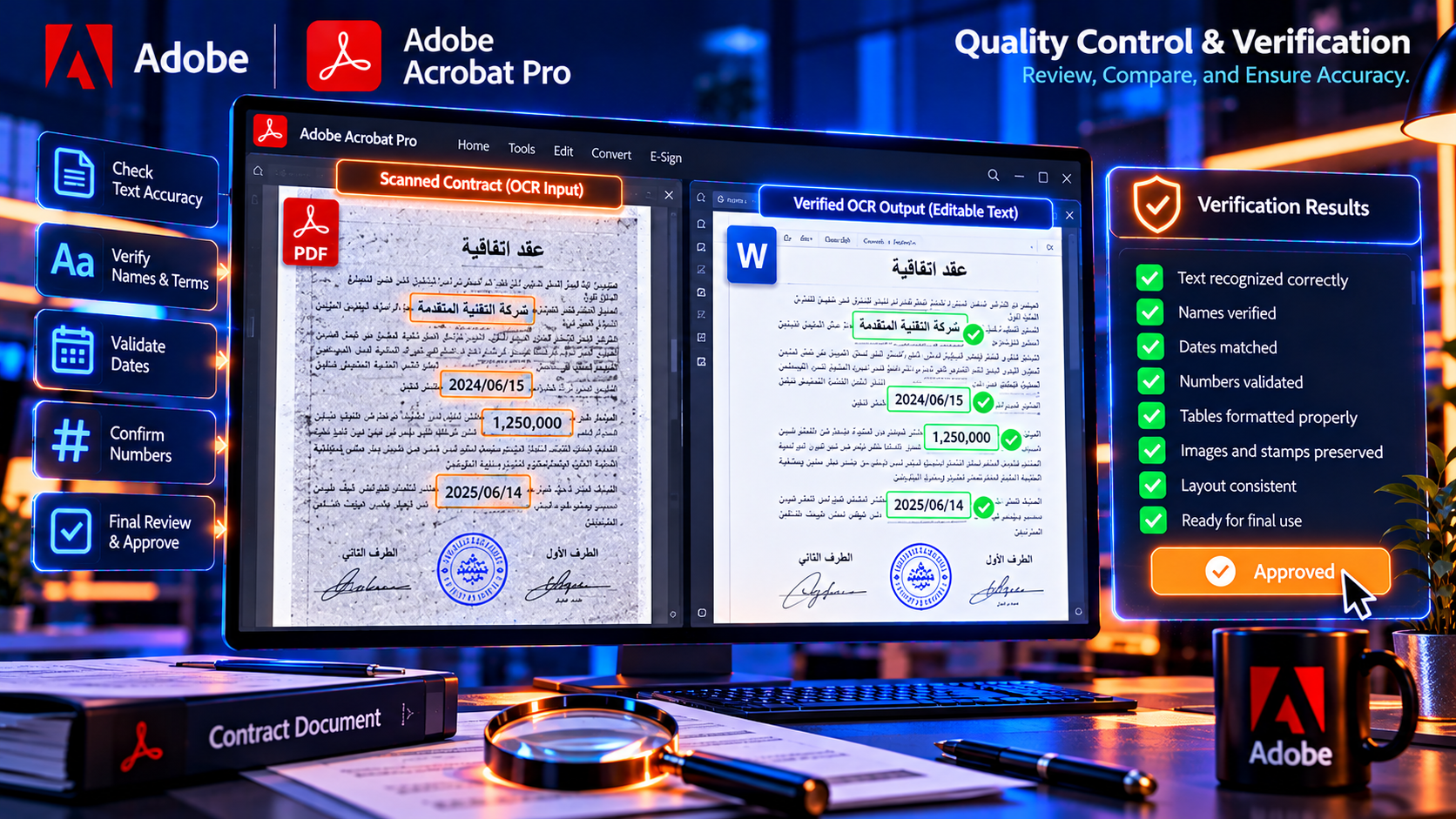
- Preserve the original scanned PDF.
- Test OCR on two or three representative pages.
- Choose language and output settings.
- Process the full document on a working copy.
- Search for expected names, dates and reference numbers.
- Compare important values with the page images.
- Export to Word or Excel only after the text layer is reliable.
- Have a second person review high-risk content.
- Save the approved output with a version and review date.
This workflow is faster than correcting an entire converted document without knowing whether the recognition settings were appropriate. It also creates a clear distinction between the scan, the OCR output and the edited deliverable.
Frequently Asked Questions
What is Adobe Acrobat OCR?
Adobe Acrobat OCR uses optical character recognition to identify printed text in scanned PDF images and add a searchable text layer or create editable text for export.
How do I make a scanned PDF searchable?
Open the scan in Acrobat, choose Scan & OCR or Recognize Text, select the pages and document language, run recognition and save a new copy. Test search and text selection afterward.
Can OCR convert a scanned PDF to Word?
Yes. Run OCR first, then export the recognized PDF to Word. Review the DOCX because page layouts, tables and columns may need manual correction.
Does OCR recognize Arabic text?
It can recognize supported Arabic text, but accuracy depends on language settings, scan quality, font, reading direction and mixed-language content. Review Arabic output carefully.
Can OCR read handwriting?
Standard OCR is mainly intended for printed text. Handwriting and signatures may be inaccurate and should be transcribed or verified manually.
Is OCR safe for confidential documents?
Use an approved local or cloud workflow that meets your organization’s privacy rules. Do not upload confidential scans to unknown OCR websites.
Conclusion
Adobe Acrobat OCR can turn a scanned PDF from a static image collection into a searchable, reusable document. Start with a clean scan, select the right language, run recognition on a copy and verify important text against the original page images. Export to Word or Excel only after the recognized text and reading order are reliable.
OCR is a productivity tool, not a substitute for proofreading. Names, dates, numbers, legal wording, Arabic text, tables and handwritten marks deserve a careful review. With a controlled workflow, Acrobat OCR can support document archives, forms, contracts, invoices, reports and many other PDF-based processes.
Need Acrobat Pro OCR and PDF editing tools? Review Adobe Acrobat Pro DC 2025 for Windows on KeyUpMart and confirm the current license and compatibility details before purchase.
Related posts:


