A practical guide to open passwords, permission controls, encryption and safer PDF sharing
PDF files are easy to email and preserve, but they can also contain information that should not be visible to everyone who receives them. Adobe Acrobat can add password-based security to a PDF so that recipients need a password to open it, or so that certain actions such as editing and printing are restricted. Choosing the right setting matters: password protection, permissions and secure file sharing solve different problems.
This guide explains how to password protect a PDF in Acrobat Pro, what the document-open password and permissions password do, how to restrict editing or printing, how to remove a password when you are authorized, and how to avoid common security mistakes. Interface names can vary by Acrobat version, so use the current Protect a PDF or password-security tool if the exact menu differs.
What PDF Password Protection Does
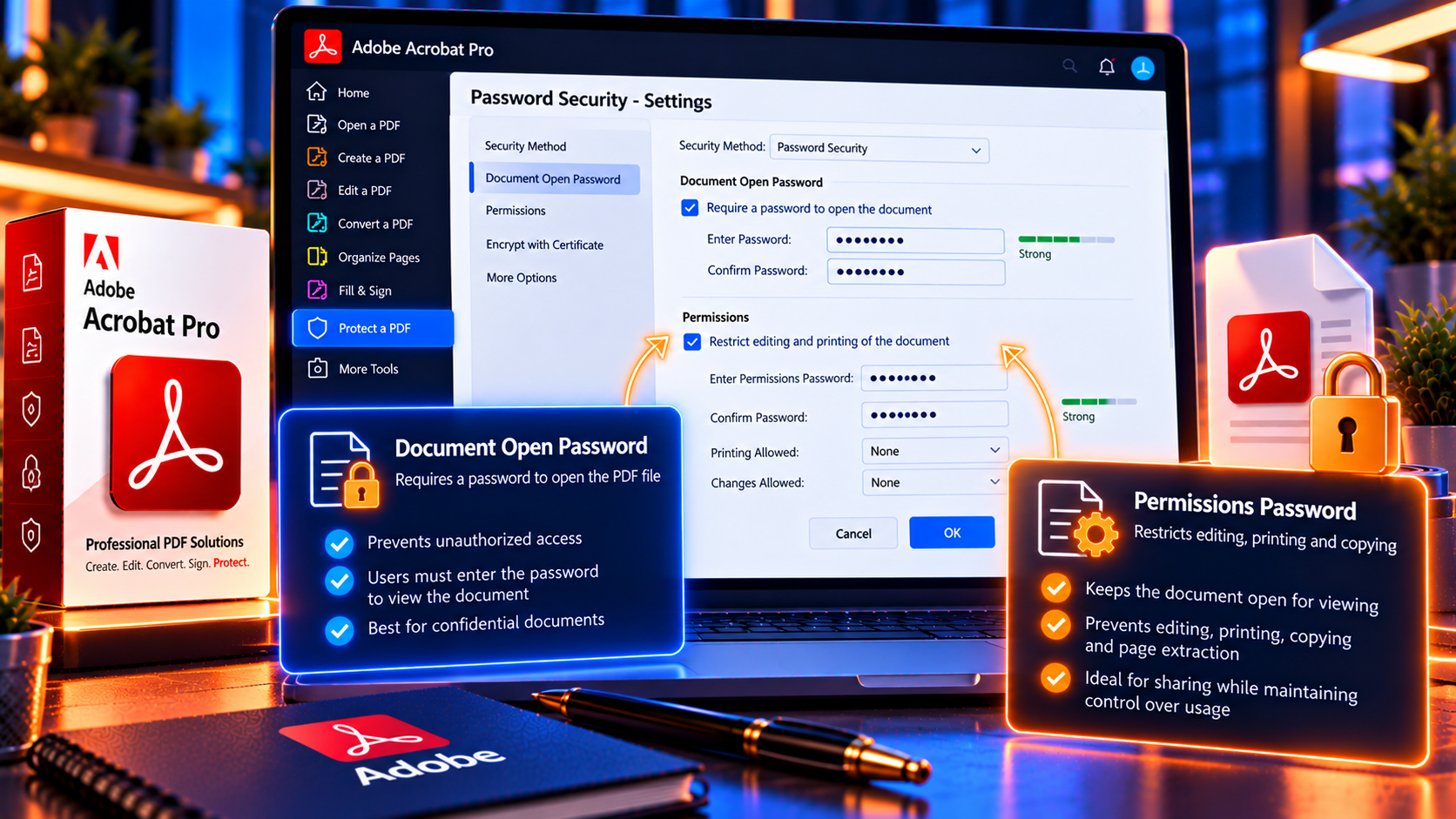
Password security in Acrobat can encrypt a PDF and control access to it. A document-open password requires a recipient to enter a password before viewing the file. A permissions password, sometimes described as an owner password, controls selected actions such as printing, editing or copying content in compatible PDF software.
These controls are not interchangeable. If the goal is to keep the document confidential, use an open password and share the password through a separate channel. If the goal is to let recipients read the file while discouraging edits, apply appropriate permissions. For sensitive or regulated information, combine PDF security with access-controlled delivery, identity verification and your organization’s retention policies.
Restrictions can guide compliant PDF viewers, but they should not be treated as a complete digital-rights-management system. They cannot prevent every possible capture, such as a recipient photographing the screen, and not every third-party application enforces permissions in the same way. Consider the sensitivity of the content before sharing it.
Document-Open Password vs Permissions Password
Document-open password
A document-open password, also called a user password in some PDF workflows, is entered when someone opens the file. Without it, the viewer cannot normally access the PDF contents. This is the relevant option when you need to limit who can read the document.
Permissions password
A permissions password, sometimes called an owner password, lets a person who knows it change the document’s security settings. The security settings can also specify whether printing, editing, copying text or changing pages is allowed. Recipients may be able to open and read the file without knowing the permissions password, depending on the configuration.
An owner password does not hide a document from someone who can open it. Conversely, an open password does not automatically define all of the permissions you may want. Choose the security type based on the actual risk and share only the credentials the recipient needs.
How to Add a Password to a PDF in Adobe Acrobat
The labels and placement of Acrobat tools may change between desktop releases. In current desktop versions, start from Protect a PDF or the password-security option in the protection tools.
- Open the PDF in Adobe Acrobat Pro.
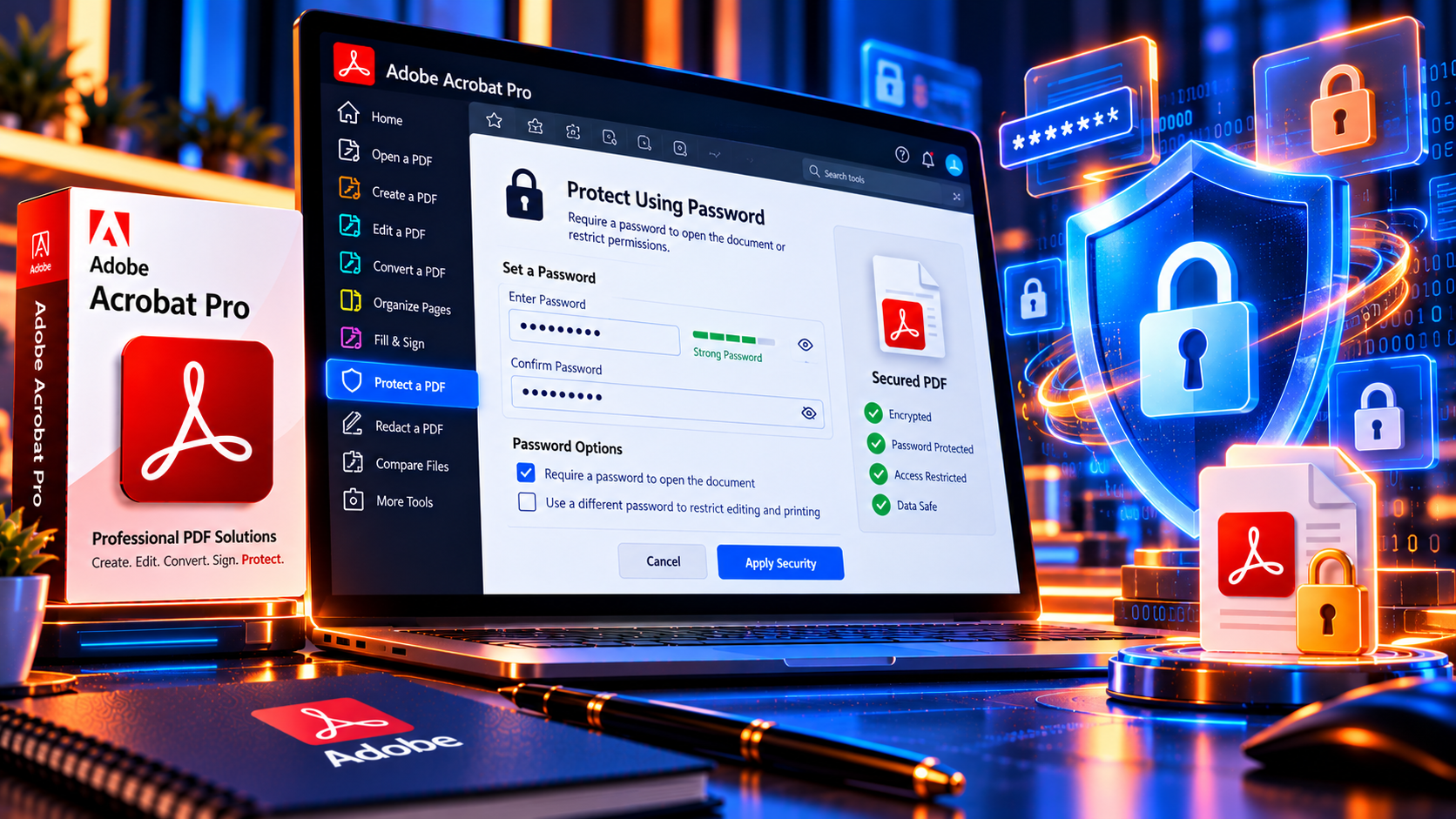
- Choose All tools or the tools panel, then select Protect a PDF. If the interface offers a password-security command directly, open it.
- Choose the option to protect the document with a password.
- Select whether the password is required to open the document or to restrict editing and printing.
- Enter a strong password and confirm it. If setting permissions, select only the restrictions you need.
- Apply the security settings and save the PDF. Use Save As to create a protected copy while preserving your original.
- Close the file and reopen the saved copy to test the password and confirm the allowed actions.
Adobe’s interface can offer different workflows depending on the file, application version and plan. If the exact command differs, consult Adobe’s current instructions rather than relying on a menu path from an older release.
How to Set Permissions for Editing, Printing and Copying
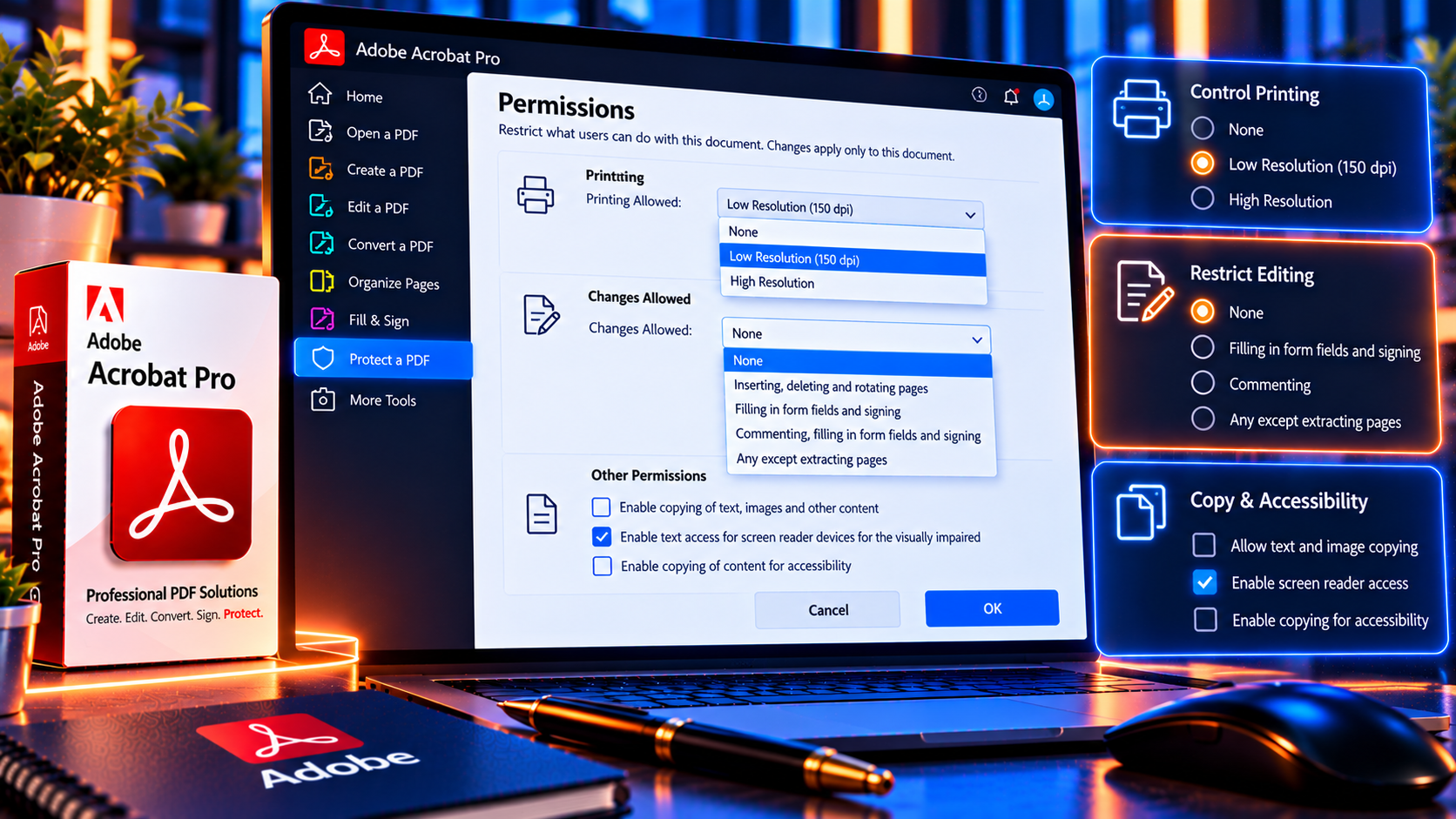
When you choose permissions-based security, Acrobat may provide options for printing quality, document changes, form filling, page extraction, accessibility and copying content. The available controls can depend on the selected compatibility or encryption settings.
Choose the least restrictive setting that works
Restricting every action can interfere with legitimate use. For example, a recipient may need to print a contract for signing, fill in a form, use assistive technology or copy a permitted excerpt. Decide what the recipient must be able to do, then restrict only the actions that create a real risk.
- Allow printing if the recipient needs a paper copy.
- Choose lower or higher print quality according to the document’s purpose.
- Restrict editing when recipients should review but not revise the source.
- Allow form filling or commenting when collaboration is expected.
- Consider accessibility requirements before disabling text access or assistive technologies.
- Limit page extraction or content copying only when there is a clear reason.
Permissions settings are not a substitute for redaction. If confidential text must no longer exist in a file, use Acrobat’s redaction workflow to remove it permanently, then inspect the result. Placing a black shape over text only hides it visually and may leave the underlying content recoverable.
How to Encrypt a PDF with a Password
Password protection uses encryption so the document contents are not simply available as ordinary unprotected PDF data. When applying a password, Acrobat may let you choose compatibility or encryption options. Higher compatibility settings can support older PDF readers, while newer settings may provide stronger protection or features. Follow your organization’s standards and confirm recipients can open the secured file with compatible software.
A strong encryption setting does not compensate for a weak password. Avoid short, common or reused passwords. Create a unique passphrase that is difficult to guess, and do not include the password in the same email as the protected PDF. For a higher-risk document, use an approved secure delivery service with access logging and expiration controls if available.
Safer password-sharing practices
- Send the PDF through the approved email, portal or file-sharing system.
- Share the password through a separate channel, such as a verified phone call or secure messaging tool.
- Verify the recipient before sending confidential material.
- Do not put the password in the filename, email subject or document body.
- Avoid sending the same reusable password to multiple people.
- Tell the recipient how to contact you if the password does not work.
How to Check That the PDF Is Protected
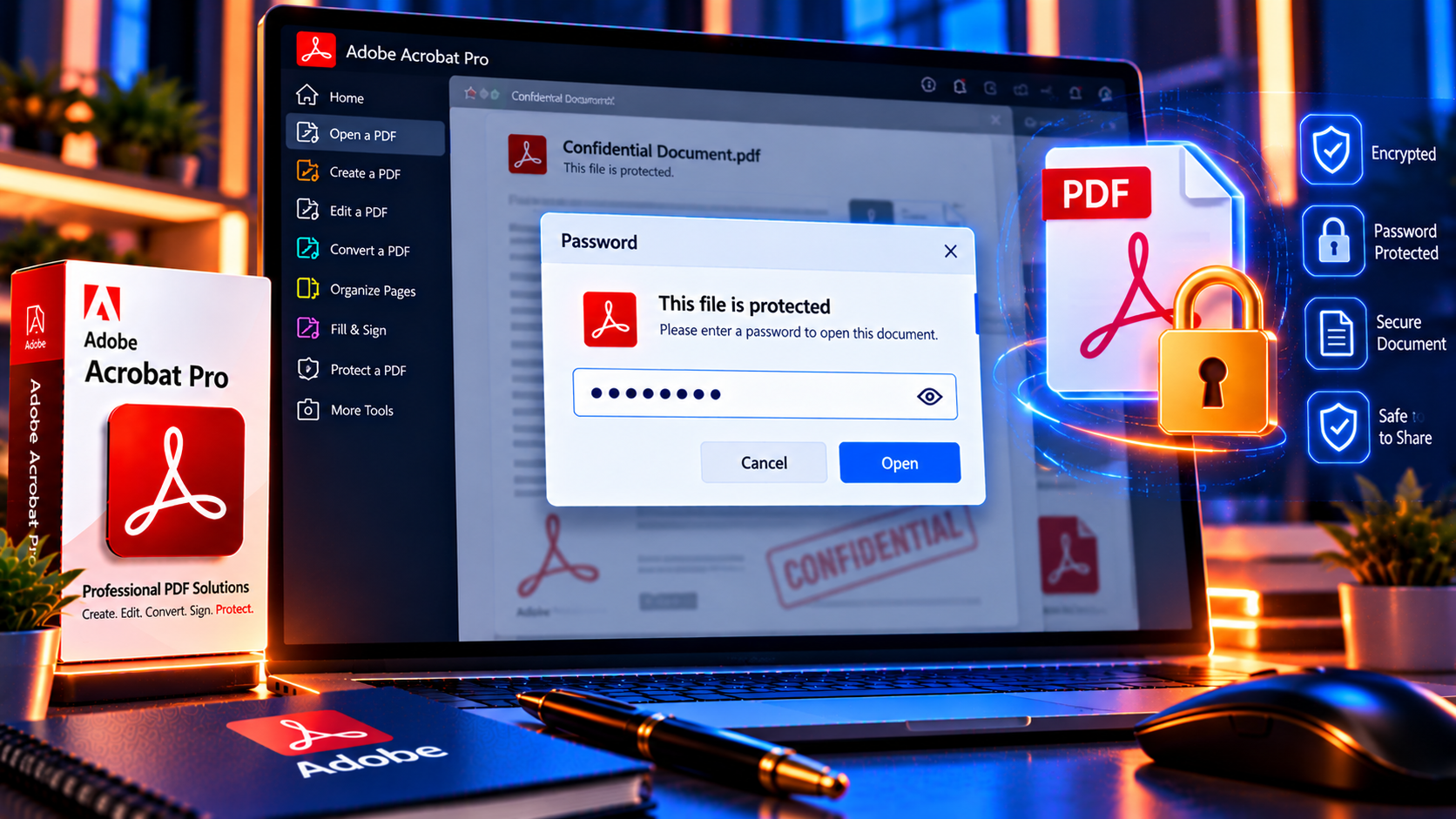
Do not assume that clicking Apply finished the job. Test the exact file you plan to send:
- Save and close the protected copy.
- Reopen it in Acrobat and check that the open-password prompt appears if you selected that option.
- Enter the password and verify that the document displays correctly.
- Try only the actions you intended to allow or restrict, such as editing or printing.
- Check the document properties or security panel to confirm that the expected security method is active.
- Keep the original in a separate secure location and label the protected copy clearly.
For important business documents, ask a trusted colleague using a compatible PDF viewer to test the recipient experience. This can reveal a password-sharing or compatibility issue before the document reaches its final recipient.
How to Remove a Password from a PDF
Only remove security when you are authorized and know the required password. If the document has an open password, open it with the password first. If it is protected against editing or printing, you may need the permissions password to change those settings.
- Open the PDF in Acrobat and authenticate with the password required by the document.
- Open the Protect a PDF or security settings tool.
- Choose the option to remove security or change the password settings.
- Confirm the change when Acrobat prompts you.
- Save the file and reopen it to verify the new security state.
The command may be unavailable if you do not have the necessary permission, if the PDF is protected by a policy or certificate, or if your application does not support changing that security method. Contact the document owner or administrator instead of trying to bypass the protection.
Password-Protecting PDFs for Common Workflows
Human resources and finance
Personnel records, payroll reports and financial statements may need access limited to named recipients. Use an approved transfer system, verify the recipient and apply a unique password if your policy calls for one. Keep a record of who received the file and where the final copy is stored.
Legal and contract documents
A password can reduce casual access to a draft or signed document, but it does not replace a verified e-signature process, access controls or document-retention rules. If the recipient needs to sign or comment, configure the PDF so the intended workflow remains possible.
Client and vendor handoffs
Before sending a protected PDF to a client or vendor, confirm the recipient can open the file and knows how to receive the password. If the document is revised later, create a new clearly named version and recheck the security settings rather than assuming they carry over.
Common PDF Security Problems and Fixes
The recipient cannot open the PDF
Check that the password was copied exactly, including capitalization and punctuation. Confirm that the recipient has the correct file and is not opening an older attachment. If compatibility settings were selected, try a current PDF reader or create a new protected copy with settings supported by the recipient, provided this meets your security policy.
The recipient can still print or edit
Confirm whether you used an open password or a permissions password and inspect the security panel. Reapply the intended restrictions and test the saved copy. Remember that permission controls are enforced by compatible PDF software and cannot prevent every external capture method.
You forgot the password
Acrobat does not provide a universal method to recover a forgotten document password. Look for the original source file, a secure password-manager record or an approved backup. Contact the document owner if the file was received from someone else. Avoid uploading confidential PDFs to unknown password-removal services.
A protected file will not work with another tool
Some applications do not support every PDF encryption or permission option. Confirm the recipient’s software and the required workflow before distribution. If accessibility, e-signing or form completion is required, test those features with the actual recipient software.
Security Checklist Before You Share a PDF
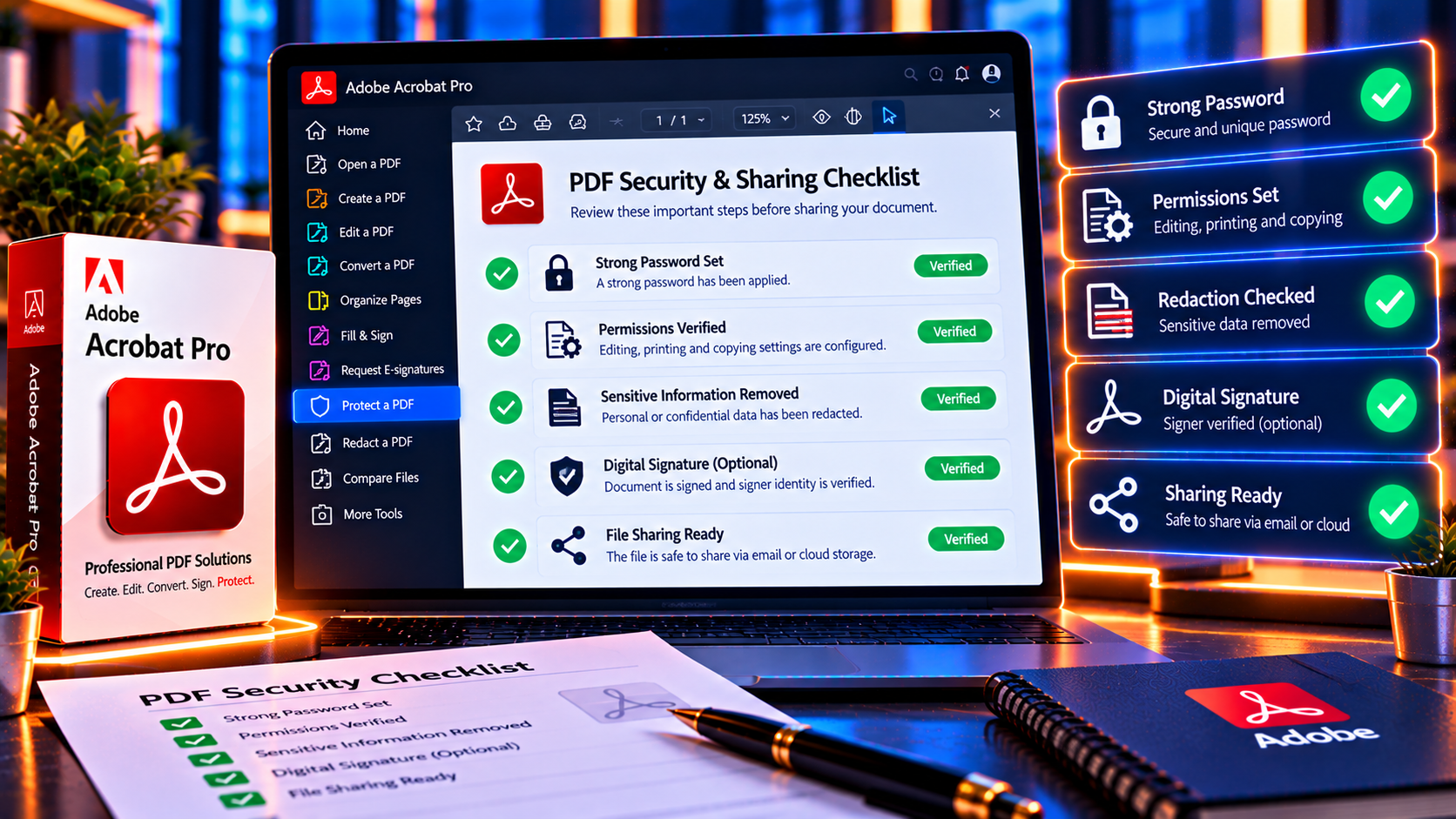
- The document contains only information the recipient is authorized to see.
- Sensitive information that should not be present has been permanently redacted.
- The chosen protection matches the risk: open password, permissions or an approved secure-sharing workflow.
- The password is unique and strong.
- The password is shared separately from the PDF.
- The recipient and destination have been verified.
- The protected copy has been reopened and tested.
- The file is compatible with the recipient’s required workflow.
- An unprotected original is stored securely, not attached by mistake.
- Your organization’s privacy, retention and compliance rules have been followed.
Frequently Asked Questions
Can I password protect a PDF in Adobe Acrobat?
Yes. Acrobat Pro provides password-security tools for requiring a password to open a PDF or for restricting selected actions such as editing and printing. Exact interface labels may differ by version.
What is the difference between an open password and a permissions password?
An open password is required to view the document. A permissions password controls changes to security settings and can define whether compatible PDF software allows actions such as printing or editing.
Can a PDF permissions password stop screenshots?
No. Permissions settings can restrict selected actions in compatible PDF viewers, but they cannot prevent every form of copying or screen capture. Use access controls and secure delivery for sensitive information.
Can I remove the password from a PDF?
You can remove or change security when you are authorized and have the necessary password. Policy- or certificate-protected files may require the owner or administrator to make the change.
Should I email the PDF password in the same message?
For confidential documents, avoid sending the password in the same message as the attachment. Share it through a separate verified channel and follow your organization’s security policy.
Does password protection replace redaction?
No. Password protection controls access to the file. Redaction permanently removes sensitive content from the document. A black box or highlight does not safely redact text.
Conclusion
Adobe Acrobat can password protect and encrypt PDFs for controlled sharing. Use an open password when the recipient must authenticate before reading, and use permissions settings when you need to restrict actions in compatible PDF software. Save a separate protected copy, share passwords through a different channel and test the file before sending it.
For confidential material, password protection is only one part of a complete security workflow. Verify recipients, use approved storage and delivery tools, redact information that should not remain in the file and follow your organization’s retention and compliance rules.
Need Acrobat Pro PDF protection tools? Review Adobe Acrobat Pro DC 2025 for Windows on KeyUpMart and check the current compatibility and license details before purchase.