





Adobe Photoshop is one of the most flexible tools for creating digital artwork, illustrations, posters, social media graphics, and print-ready designs. Whether you are a beginner learning how to draw in Photoshop or an experienced designer preparing artwork for professional printing, the right workflow can significantly improve your results.
This guide explains how to use Photoshop for digital drawing, choose the best brushes, manage colors, prepare files for print, and export high-quality artwork.
Why Use Photoshop for Digital Drawing?
Photoshop provides a complete environment for digital artists and graphic designers. Its main advantages include:
- Customizable Photoshop brushes
- Layer-based editing
- Blending modes
- Masks and adjustment layers
- Precise color correction
- Support for both RGB and CMYK color modes
- High-resolution print settings
- Compatibility with tablets and pressure-sensitive pens
Unlike traditional drawing, digital drawing in Photoshop allows you to edit, resize, recolor, and reorganize your artwork without starting over.
Create the Right Photoshop Document
The first step in any digital drawing project is creating a properly configured document.
Go to File > New and choose the correct dimensions for your project.
Recommended Settings for Digital Artwork
For artwork intended mainly for screens, use:
- Color Mode: RGB Color
- Resolution: 72 or 144 PPI
- Background: Transparent or white
- File Format: PSD
For artwork intended for printing, use:
- Color Mode: CMYK Color
- Resolution: 300 PPI
- Color Profile: The profile recommended by your printer
- File Format: PSD or TIFF
- Bleed: Usually 3 mm, depending on the printer
If you are unsure whether your design will be printed, create the document at 300 PPI. A high-resolution Photoshop canvas gives you more flexibility later.
Choose the Best Photoshop Brushes
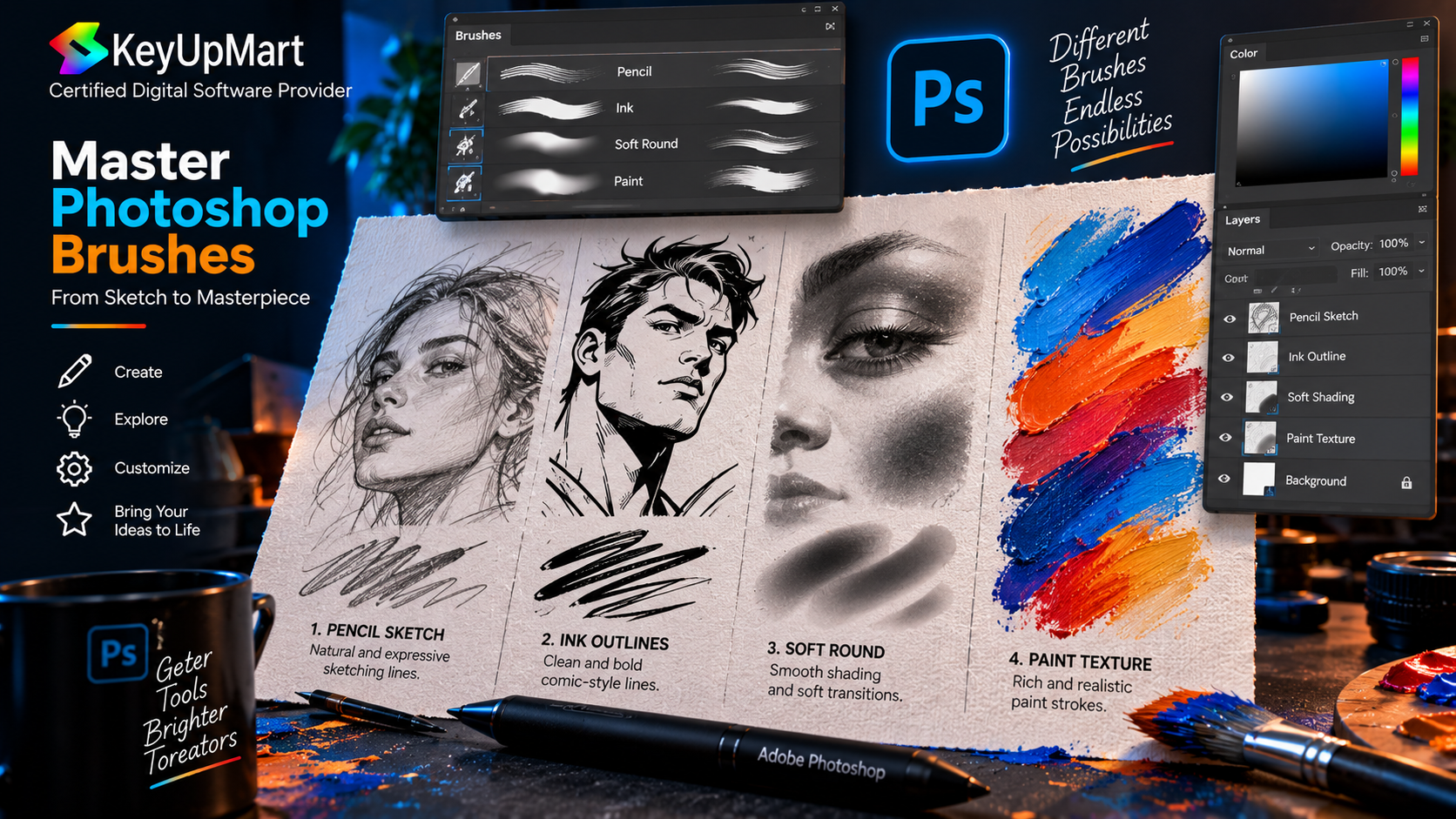
Photoshop brushes play a major role in the appearance of digital artwork. Different brushes can simulate pencils, ink pens, charcoal, watercolor, oil paint, and airbrushes.
Basic Brush Categories
Pencil Brushes
Pencil brushes are useful for:
- Initial sketches
- Character design
- Concept art
- Light construction lines
- Hand-drawn illustrations
Ink Brushes
Ink brushes create clean and defined lines. They are ideal for comic art, line art, logos, and detailed illustrations.
Soft Round Brushes
Soft brushes are commonly used for:
- Shading
- Lighting
- Smooth transitions
- Skin tones
- Atmospheric effects
Texture Brushes
Texture brushes can add realistic details to backgrounds, clothing, paper, stone, wood, and other surfaces.
When selecting a brush, pay attention to size, opacity, flow, spacing, texture, and pressure sensitivity.
Use a Graphics Tablet for Better Control
A graphics tablet can make digital drawing in Photoshop more natural and precise. Pressure sensitivity allows the thickness or opacity of a brush stroke to change depending on how hard you press.
To configure your tablet:
- Install the latest tablet driver.
- Open Photoshop preferences.
- Select the Brush Settings panel.
- Enable pen pressure for size or opacity.
- Test your brush strokes on a new layer.
For sketching, pen pressure is usually assigned to brush size. For painting, pressure can control opacity or flow.
Organize Your Artwork with Layers
Layers are one of the most important Photoshop drawing tools. They allow you to edit different parts of the artwork independently.
A simple digital drawing layer structure may include:
- Sketch
- Line Art
- Base Colors
- Shadows
- Highlights
- Background
- Texture
- Adjustments
Name your layers clearly and place related layers into folders. This keeps complex Photoshop artwork organized and makes future edits much easier.
Useful Layer Blending Modes
Blending modes can help you add light, shadows, and texture quickly.
- Multiply for shadows
- Screen for highlights
- Overlay for contrast
- Soft Light for subtle lighting
- Color for changing color without affecting brightness
- Linear Dodge for strong light effects
Use blending modes carefully. A layer should support the artwork rather than make it look overly artificial.
Build a Digital Drawing Step by Step
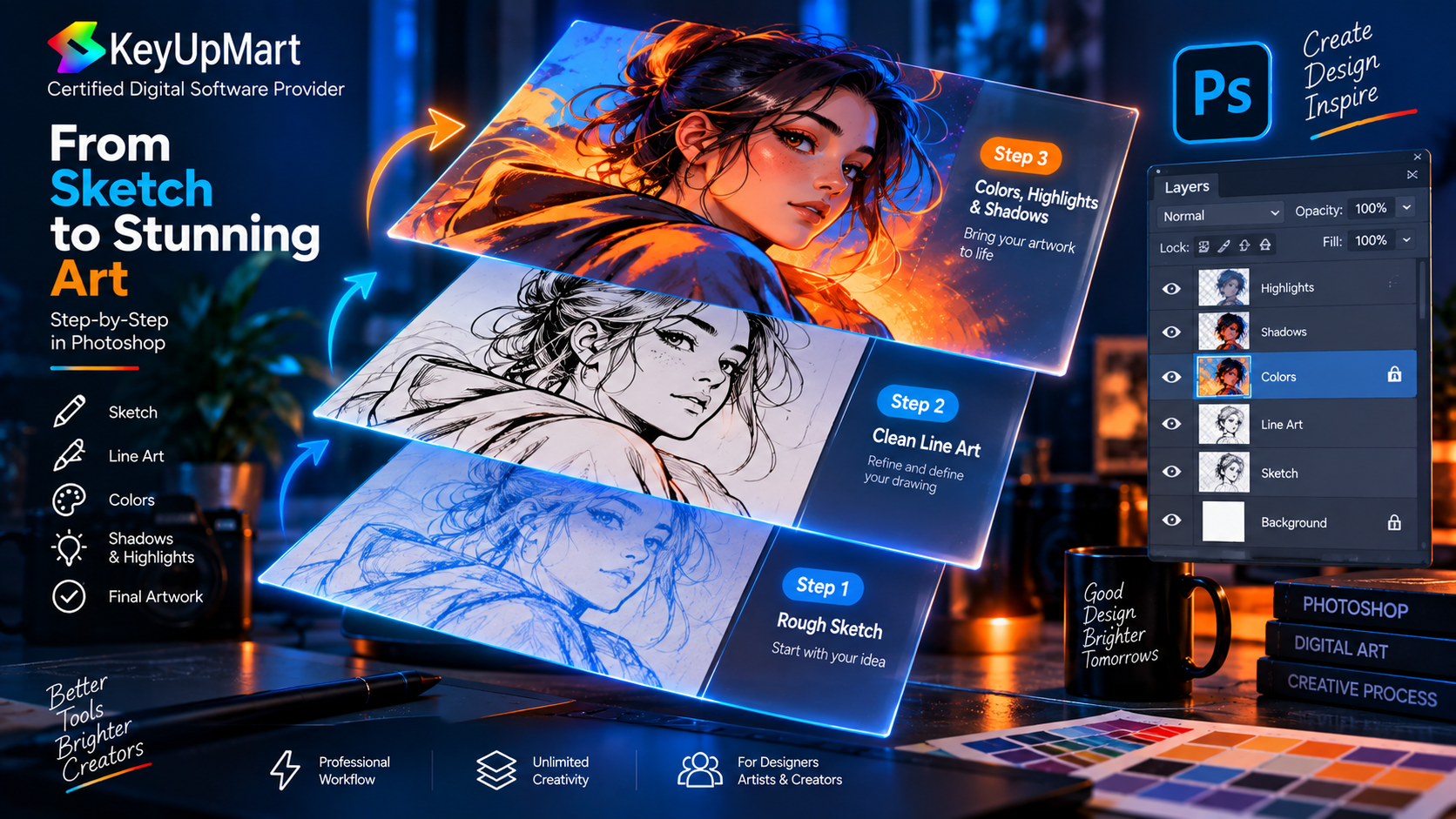
A reliable drawing workflow helps you work faster and maintain consistency.
Step 1: Create a Rough Sketch
Start with a simple sketch using a low-opacity pencil brush. Focus on composition, proportions, perspective, and gesture before adding details.
Step 2: Refine the Lines
Create a new layer above the sketch and draw cleaner lines. Reduce the opacity of the sketch layer to make the final lines easier to see.
Step 3: Add Base Colors
Create separate layers for the main colors. Avoid adding shadows and highlights too early. Establish the overall color palette first.
Step 4: Add Shadows
Use a Multiply layer to add shadows. Choose a color that supports the overall mood instead of relying only on black or gray.
Step 5: Add Highlights
Use Screen, Overlay, or Soft Light layers to add highlights. Place highlights according to the direction of the light source.
Step 6: Add Texture and Details
Add surface details, brush textures, small marks, and background elements. Keep texture layers separate so you can reduce or remove them later.
Step 7: Apply Final Adjustments
Use adjustment layers such as Curves, Levels, Hue/Saturation, Color Balance, and Selective Color to refine the final appearance.
How to Choose Colors in Photoshop
Color selection is essential for digital art and print design. A strong color palette improves visual hierarchy and makes the artwork easier to understand.
When choosing colors, consider:
- The mood of the artwork
- The lighting conditions
- The intended audience
- The printing process
- The background color
- Contrast and readability
Use the Color Picker, Swatches panel, and Color Guide to create a consistent palette.
For professional artwork, avoid using too many unrelated colors. A focused palette often creates a cleaner and more recognizable visual style.
RGB and CMYK: Which Color Mode Should You Use?
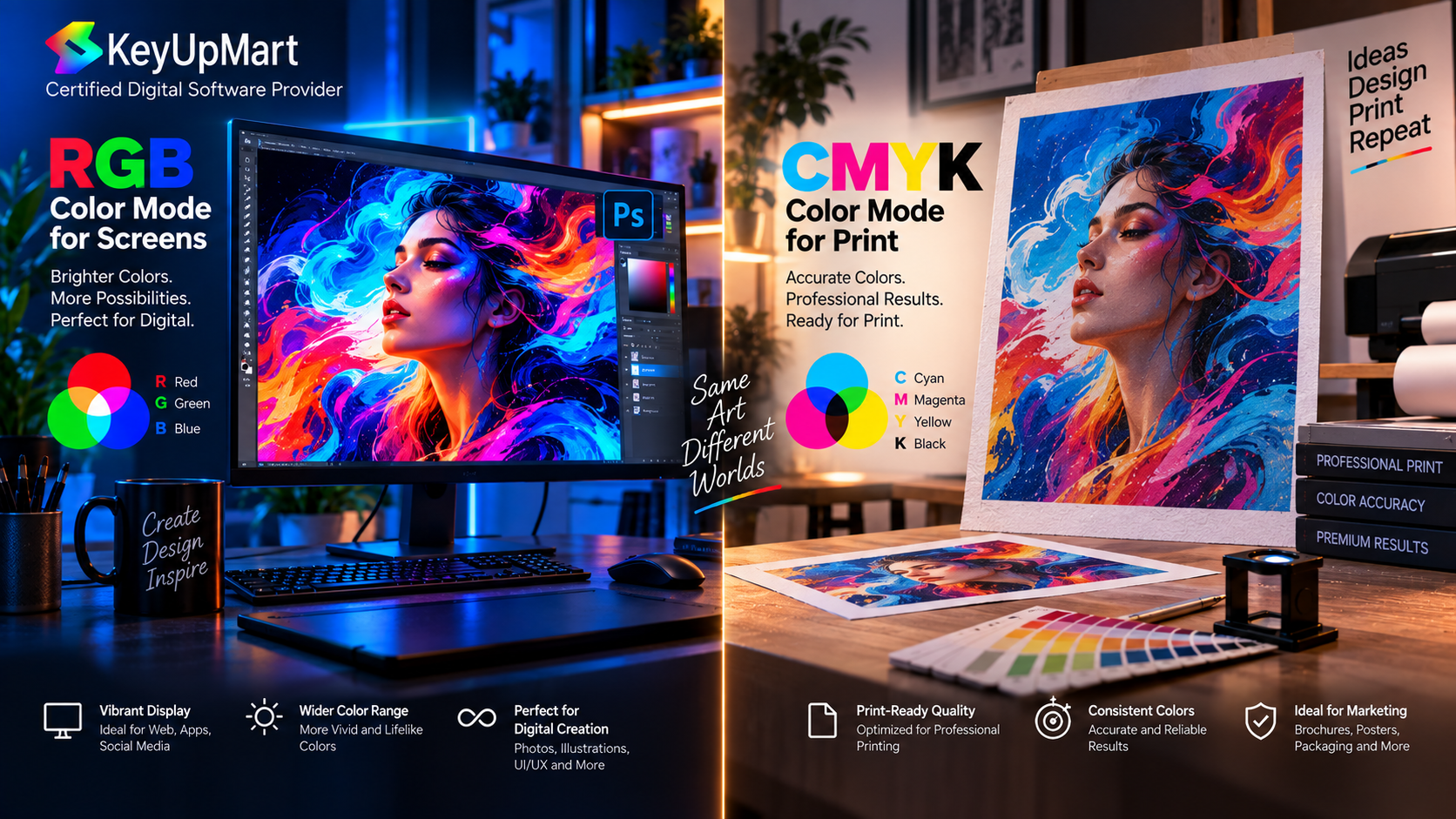
RGB is designed for digital screens, while CMYK is designed for printing.
Use RGB for
- Websites
- Social media graphics
- YouTube thumbnails
- Digital illustrations
- Mobile applications
- Online advertisements
Use CMYK for
- Business cards
- Flyers
- Posters
- Brochures
- Packaging
- Magazines
- Printed artwork
RGB usually offers a wider range of colors. When converting an RGB file to CMYK, some bright colors may become less saturated.
To convert the document, go to Image > Mode > CMYK Color.
Before converting, save a separate RGB version. This allows you to preserve the original digital colors.
Prepare Photoshop Artwork for Printing
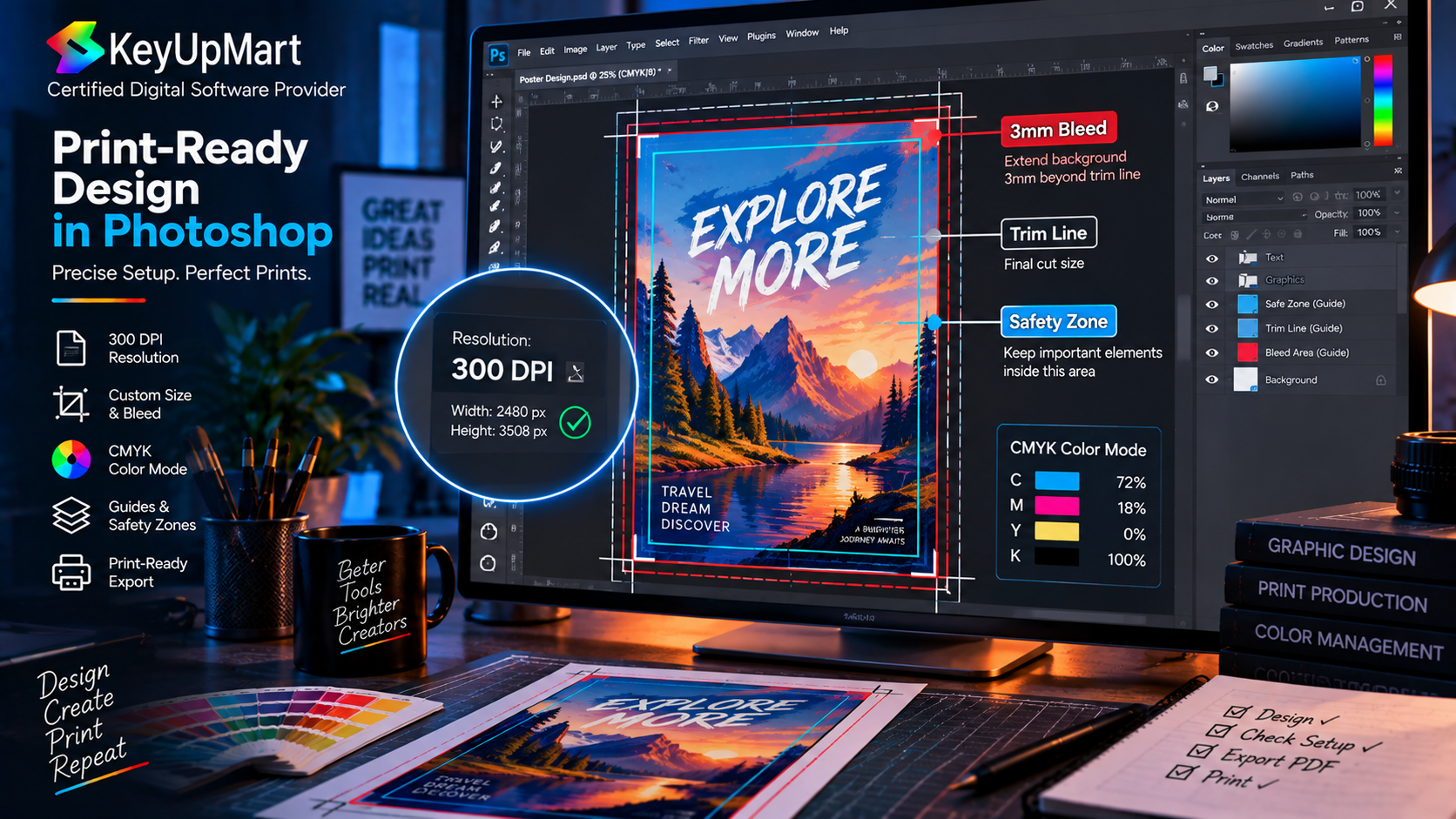
Preparing a print-ready Photoshop file requires more than simply choosing CMYK mode.
Check the Resolution
Professional printing commonly requires 300 PPI. Low-resolution images may appear blurry or pixelated.
You can check the resolution by opening Image > Image Size.
Make sure the resolution is correct before sending the file to a printer.
Add Bleed When Necessary
Bleed extends the artwork beyond the final trimming edge. It prevents unwanted white borders if the paper is trimmed slightly off-center.
The exact bleed requirement depends on the printer, but 3 mm is a common standard.
Keep Important Content Inside the Safe Area
Text, logos, and important details should not be placed too close to the edge. Keep essential elements inside the safe area to prevent them from being cut during production.
Use High-Quality Images
Linked or imported images should have enough resolution for the final print size. Enlarging a small image may create blur and visible pixelation.
Flatten Only When Required
Keep a layered PSD file as your editable master file. Create a flattened copy only when the printer requires it.
Photoshop Color Proofing
Photoshop includes color proofing tools that help you preview how colors may appear when printed.
Go to View > Proof Setup. Then select the appropriate CMYK profile or printing condition.
You can use View > Proof Colors to preview the expected printed appearance.
Soft proofing is not a perfect replacement for a physical proof, but it can reveal colors that may change significantly during conversion.
Does Photoshop Have a Vectorscope?
Photoshop does not include a native vectorscope panel like the one available in some video editing and color grading applications.
A vectorscope is mainly used to analyze hue and color saturation in video signals. Photoshop provides other tools for evaluating still images, including:
- Histogram
- Info panel
- Color Picker
- Channels panel
- Curves
- Levels
- Color Sampler Tool
- Proof Colors
For digital artwork and print design, these Photoshop tools are usually more useful than a vectorscope. If precise vectorscope analysis is required, the image can be evaluated in a compatible color grading application.
Use Smart Objects for Flexible Editing
Smart Objects allow you to scale and transform content without permanently damaging the original layer.
They are useful for:
- Mockups
- Product designs
- Repeated illustrations
- Posters
- Packaging layouts
- Logo placement
- Print templates
Right-click a layer and choose Convert to Smart Object. Any transformations applied afterward remain editable.
Export Digital Artwork from Photoshop
The correct export settings depend on how the artwork will be used.
For Websites and Social Media
- File Format: JPEG or PNG
- Color Mode: RGB
- Resolution: Optimized for the required display size
- Quality: High
- Convert to sRGB: Enabled
For Transparent Graphics
- File Format: PNG
- Transparency: Enabled
- Color Mode: RGB
For Printing
- File Format: TIFF, PDF, or high-quality JPEG
- Color Mode: CMYK when required
- Resolution: 300 PPI
- Profile: Printer-approved profile
- Compression: Minimal or lossless when possible
Always inspect the exported file before sending it to a client or printer.
Common Photoshop Drawing Mistakes
Working on One Layer
Drawing everything on one layer makes editing difficult. Use separate layers for sketches, colors, shadows, highlights, and effects.
Using the Wrong Resolution
A small canvas may look acceptable on screen but print poorly. Choose the final output size before beginning the project.
Converting to CMYK Too Late
Late color conversion may create unexpected changes. Test the artwork in CMYK before finalizing important colors.
Relying Only on Black for Shadows
Black shadows can make artwork look flat or dirty. Use darker versions of nearby colors whenever possible.
Overusing Filters
Filters can be useful, but excessive use often removes the handmade quality of digital art. Apply effects selectively and reduce opacity when needed.
Forgetting to Save an Editable File
Always keep a layered PSD master file. Exported JPEG or PNG files are not suitable replacements for an editable Photoshop document.
Final Checklist for Photoshop Artwork
- The canvas has the correct dimensions.
- The resolution matches the intended use.
- The color mode is correct.
- Important elements are inside the safe area.
- Images are high resolution.
- Layers are clearly named.
- Hidden or unused layers are removed from the delivery copy.
- The file has been proofed for color.
- The exported file opens correctly.
- A backup PSD file has been saved.
Frequently Asked Questions
What is the best Photoshop resolution for digital drawing?
For digital artwork intended for screens, 144 PPI is usually sufficient. For professional printing, 300 PPI is the standard recommendation.
Should I use RGB or CMYK in Photoshop?
Use RGB for digital content and CMYK for printed materials. Keep an RGB master file before converting the document to CMYK.
Can I use Photoshop for professional illustration?
Yes. Photoshop is widely used for illustration, concept art, character design, digital painting, comics, advertising, and print production.
Does Photoshop include a vectorscope?
No. Photoshop does not include a native vectorscope. It provides tools such as Histogram, Curves, Levels, Channels, and Color Sampler for analyzing still images.
What is the best file format for Photoshop artwork?
PSD is the best format for keeping an editable master file. TIFF and PDF are commonly used for printing, while JPEG and PNG are suitable for many digital uses.
Conclusion
Learning how to use Photoshop for digital drawing and print design requires both creative practice and technical preparation. The most important habits are choosing the right document settings, organizing artwork with layers, using appropriate Photoshop brushes, managing color correctly, and exporting files according to their final purpose.
Whether you are creating digital art, printable illustrations, posters, or commercial designs, a structured Photoshop workflow will help you produce cleaner, more flexible, and professional results.
Ready to improve your Photoshop workflow? Explore Photoshop products and resources on KeyUpMart to support your next creative project.
Need help choosing a product? Contact KeyUpMart support before completing your purchase.
Related posts:


 Is Your Adobe Photoshop License Key Genuine A Buyer’s Guide to Safe Purchases
 How to Download and Install Adobe Photoshop Full Version Step by Step