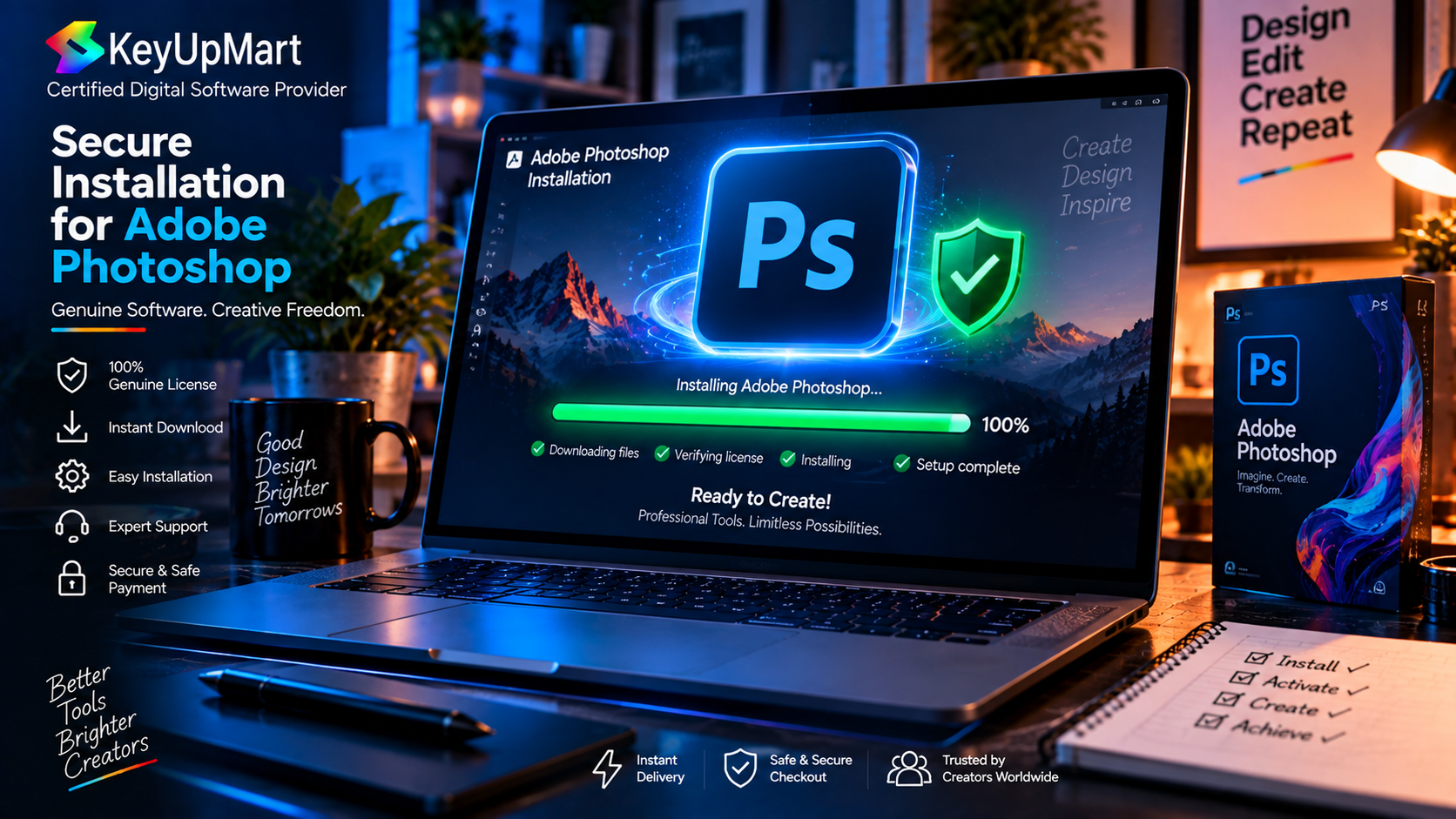
Learning how to download Photoshop is easier when you start with the correct license and the correct installer. Adobe Photoshop is available in different forms, including current subscription-based releases and defined editions sold for specific platforms. Your installation steps can change depending on whether you are using a Creative Cloud subscription or a one-time license for a listed edition.
This Adobe Photoshop for computer guide explains how to download Adobe Photoshop, how to choose the right Photoshop application, how to run the installer, and how to activate your license safely. It also covers common download and installation problems so you can avoid unofficial files, broken installers, and activation mistakes.
For security and compatibility, download the application from Adobe’s official delivery process or follow the activation and installation instructions supplied with your legitimate purchase. Avoid cracked Photoshop downloads and unknown installer websites. A file that promises the newest Photoshop download for free can contain malware, modified code, or a license problem that appears only after installation.
Before You Start: Check Your Photoshop Version and Computer
Before searching for an Adobe Photoshop download, decide which product and license model you are installing. A current subscription, an annual product, and an older one-time edition may use different account or activation steps. The product title should also match your operating system. A Windows-only product is not automatically compatible with macOS, even if the application name includes Photoshop.
Choose the Correct Photoshop Product
Use the current Creative Cloud Photoshop workflow if you need the latest releases, current AI features, ongoing updates, and support for a modern subscription account. Use a listed one-time edition only when its edition year, platform, activation method, and feature set match your needs. Do not treat a lifetime listing as an automatic upgrade to every future Photoshop version.
If you are buying through KeyUpMart, read the individual product page before you start the Photoshop download. The page should tell you the platform, validity, device limit, delivery method, refund policy, and activation requirements. Save the order email and installation guide because you may need them during activation or support.
Check System Requirements
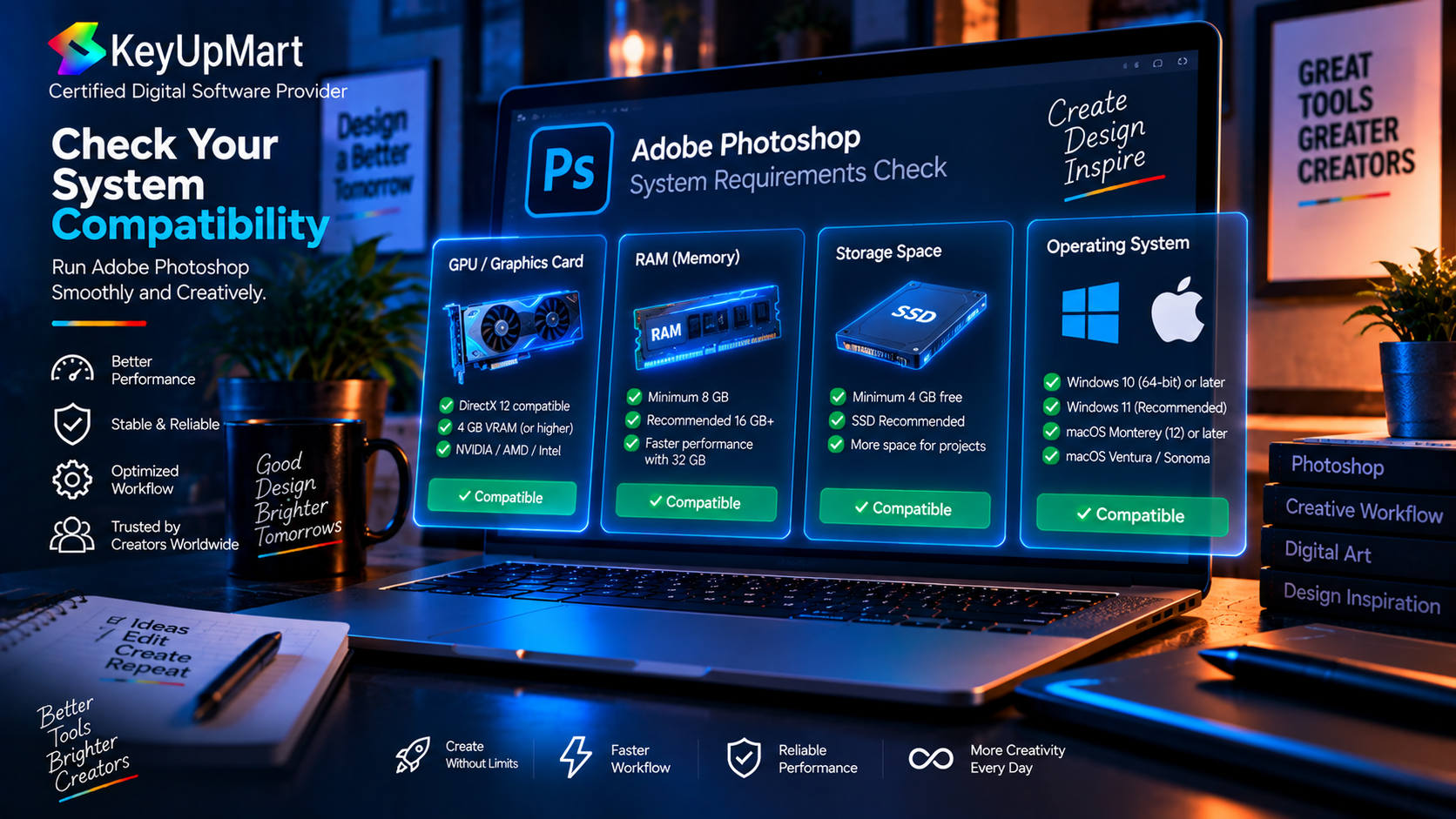
For a successful Adobe Photoshop install, your computer needs a supported operating system, enough free storage, sufficient memory, and graphics hardware that can handle the version you selected. Requirements change between releases, so check the current Adobe system requirements for the exact version you plan to install.
Before downloading Photoshop, confirm the following:
- Your operating system matches the product listing. Confirm Windows or Mac support before buying or installing.
- You have enough free disk space for the installer, application files, temporary files, and project files.
- Your computer has current graphics drivers and a supported GPU if the version requires GPU acceleration.
- You have administrator permission to install the application and a stable internet connection for download and activation.
- You have your Adobe account details or the license key and activation instructions ready.
Step 1: Download the Adobe Photoshop Installer
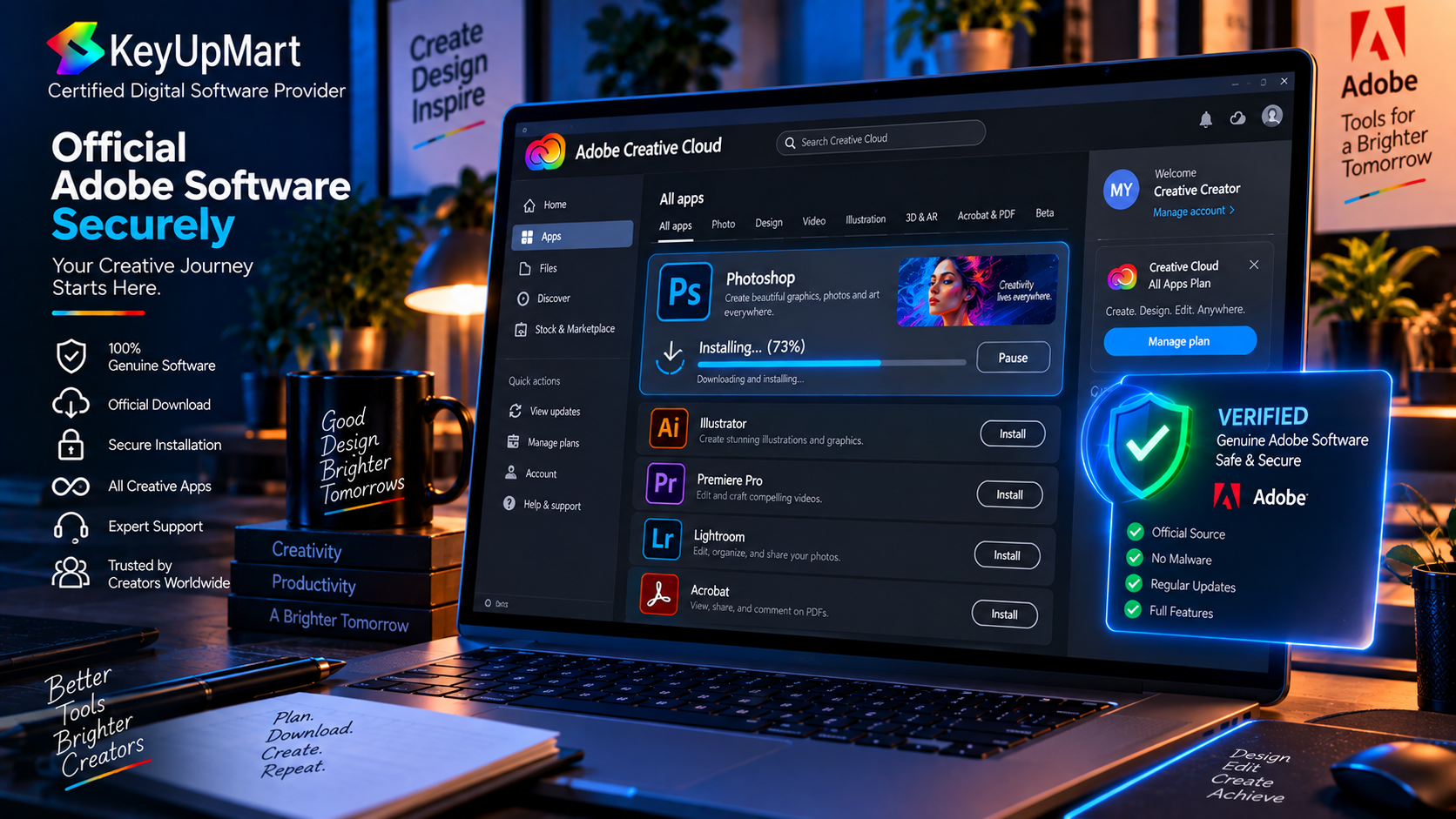
The safest way to download Photoshop is to use the official Adobe delivery route associated with your plan or to follow the official installation instructions supplied with the product. Do not search for a random Photoshop app download and choose the first executable file you find. Search results can include repackaged installers, outdated files, and sites that use the Photoshop name without authorization.
Download Photoshop for a Creative Cloud Subscription
For a current subscription, sign in to the Adobe account connected to your plan and use Adobe’s Creative Cloud desktop application or the download link provided by Adobe. The Adobe Photoshop desktop app is managed through the Creative Cloud desktop app, which handles the Photoshop application download, installation, updates, and account status. Allow the installer to complete before launching Photoshop for the first time.
If the subscription was purchased through a reseller, read the delivery instructions carefully. Some products are linked directly to an Adobe email account, while others provide an activation code that must be redeemed through the stated Adobe process. Do not give your password to a seller, and do not install a modified file to bypass account activation.
Download Photoshop for a One-Time License
A one-time product may provide an activation key, an Adobe redemption process, an installer link, or a setup guide. Follow the exact instructions for the product edition you purchased. For example, the KeyUpMart Photoshop 2021 Professional Edition listing is specifically titled for Windows, so the download and installation path should be followed as a Windows workflow.
Keep the key private and store it with your order information. A license key is not a replacement for the installer. You should still download the application through the stated official or authorized process. If the instructions are unclear, pause before entering the key and contact support for clarification.
Choose the installation path that matches your device:
Step 2: Run the Installer and Follow Setup
After the Adobe Photoshop download finishes, locate the installer in your Downloads folder or the location selected by your browser. Confirm that the file came from the source described in your license instructions. Close other demanding applications, save your work, and start the installer with the permissions required by your operating system.
Install Photoshop on Windows
On Windows, open the installer and follow the setup prompts. You may need to approve a User Account Control request. Choose the installation location only if you have a specific reason to change it, and keep enough free space on the selected drive. Allow the setup process to finish without shutting down the computer or disconnecting from the internet.
If the installation includes the Creative Cloud desktop app, let that application complete its setup as well. It may be responsible for account sign-in, updates, and future Photoshop application management. Restart Windows if the installer requests it, especially after graphics-driver or system-component updates.
Install Photoshop on Mac
On Mac, use the installer and account process provided for the Mac-compatible product. Confirm compatibility with your macOS version and processor before downloading Photoshop. A Windows-only lifetime product should not be installed on macOS as though it were a Mac license. If the product listing does not clearly confirm Mac support, contact support before purchase or activation.
Step 3: Activate Your Photoshop License
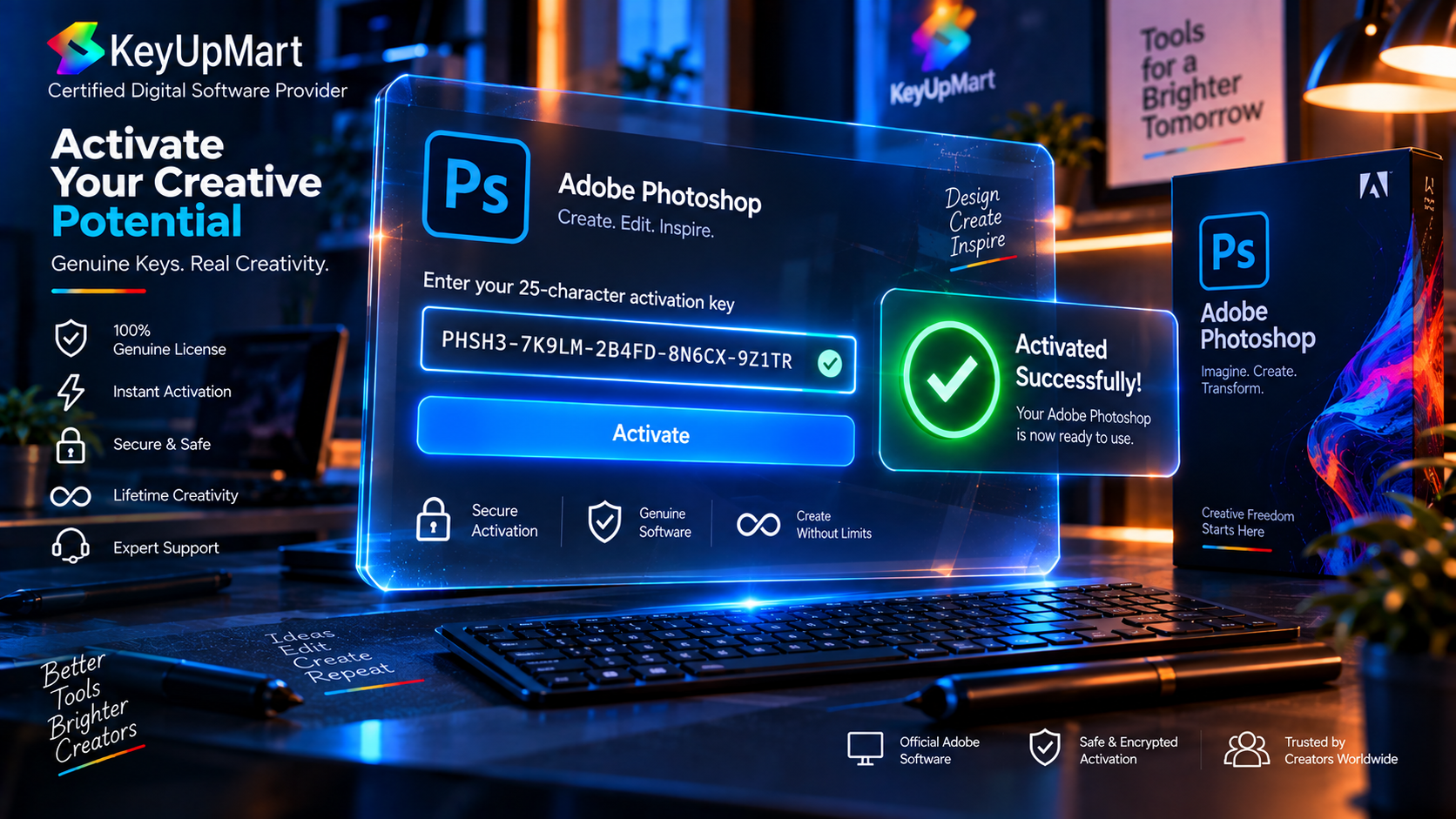
Activation confirms that the installed Photoshop application is connected to the license you purchased. The process depends on the product model. A subscription usually uses an Adobe account, while a key-based product may require redemption or entry of an activation code through the stated Adobe process.
Activate a Subscription
Open Photoshop or the Creative Cloud desktop app and sign in with the Adobe account connected to your subscription. Use the same email address that received the subscription or the account-linking confirmation. If Photoshop opens in trial mode, sign out and sign in again, then confirm that the correct plan appears in the account. Do not create several accounts while troubleshooting because the license may be connected to only one email address.
Activate a License Key
If your product includes a key, follow the redemption address and instructions supplied with the order. Enter the key carefully and avoid adding spaces before or after the code. Check the product name, edition year, platform, and Adobe account shown during redemption. Save the confirmation screen or email after the key is accepted.
Never publish a license key in a support ticket, screenshot, public review, or social media post. If activation fails, share the order details and the exact error message with support, but keep the full key private unless a secure support process specifically requires it.
Step 4: Verify That Photoshop Is Working Correctly
After the Adobe Photoshop install and activation finish, open the application and test a small project before starting important client work. A short verification can catch platform, account, graphics, and export issues early.
- Confirm the application name and version match the product you purchased.
- Create a new document, open a sample image, and test basic editing tools.
- Save a project file and export a JPEG or PNG to confirm that storage permissions work.
- Check that your Adobe account or activation status shows the expected plan or edition.
- Test any feature that was important to your buying decision before the refund window closes.
Common Installation Errors and Fixes
The Photoshop Installer Will Not Launch
If the installer does not open, confirm that the download completed and that your operating system supports the file. Downloading the installer again from the official source can fix a corrupted transfer. Temporarily close other installers, restart the computer, and run the setup with the required administrator permissions. Do not disable security protection permanently to force an unknown file to run.
The Download Stops or Fails
A stalled Photoshop download can be caused by an unstable connection, a full drive, browser security controls, or a temporary service problem. Check available storage, restart the router if appropriate, and retry through the official Adobe or Creative Cloud workflow. If the same error repeats, record the message and contact the seller or Adobe support instead of switching to an unofficial download site.
The Activation Key Is Not Accepted
First confirm that you are using the correct Adobe account, redemption address, product edition, and platform. Check the characters in the key and avoid confusing similar letters and numbers. A key may also fail if it has already been redeemed, if the product is not compatible with your region or account, or if the wrong activation process is being used. Send the exact error to support with your order number, but protect the full key.
Photoshop Opens but Shows a GPU or Performance Error
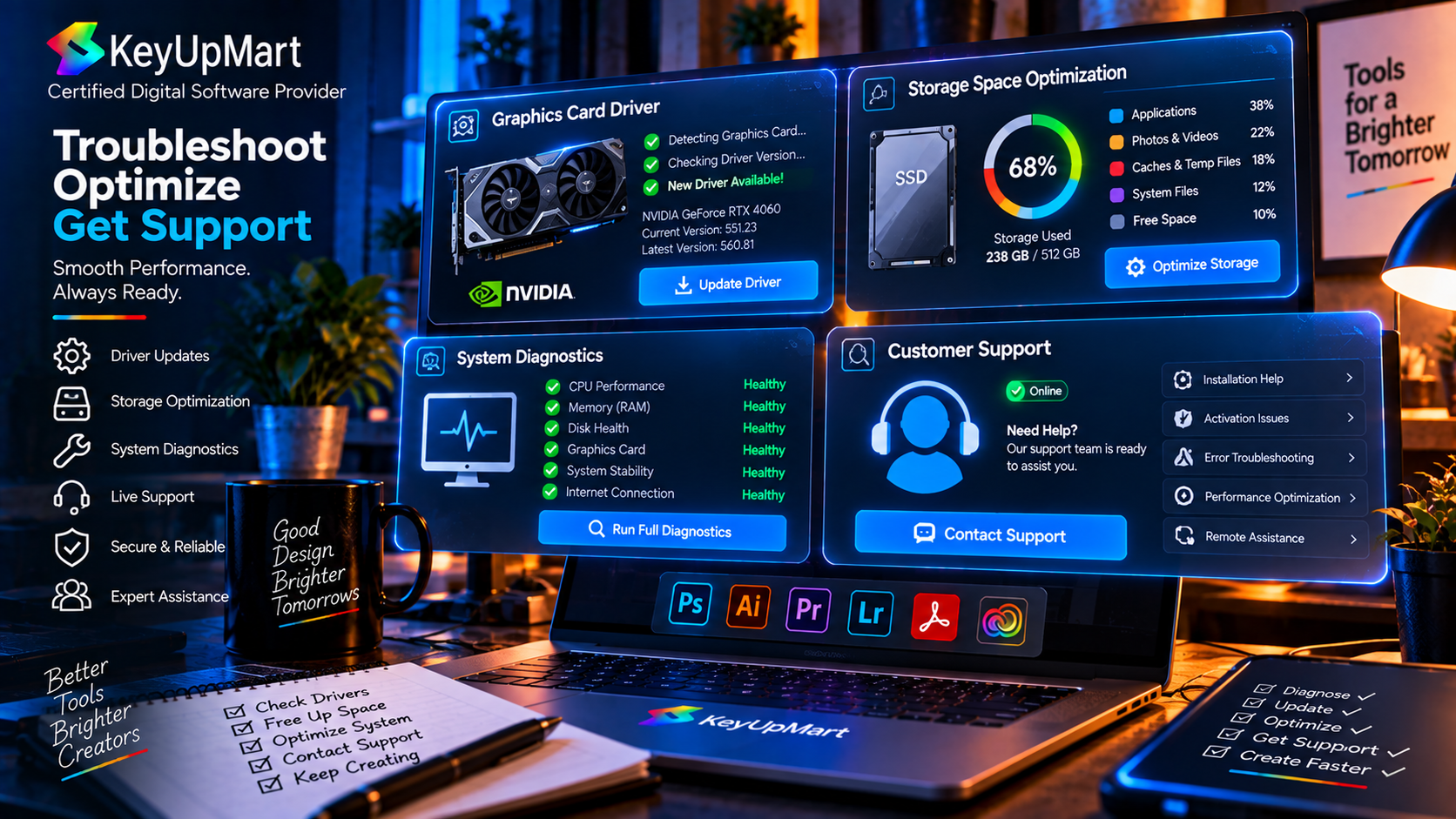
Update the graphics driver through the official hardware manufacturer, restart the computer, and check Photoshop performance settings. If the computer does not meet the version’s GPU requirements, some features may be unavailable or unstable. Test with a smaller file and disable a nonessential hardware-acceleration option only as a troubleshooting step, not as a permanent substitute for supported hardware.
There Is Not Enough Disk Space
The Photoshop application needs more than the size of the downloaded installer. It may also require temporary working space, scratch-disk space, updates, fonts, and project files. Free space on the installation drive and the configured scratch disk, remove only files you know are safe to remove, and then retry the installation. Avoid deleting system folders to create space.
Frequently Asked Questions
Where Is the Safest Place to Download Adobe Photoshop?
Use Adobe’s official download and Creative Cloud process, or follow the installation instructions provided with a legitimate product purchased through an authorized channel. Avoid cracked downloads, modified installers, and websites that promise a free full version without a clear license path.
Can I Download Photoshop Without a License?
You can download an installer or start an official trial when Adobe offers one, but continued use of the full application requires the appropriate license or subscription. A download file by itself does not prove that the software is activated or legally licensed.
How Do I Download Photoshop for PC?
For an Adobe Photoshop download for PC, confirm that your product supports Windows, sign in to the correct Adobe account or follow the supplied redemption instructions, and download the Windows installer through the stated official process. Check system requirements and available storage before starting the download.
Can I Download the Newest Photoshop Version With a Lifetime License?
Do not assume that a lifetime product includes the newest Photoshop release. A one-time license normally identifies a particular edition and feature set. If you need current releases and ongoing updates, choose a subscription that explicitly includes them.
What Should I Do If I Bought the Wrong Platform?
Stop before activating the product and contact support. A Windows-only Photoshop license should not be treated as a Mac license. Keep your order details and review the product’s refund or exchange conditions while you are still within the stated eligibility period.
Conclusion
A safe Adobe Photoshop download starts with the correct product, platform, and license. Check the system requirements, use the official installer or the stated authorized delivery process, follow the activation instructions carefully, and verify the application with a small test project before relying on it for important work.
If you need the newest Photoshop application, current updates, and account-based Creative Cloud features, choose a compatible subscription. If you choose a one-time edition, confirm the edition year, Windows or Mac support, activation rules, device limit, and update policy before you download Photoshop for your computer.
Ready to download and install Photoshop safely? Compare Photoshop licenses on KeyUpMart and review the platform and activation details first.
Looking for a defined Windows edition? View Photoshop 2021 Lifetime for Windows and confirm compatibility before ordering.