






Adobe Photoshop has changed significantly in recent releases. The modern Photoshop experience combines traditional editing tools with AI-assisted features that can extend an image, remove distractions, generate content, select subjects, and speed up repetitive work. For many users searching for Adobe Photoshop 2025 or Adobe Photoshop 2026, the real question is not only which version is newest. It is which AI editing features are available, which plan includes them, and whether those features fit the way they work.
The latest Photoshop direction is built around helping users complete creative tasks faster without removing control. You can still work manually with layers, masks, brushes, selections, and adjustment tools, but AI can help with a first pass. The best results usually come from combining automation with human review, especially when the image will be used for advertising, product photography, publishing, or client work.
This guide explains the most important Photoshop AI features associated with the 2025 and 2026 release cycle, including Generative Fill, Generative Expand, Neural Filters, background removal, object selection, and Adobe Firefly integration. Feature names, release labels, credits, and availability can change by plan and region, so check the current Adobe product details before purchasing or upgrading.
What Changed in Adobe Photoshop 2025 and 2026
The biggest change is the growing role of AI inside the normal Photoshop workflow. Instead of opening a separate tool for every task, users can now combine classic editing with automated suggestions and generative actions inside the document. This can reduce the time required for common jobs such as extending a background, removing an unwanted object, creating a variation, or preparing an image for a different aspect ratio.
AI does not replace the core Photoshop application. Layers, masks, selections, curves, brushes, smart objects, typography, and color management remain important. AI features work best when they are treated as controlled editing tools rather than a guarantee of a perfect result from one click.
Generative Fill and Generative Expand

What Generative Fill Does
Photoshop Generative Fill allows you to select an area of an image and use a text prompt or an empty prompt to create a result inside that selection. It can be used to remove an object, replace part of a background, add a new visual element, or explore several creative directions. The generated result is normally placed in a way that can be reviewed and adjusted as part of the Photoshop document workflow.
For example, a photographer might select a distracting sign in the background and ask Photoshop to remove it. A designer might extend a scene behind a product or create extra space around a subject for a banner. A social media creator might generate a wider background so the same image can fit a different layout without cropping the main subject.
How to Use Generative Fill Responsibly
The quality of Generative Fill depends on the selection, the surrounding pixels, the prompt, and the subject of the image. A small, precise selection can produce a better result than asking the tool to rebuild half of a complex scene. Review the edges, shadows, reflections, text, faces, hands, and repeated patterns before publishing the output.
For commercial work, keep the original image and the generated variations. Record which version of Photoshop was used, preserve the editable document when possible, and confirm that the final image meets the client’s requirements. AI can speed up production, but it does not remove the need for quality control, permissions, or accurate representation.
Generative Expand for New Image Dimensions
Generative Expand helps extend the canvas beyond the original image boundaries. This is useful when a landscape image must become a wider banner, when a portrait image needs more room for text, or when a composition must fit a new social media format. Photoshop analyzes the existing image and generates content that continues the visual context around it.
Generative Expand is most useful when the original image contains a clear background, sky, wall, floor, or other repeatable visual structure. It requires more review when the edge includes a person, product label, building detail, or other object that must remain exact. Always inspect the expanded areas at full size before delivery.
Want access to current Photoshop AI tools? View the 1-Year Photoshop Subscription or compare Photoshop products.
Neural Filters and AI-Powered Photo Restoration
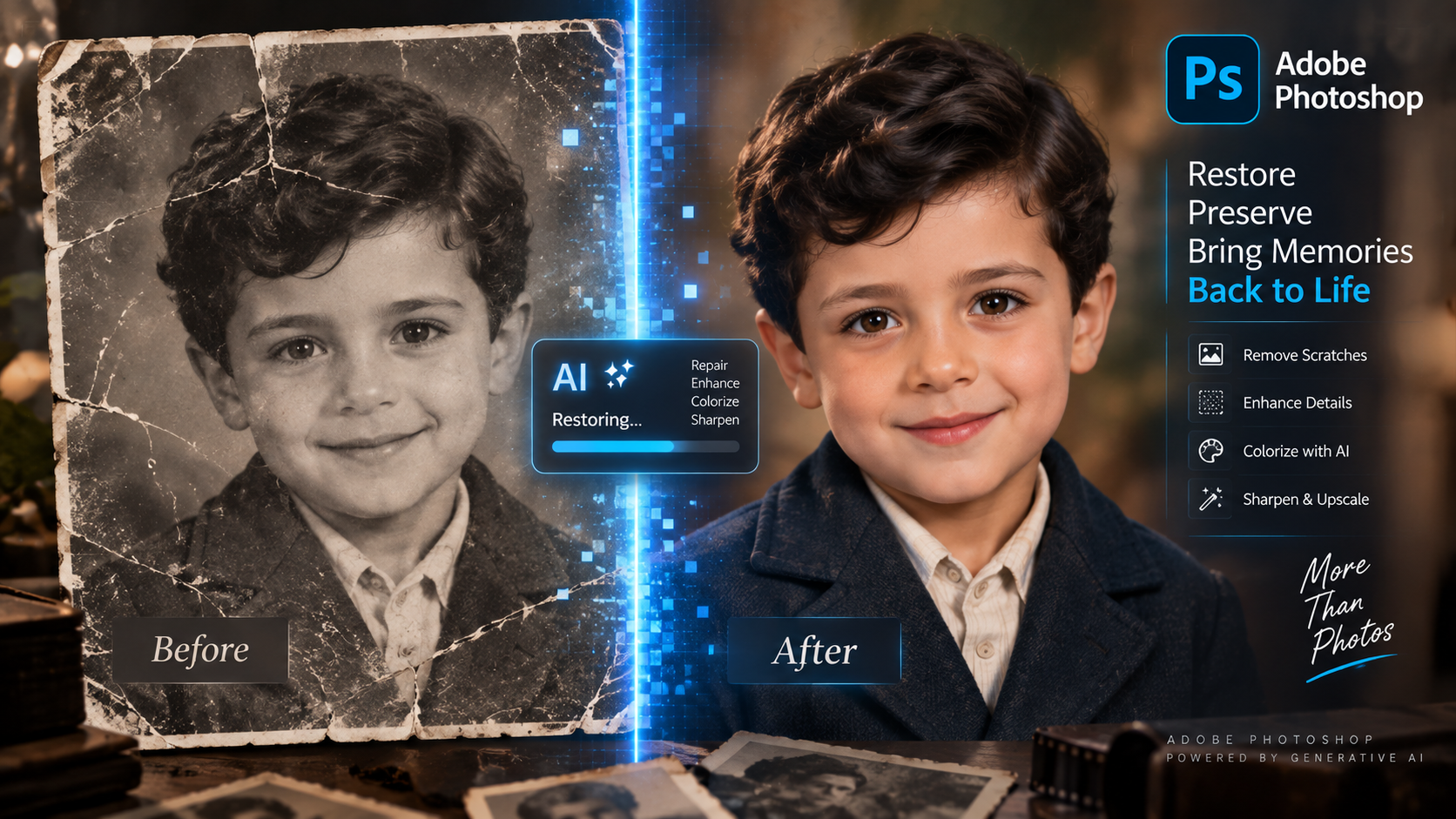
Neural Filters are designed to speed up specialized photo-editing tasks. Depending on the filter and the release, they may help with portrait adjustments, colorization, restoration, depth-based effects, or other automated improvements. They are useful when a manual workflow would require many separate adjustments, but they still need careful review because aggressive settings can make a photo look unnatural.
Portrait and Expression Adjustments
Portrait-focused AI tools can help test changes to lighting, expression, age appearance, or facial balance. These tools can be useful for creative exploration, but they should be applied with restraint. Small changes may preserve a natural result, while heavy changes can alter identity, skin texture, or the character of the original photograph.
For professional portraits, keep the original layer or document version and compare the result at normal viewing size. A result that looks impressive as a thumbnail may reveal artifacts around hair, eyes, teeth, skin edges, or clothing when viewed at full resolution.
Photo Restoration and Colorization
AI-assisted restoration can help with old photos by reducing damage, improving contrast, and suggesting color. The result should be treated as a starting point rather than an unquestionable reconstruction of history. Scratches, missing details, and faded areas may require manual retouching, and colorization is an interpretation rather than proof of the original colors.
One-Click Background Removal and Object Selection
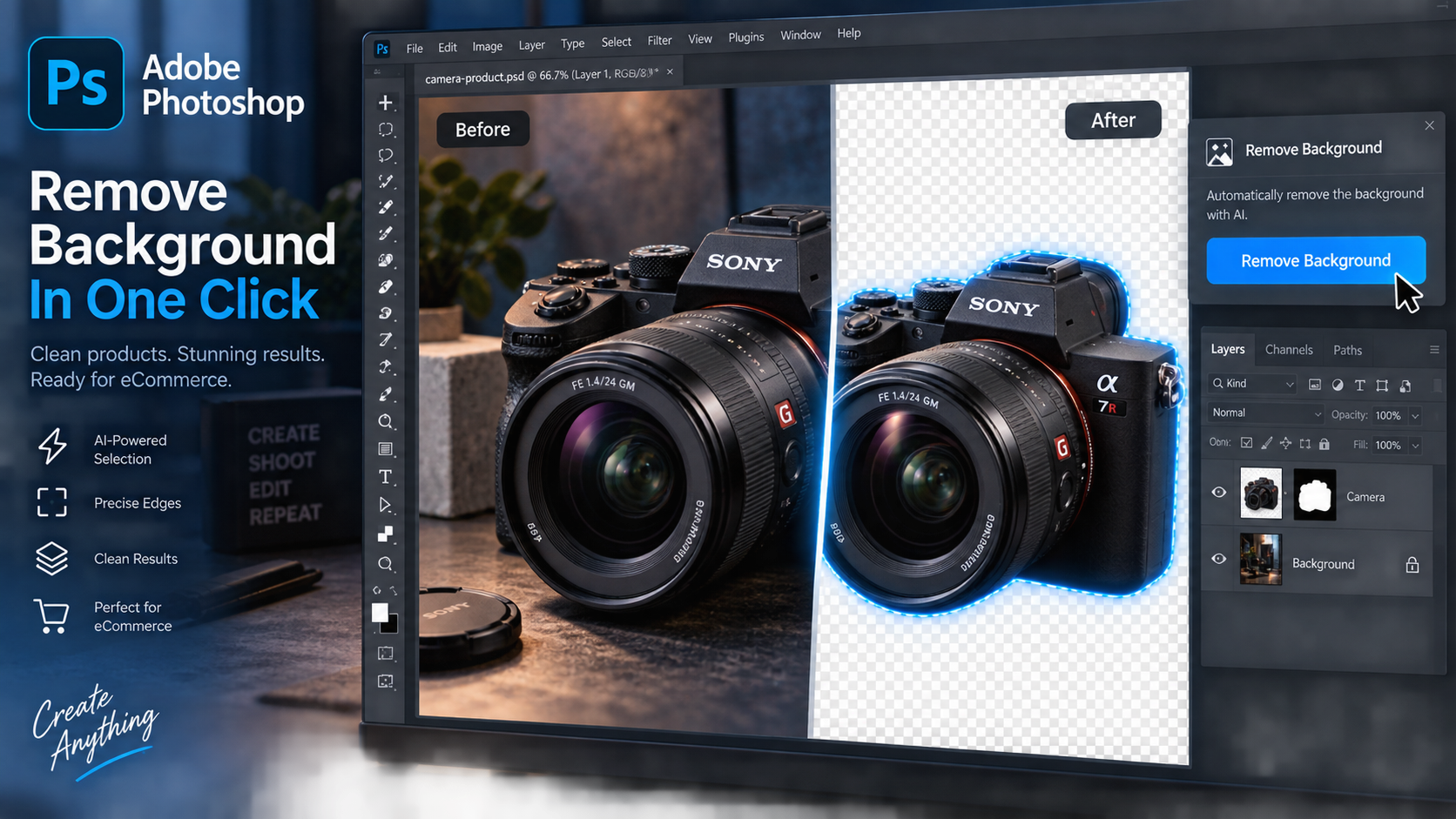
Subject detection and object selection are among the most practical Photoshop AI features. Photoshop can help identify a person, product, animal, or prominent object so you can isolate it from the background. This can reduce the time needed to create a mask, especially when the subject has a clear outline.
If you are searching for remove background Photoshop tools, this is one of the most practical AI workflows to test. Background removal is useful for e-commerce photos, profile images, thumbnails, advertising layouts, and product catalogs. After the automated selection, inspect hair, transparent objects, thin cables, soft fabric, shadows, and reflections. These areas often need manual refinement with a mask, brush, or selection tool.
Object Removal and Content-Aware Editing
AI-assisted removal can help clean a scene by removing people, signs, wires, blemishes, or other distractions. The tool works best when there is enough surrounding information to rebuild the missing area. Repeating patterns, straight lines, text, and architectural details can expose errors, so zoom in and check the result before exporting.
A professional workflow usually combines automated removal with manual cleanup. Use layers or duplicate the original before making major changes so that you can compare the original and keep a reversible editing path.
Adobe Firefly Integration in Photoshop
Adobe Firefly is the family of Adobe generative AI services connected to several creative workflows. In Photoshop, Firefly-related features can support generative image actions such as filling selected areas, expanding a canvas, and creating variations from a prompt, depending on the release and plan.
Firefly integration is one reason many users choose a current Photoshop subscription instead of an older fixed edition. The newest AI tools are connected to the active product version, Adobe account, plan terms, and available generative credits. A one-time Photoshop 2021 license should not be described as including current Firefly features unless the product terms explicitly say so.
Prompts and Better AI Editing Results
A useful prompt describes the result you need without adding unnecessary instructions. Mention the subject, material, lighting, color, viewpoint, and relationship to the existing scene when those details matter. Short prompts can work well for simple backgrounds, while a complex scene may need several small selections instead of one large request.
- Describe the visual result, not just the object name.
- Use a smaller selection when you need precise control.
- Generate several variations and compare them at full resolution.
- Check edges, shadows, reflections, text, faces, hands, and repeated patterns.
- Keep a copy of the original and preserve an editable project when possible.
Version by Version: How to Read Photoshop Release Labels
Searchers may see release labels such as Adobe Photoshop 2025, Adobe Photoshop 2025 v26.5, v26.8.0, v26.9.0, or Adobe Photoshop 2026 v27.1.0. These labels can refer to a major release, a feature update, or a maintenance update. A higher number does not automatically mean that every AI feature is available in every plan, operating system, or region.
Before downloading the newest Photoshop version, check the official release notes and the plan details for the exact build. Confirm the supported Windows or Mac version, AI feature availability, credit policy, plug-in compatibility, and any changes that could affect your workflow. If you are writing about a specific version, add a visible update date so readers know when the details were last checked.
Adobe Photoshop AI Features and Subscription Plans

The newest Adobe Photoshop AI editing features are most closely associated with current subscription-based releases. A subscription can provide access to current application updates and may include a defined allowance of generative credits or other connected services, depending on the plan. Credits and feature limits can change, so explain them using the current product terms rather than an old promotional page.
KeyUpMart lists a one-year Photoshop subscription with 10,000 AI credits and identifies Windows, Mac, and iPad support on the product page. Buyers should review the current listing and activation method before purchase. The Photoshop 2021 Professional Edition lifetime listing is a different product model for Windows and should be compared as a fixed edition, not as a substitute for every current AI feature.
Choose the product that matches your AI workflow: Photoshop 1-Year Subscription with AI Credits or Photoshop 2021 Lifetime for Windows.
AI Editing Versus Manual Photoshop Skills
AI tools can make Photoshop faster, but they do not replace the fundamentals. Layers, masks, selections, adjustment layers, blending modes, color correction, typography, and file preparation remain important. When an AI-generated result is not accurate, those manual skills are what allow you to refine the result and deliver a clean final image.
The strongest Photoshop workflow uses AI for exploration and repetitive work, then uses manual editing for precision. This approach is especially important for products, faces, logos, packaging, architectural lines, and any image where a small error can change the meaning or damage a client’s brand.
Who Should Upgrade to the Newest Photoshop
Professionals and Agencies
An upgrade is more valuable when current AI features save measurable time across repeated projects. Agencies, photographers, e-commerce teams, and designers may benefit from faster selections, background expansion, object removal, and current file compatibility. They should still test the release with their plug-ins, fonts, templates, and delivery process before moving every workstation.
Creators and Social Media Teams
Creators can use AI editing to adapt images to different aspect ratios, create variations, remove distractions, and prepare multiple versions of the same content. The subscription value depends on how often those features are used and whether the included credits match the team’s volume.
Casual Users and Budget-Conscious Buyers
A casual user may not need the newest AI features. If you only crop, resize, correct color, and make occasional graphics, an older fixed edition may be enough if it remains compatible with your computer and workflow. Choose a current subscription when you specifically need the latest features, supported devices, or cloud-connected services.
Frequently Asked Questions
What Is New in Adobe Photoshop 2025 and 2026?
The major direction is deeper AI assistance inside normal Photoshop editing. Recent releases emphasize Generative Fill and Generative Expand workflows, automated selection and removal, Neural Filters, Firefly-connected actions, and improvements to speed and compatibility. The exact feature list depends on the release and plan, so verify the current release notes before making a version-specific claim.
Does Photoshop AI Require a Subscription?
Many current AI and Firefly-connected features are associated with current subscription plans, account access, and generative credits. Do not assume that an older one-time Photoshop edition includes those services. Check the exact plan and feature terms before purchasing.
Can Photoshop 2021 Use the Newest AI Features?
A Photoshop 2021 lifetime edition is a fixed product and should not be assumed to include the newest AI features from current Creative Cloud releases. It may remain useful for its listed feature set, but users who need current generative tools should compare it with a current Photoshop subscription.
Are Photoshop AI Results Safe to Use Commercially?
Commercial use depends on the feature terms, the source image, the content you generate, and the requirements of your client or platform. Review the current Adobe terms, avoid using protected content without permission, and check every generated result for accuracy, branding, privacy, and misleading details before publishing.
How Do I Get the Latest Photoshop Version?
Use the official Adobe Creative Cloud workflow connected to a current compatible plan, or follow the authorized delivery and activation instructions for the product you purchased. Check the operating-system requirements and back up important projects before installing a major update.
Conclusion
Adobe Photoshop 2025 and 2026 continue the move toward practical AI-assisted editing. Generative Fill and Generative Expand can help rebuild or extend images, Neural Filters can speed up specialized adjustments, subject detection can simplify selections, and Firefly-connected features can support new creative variations. The best results still come from combining AI with careful manual editing and quality control.
If you need the newest Photoshop AI features, current compatibility, and an active credit-based workflow, a current subscription is the more appropriate product model. If you want a stable one-time Windows edition, Photoshop 2021 Lifetime may fit a different use case, but it should not be marketed as a replacement for every current AI feature.
Ready to use the newest Photoshop AI editing tools? Get the 1-Year Photoshop Subscription with AI Credits.
Prefer a one-time Windows edition? Get Photoshop 2021 Professional Edition Lifetime.
Related posts:

 Photoshop and Lightroom Bundle vs Standalone Which Combination Do You Need
 Is Your Adobe Photoshop License Key Genuine A Buyer’s Guide to Safe Purchases
