





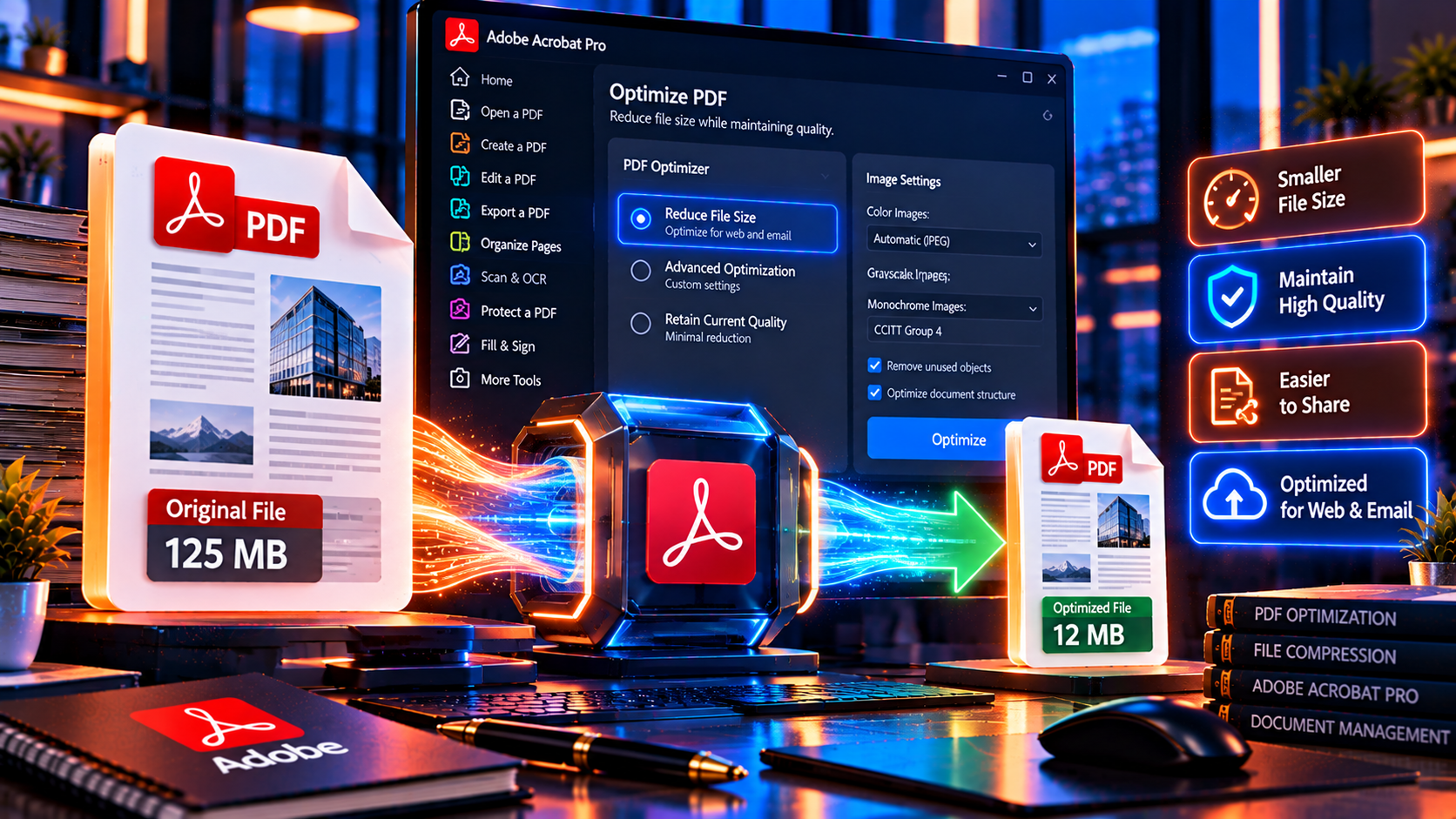
A practical guide to reducing PDF file size, optimizing images and keeping documents readable
Large PDF files are difficult to email, upload and store. A document may become oversized because it contains high-resolution photographs, scanned pages, embedded fonts, repeated images, attachments or unnecessary metadata. Adobe Acrobat provides several ways to reduce PDF file size, from a quick compression command to detailed PDF optimization settings.
The goal is not to make every PDF as small as possible. The right goal is to create the smallest file that still meets the reader’s needs for clarity, print quality, accessibility and long-term use. This guide explains how to compress a PDF in Acrobat, how to choose settings for email or print, how to optimize scans and how to check that compression has not damaged important content.
Why PDF Files Become Large
PDF size is usually driven by content rather than the number of pages alone. A ten-page photo report can be larger than a two-hundred-page text document. Understanding the source of the size helps you choose a safe optimization method.
- High-resolution photographs or screenshots.
- Scanned pages stored as large color images.
- Multiple copies of the same image embedded in different pages.
- Uncompressed or lightly compressed image data.
- Embedded fonts and complex graphics.
- Attachments, comments, form data or hidden objects.
- Layers, transparency, large crop areas or unused content outside the page.
- Repeated export cycles that add unnecessary objects or metadata.
Use Acrobat’s file information or optimization tools to investigate a large PDF instead of guessing. If the source file is available, reducing image dimensions and removing unnecessary content before creating the PDF can produce a cleaner result than compressing the finished document repeatedly.
Choose the Right Compression Goal
Email and everyday sharing
For email, messaging and routine review, prioritize a smaller file that remains easy to read on a screen. Color photographs may not need print resolution, but small text and signatures must stay sharp.
Web or portal upload
For websites and upload portals, check the maximum file size and supported file type. A portal may reject a file that is technically valid but exceeds a fixed limit. Create a delivery copy and keep the full-quality master separate.
Professional printing
For printing, do not choose the most aggressive compression automatically. Preserve the resolution, color profile, bleed and fonts required by the printer. Ask for the printer’s PDF standard or job settings when the project is production-critical.
Archiving
For archives, prioritize readability and future access over the smallest possible file. Keep an original or preservation-quality copy and create a smaller access copy only when appropriate. Never replace the only master with an aggressively compressed version.
How to Compress a PDF Quickly in Adobe Acrobat
The quick compression workflow is useful when you need a smaller copy without adjusting individual image and font settings.
- Open the PDF in Adobe Acrobat.
- Choose the compression or reduced-file-size command from the File menu or tools area. The label can vary by Acrobat version.
- Select the available compatibility or quality setting if Acrobat presents one.
- Choose a new filename and output folder instead of overwriting the original.
- Save the compressed copy.
- Open the result and check images, text, forms, signatures, links and page count.
The quick method is convenient, but it may not give you enough control for a scanned book, a print-ready brochure or a document with important high-resolution images. Use detailed optimization when the result is still too large or when quality requirements are strict.
How to Use PDF Optimizer for More Control
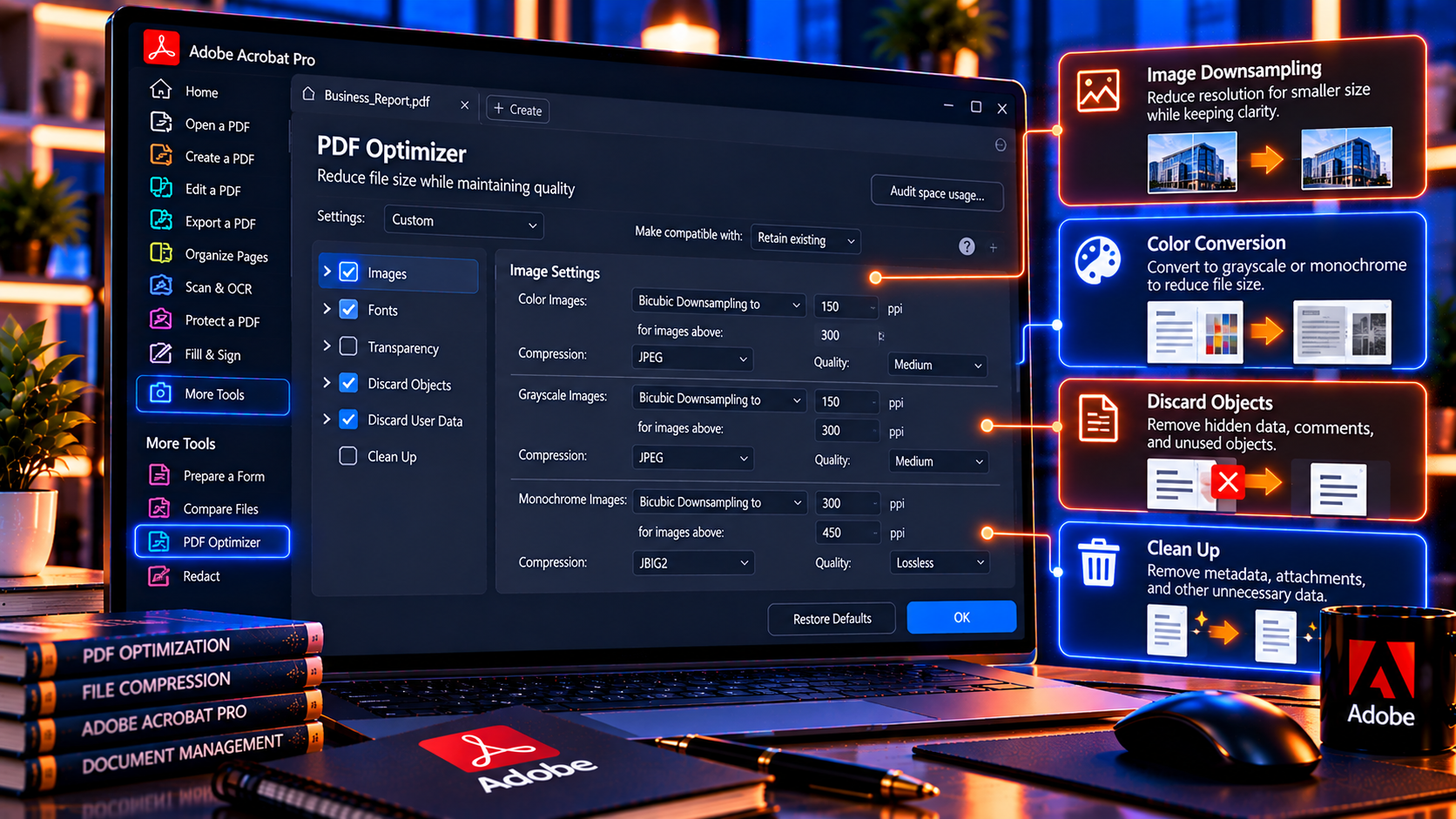
PDF Optimizer or the advanced optimization tool lets you control the parts of a PDF that contribute to size. The available panels and labels can vary, but common categories include images, fonts, transparency, discarded objects, user data and cleanup.
- Open the PDF and locate PDF Optimizer through the tools or advanced menus.
- Save a copy before changing settings.
- Review the image settings first because images often account for most of the file size.
- Choose downsampling and compression appropriate to screen, email or print use.
- Review font, object and user-data cleanup options carefully.
- Save the optimized copy and compare it with the original.
- Check accessibility, links, bookmarks, forms and signatures after optimization.
Do not remove objects simply because they are unused in your current view. A hidden object, metadata field or attachment may be required for a later workflow. If you are unsure, preserve it in the master copy and optimize a separate delivery version.
Image Settings That Reduce PDF Size
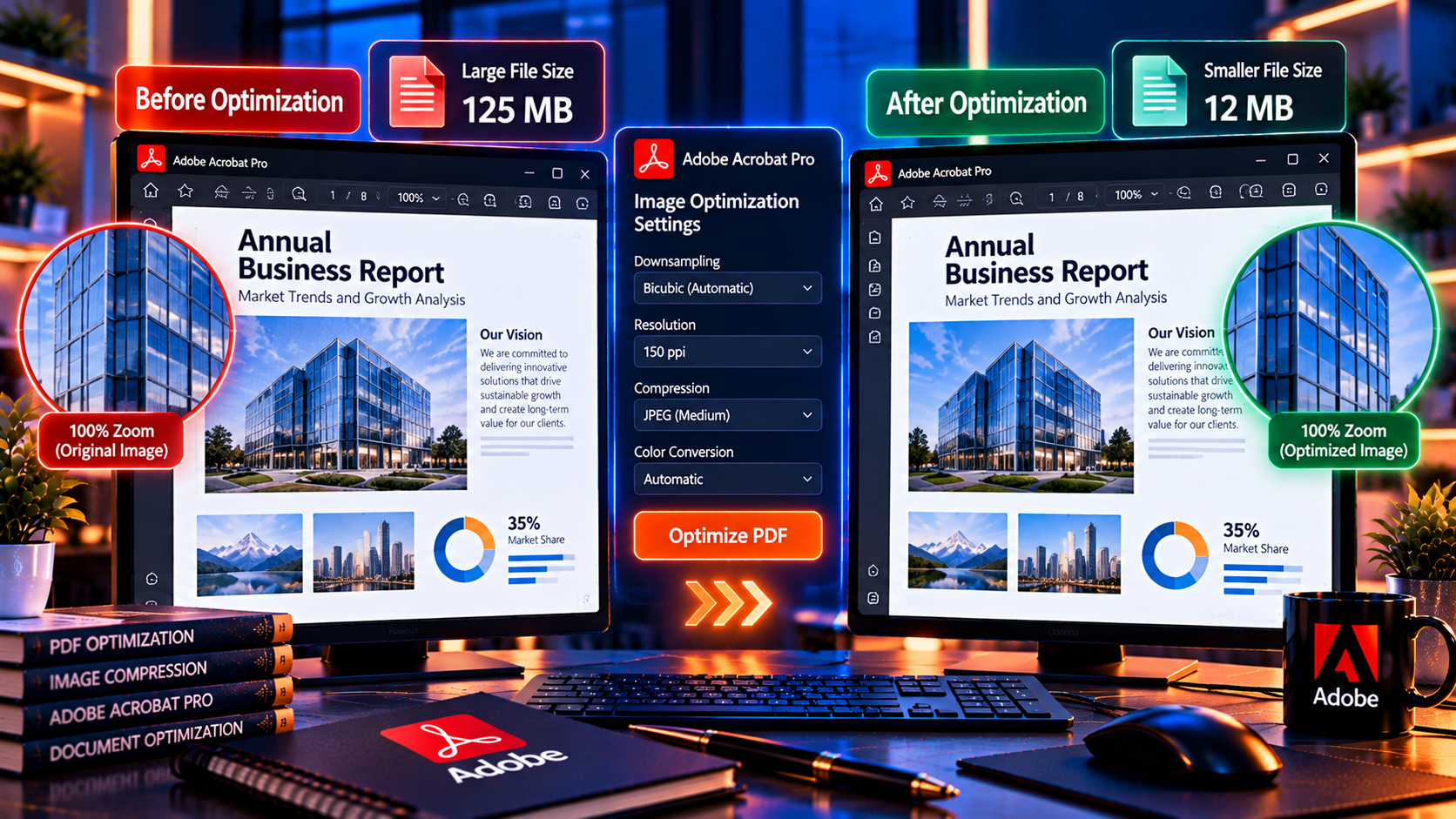
Images are usually the most important compression setting. The best choice depends on the final viewing or printing size, not only on the original pixel dimensions.
Downsampling
Downsampling reduces the number of pixels in an image. It can produce a significant size reduction when images are much larger than the final page or screen requires. Too much downsampling makes small text inside screenshots, fine lines and photographs look soft.
Image compression
Compression reduces the storage required for image data. Lossless methods preserve the image information but may save less space. Lossy methods can reduce size more aggressively but may introduce blockiness, ringing or blurred detail. Use the least aggressive setting that meets the file-size requirement.
Color conversion
Converting color images to grayscale can reduce size when color is not needed. Do not remove color from signatures, diagrams, medical images, brand artwork or evidence when color carries meaning. For print, preserve the required color mode and profile.
- Email reports: moderate downsampling and quality settings are often enough.
- Text-heavy scans: grayscale can be effective when color is not meaningful.
- Photo portfolios: test a sample page at the intended screen size.
- Print artwork: follow the printer’s resolution and color specifications.
- Screenshots with small text: preserve enough resolution for legibility.
How to Compress Scanned PDFs
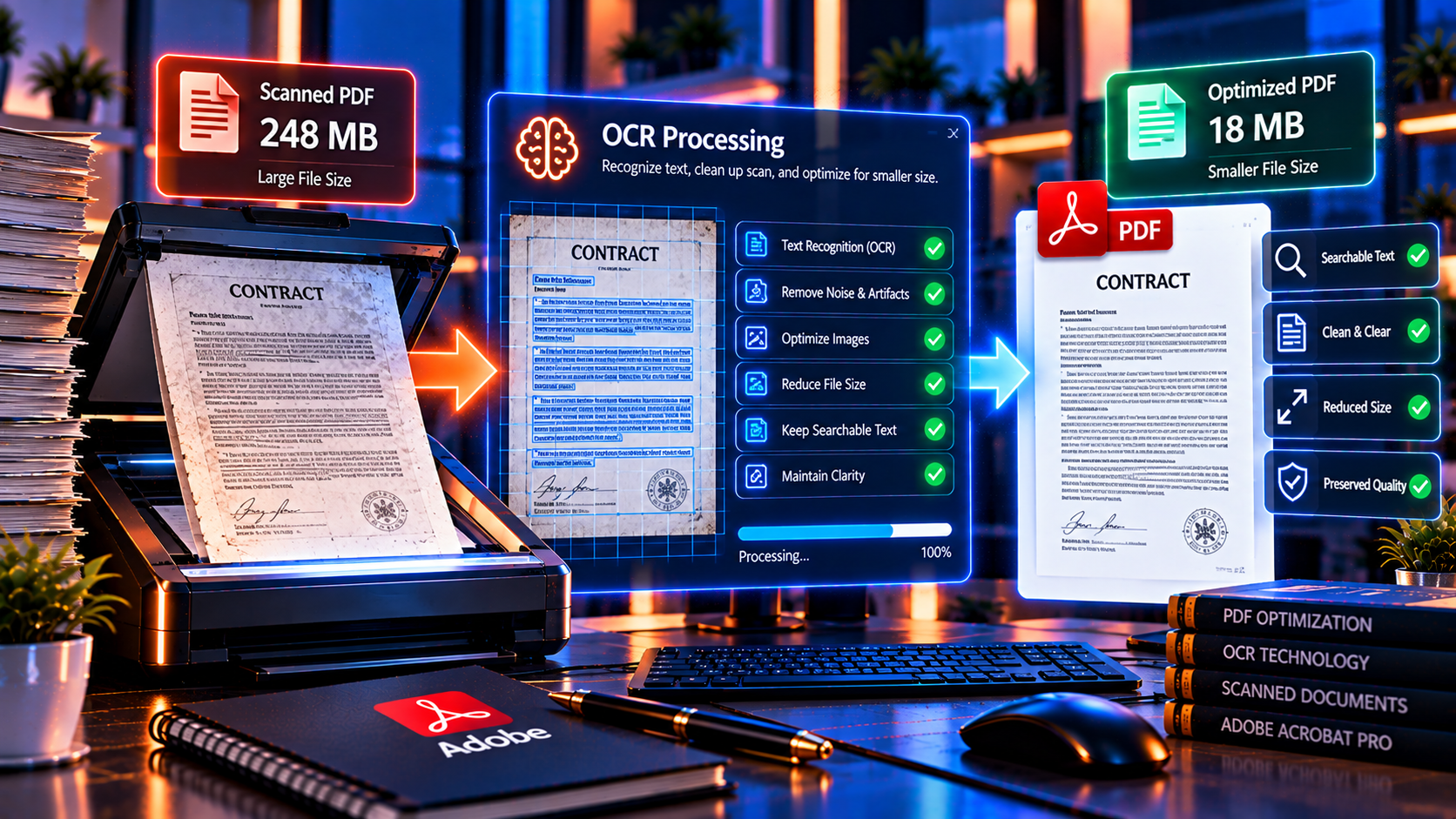
Scanned PDFs can become large because every page is an image. A scan of a text document may contain much more image data than the reader needs. The safest process is to balance OCR, readability and image quality.
- Keep a high-quality original scan in a protected master folder.
- Use OCR when the document needs search, copy or accessibility support.
- Convert color scans to grayscale only when color does not carry important information.
- Reduce resolution to the level needed for the final use.
- Inspect small print, signatures, stamps and tables after compression.
- Test the output on a different screen or viewer before deleting any source copy.
OCR does not automatically make a scan small. It may add a text layer while the original page image remains. Optimize the image layer carefully and verify that the recognized text still matches the page image.
Reduce PDF Size Without Damaging Text or Forms
Text created digitally is normally efficient, so aggressive image compression should not be necessary for a text-only PDF. The risk is that a quick preset may alter form appearance, transparency, fonts or interactive elements.
- Keep embedded fonts when the document must display consistently on other devices.
- Test fillable fields and calculated values after optimization.
- Check that hyperlinks still open the correct destinations.
- Verify that bookmarks and page labels remain available.
- Inspect comments, attachments and layers if the workflow uses them.
- Check that accessibility tags and reading order are still present when accessibility matters.
- Do not optimize a signed or certified PDF without understanding whether the change will invalidate the signature.
How to Compress a PDF for Email
Email providers often impose attachment limits, and recipients may open files on mobile devices or slow connections. Create an email copy rather than reducing the only high-quality version.
- Check the email system’s attachment limit.
- Use the quick reduce-size command first and inspect the result.
- If the file is still too large, optimize images or split the document into logical parts.
- Use an approved file-sharing link when the document is too large for email.
- Password-protect confidential PDFs and share the password separately.
- Give the attachment a clear filename and mention if it is a compressed copy.
Splitting a file may be better than over-compressing it. A recipient who needs to print a contract or inspect a detailed diagram should receive readable pages, even if that means using two or more attachments or a secure file-sharing link.
How to Check PDF Quality After Compression
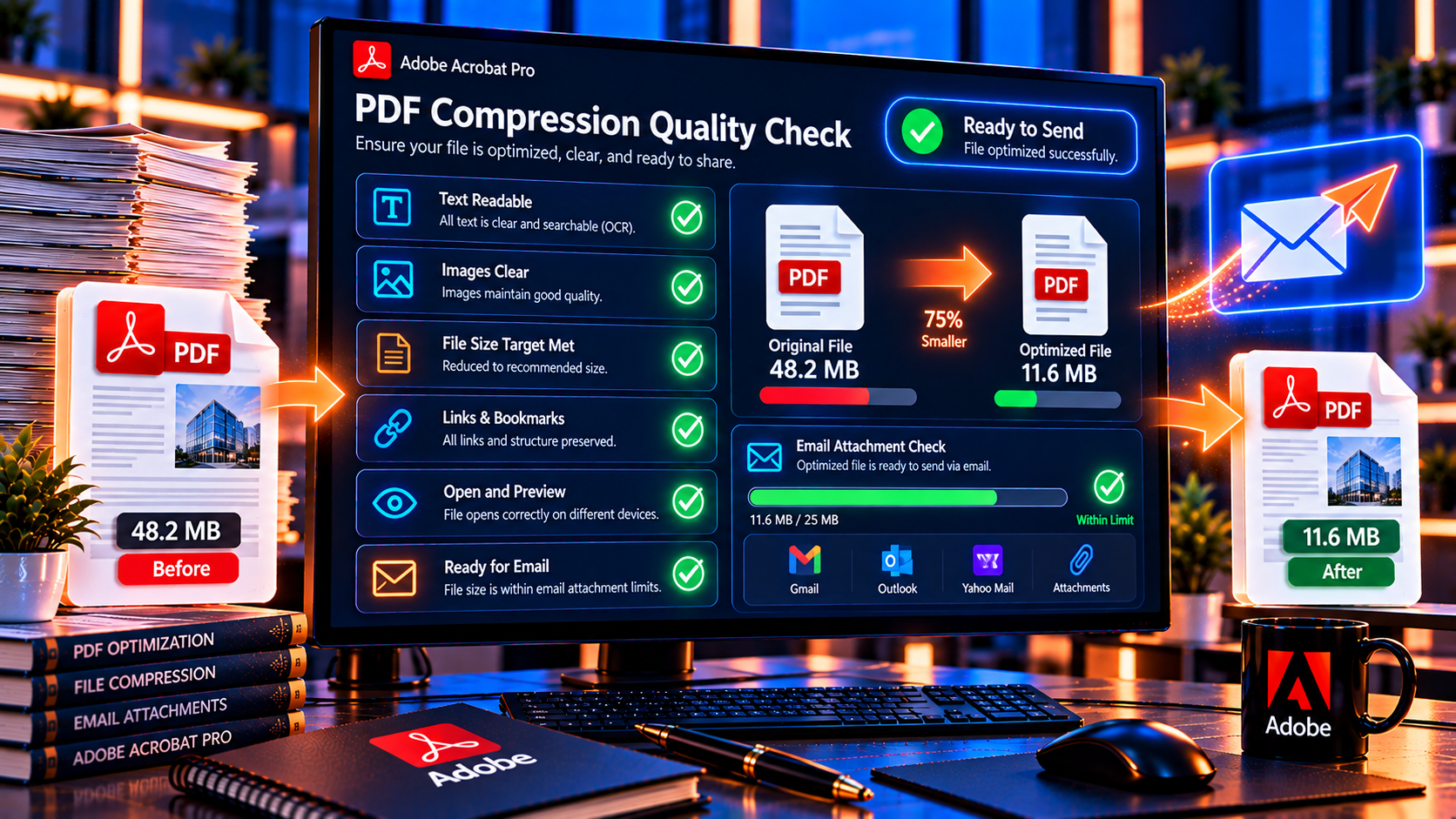
File size alone is not a quality test. Review the compressed PDF systematically:
- Compare the page count with the original.
- Open representative pages from the beginning, middle and end.
- Zoom in on small text, tables, signatures and line drawings.
- Inspect photographs for blur, blockiness or color changes.
- Search for text if the PDF should be searchable.
- Test links, form fields, bookmarks and attachments.
- Print a sample page when the PDF will be printed.
- Check the file properties, security settings and metadata.
- Confirm that the output filename and version are clear.
For a long document, create a small review sample before applying the same settings to every file. Different pages can contain different image types and may react differently to compression.
Common Compression Problems and Fixes
The PDF is still too large
Inspect the image content and attachments. Remove unnecessary attachments or unused data from a delivery copy, reduce oversized images and consider splitting the document. If the file is a scan, grayscale and OCR may help, but test readability first.
Images look blurry
The image resolution or compression quality was reduced too far. Return to the original, use less aggressive downsampling and test at the final print or screen size. Do not try to restore quality from the already compressed copy.
Small text is unreadable
Small text may be part of a screenshot or scan rather than real PDF text. Preserve more image resolution, crop unnecessary whitespace before creating the PDF or request the original source document.
The PDF changed color
Color conversion, profile handling or image compression may have changed the appearance. Preserve the required profile for print, compare against the original under consistent viewing conditions and avoid grayscale when color is meaningful.
Forms or signatures do not work
Optimization may have altered interactive elements, or editing a signed file may have invalidated its signature. Keep an untouched original and test an optimized copy before distribution.
Batch Compression for Multiple PDFs
If you need to compress many PDFs, use a controlled batch process or Acrobat action when your edition supports it. Start with a small representative sample and confirm that the output naming, destination folder and quality settings are correct.
- Group source files by use case, such as email, web or print.
- Test the settings on text-heavy, image-heavy and scanned PDFs.
- Keep the original files unchanged.
- Log which settings were used and where the outputs were saved.
- Review at least one file from each source category.
- Do not assume one preset is safe for contracts, photos and scanned forms alike.
PDF Compression and Privacy
Compression is not anonymization. Removing metadata or reducing file size does not remove confidential text or images. If a PDF contains information that should not be shared, redact it permanently and inspect the result before compression and delivery.
- Use approved local or cloud tools for confidential documents.
- Keep an original in a restricted location.
- Do not upload sensitive files to an unknown online compressor.
- Check attachments, comments, hidden layers and metadata in the delivery copy.
- Use password protection or secure delivery when appropriate.
- Share the password through a separate verified channel.
PDF Compression Checklist
- The original PDF is preserved.
- The delivery purpose is clear: email, web, print or archive.
- Images were compressed only as much as needed.
- Small text, signatures and tables remain readable.
- OCR and search work when required.
- Forms, links, bookmarks and attachments were tested.
- Color and print quality were checked when relevant.
- Security and redaction were applied appropriately.
- The final file meets the size limit.
- The compressed file has a clear name and version.
Frequently Asked Questions
How do I compress a PDF in Adobe Acrobat?
Open the PDF, use Acrobat’s reduce-file-size or compression command, select an appropriate quality or compatibility setting and save a new copy. Use PDF Optimizer for more detailed control over images, fonts and cleanup.
Can I reduce PDF size without losing quality?
You can often reduce size with little visible change by removing unnecessary data, downsampling oversized images and choosing appropriate compression. Some quality trade-off is unavoidable when the source contains large images or scans.
What is the best PDF compression setting for email?
Use a moderate screen-oriented setting that keeps small text and signatures readable. Test the output and create a separate email copy rather than replacing the full-quality master.
Does compressing a PDF reduce image resolution?
It can. Downsampling reduces pixel dimensions, while lossy compression reduces image data. The effect depends on the selected settings and the source images.
Should I compress a print-ready PDF?
Only according to the printer’s specifications. A screen or email preset may damage print quality, color or required resolution. Keep the print master separate.
Can I compress a scanned PDF?
Yes. Scanned files often have significant size-reduction opportunities, but inspect small print, signatures, stamps and OCR accuracy after compression.
Conclusion
Adobe Acrobat can reduce large PDF files while preserving useful quality when you choose settings based on the document’s purpose. Start with a copy, identify whether images or scans drive the size, use the quick compression tool for simple cases and move to PDF Optimizer when you need control.
Always inspect the result. A smaller PDF is successful only when it still opens correctly, reads clearly, preserves the required forms or links and meets the final delivery requirements. Keep the original master, use secure handling for confidential documents and never let an aggressive preset replace a quality review.
Need Acrobat Pro tools for PDF optimization and document workflows? Review Adobe Acrobat Pro DC 2025 for Windows on KeyUpMart and confirm the current license and compatibility details before purchase.
Related posts:
 Adobe Photoshop CC Creative Cloud What’s Included and How Much Does It Cost
 Adobe Acrobat Pro 2024 vs DC 2025 What Is New and Is the Upgrade Worth It
 How to Convert PDF to Word Excel and PowerPoint with Adobe Acrobat
