A role based guide for legal real estate HR accounting and finance teams
For professionals, PDF software is more than a viewer. It is part of the document workflow used to create contracts, convert files, review evidence, collect signatures, protect personal data, share reports and keep records consistent. The best PDF software for professionals should reduce manual steps without creating new risks around formatting, privacy, version control or collaboration.
Adobe Acrobat Pro is often chosen because it brings many of those tasks into one desktop workflow. This guide explains where it fits, which industries benefit most, what to check before buying and when another tool or an official team plan may be a better match. It focuses on practical business outcomes rather than treating one product as the right answer for every organization.
The Short Answer
Businesses choose Adobe Acrobat Pro when they need dependable PDF editing, creation, conversion, OCR, forms, signatures, redaction, password protection and document review in a familiar professional application. Consolidating those tasks can reduce file handoffs and the need for separate utilities.
Acrobat Pro is not automatically the best choice for every business. A small team may prefer a lower-cost editor, while a large organization may need centralized identity, administration, audit controls and a formal enterprise agreement. The right decision depends on document volume, sensitivity, device mix, collaboration requirements and licensing needs.
What Professionals Need From PDF Software
A business PDF tool should be evaluated against real workflows. The most important criteria are usually:
- Reliable conversion between PDF and Office formats without damaging the layout.
- Text and image editing that avoids recreating a document from scratch.
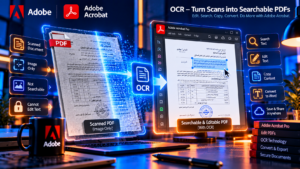
- OCR that makes scans searchable and supports controlled text extraction.
- Forms, signatures and approvals that reduce printing and manual data entry.
- Redaction, password protection and permissions for confidential information.
- Page organization, comparison and batch processing for high document volume.
- Comments, review tools and a clear handoff process between colleagues.
- Compatibility with the devices, operating systems and storage systems the team actually uses.
- A license and support model that fits the number of users and the organization’s procurement rules.
A feature list matters less than the time and risk saved in a repeatable workflow. Test the tasks your team performs every week before deciding.
Why Businesses Choose Adobe Acrobat Pro
Acrobat Pro is attractive because it covers the full PDF lifecycle. A team can create a PDF from a document, correct the layout, convert a supplier file, run OCR on a scan, prepare a form, collect a signature, redact sensitive content and send a controlled copy without switching between unrelated tools.
- One professional environment for creating, editing, converting and organizing PDFs.
- Mature workflows for forms, e-signatures, document comparison and page management.
- OCR for paper records, scanned contracts, invoices, applications and archives.
- Security tools for passwords, permissions, redaction and controlled sharing.
- Automation friendly features such as batch processing for repetitive document work.
- A widely recognized PDF format and interface that can simplify collaboration with external parties.
For a feature overview, see Adobe Acrobat Pro lifetime features explained and map each feature to a workflow in your organization.
Adobe Acrobat for Legal Professionals
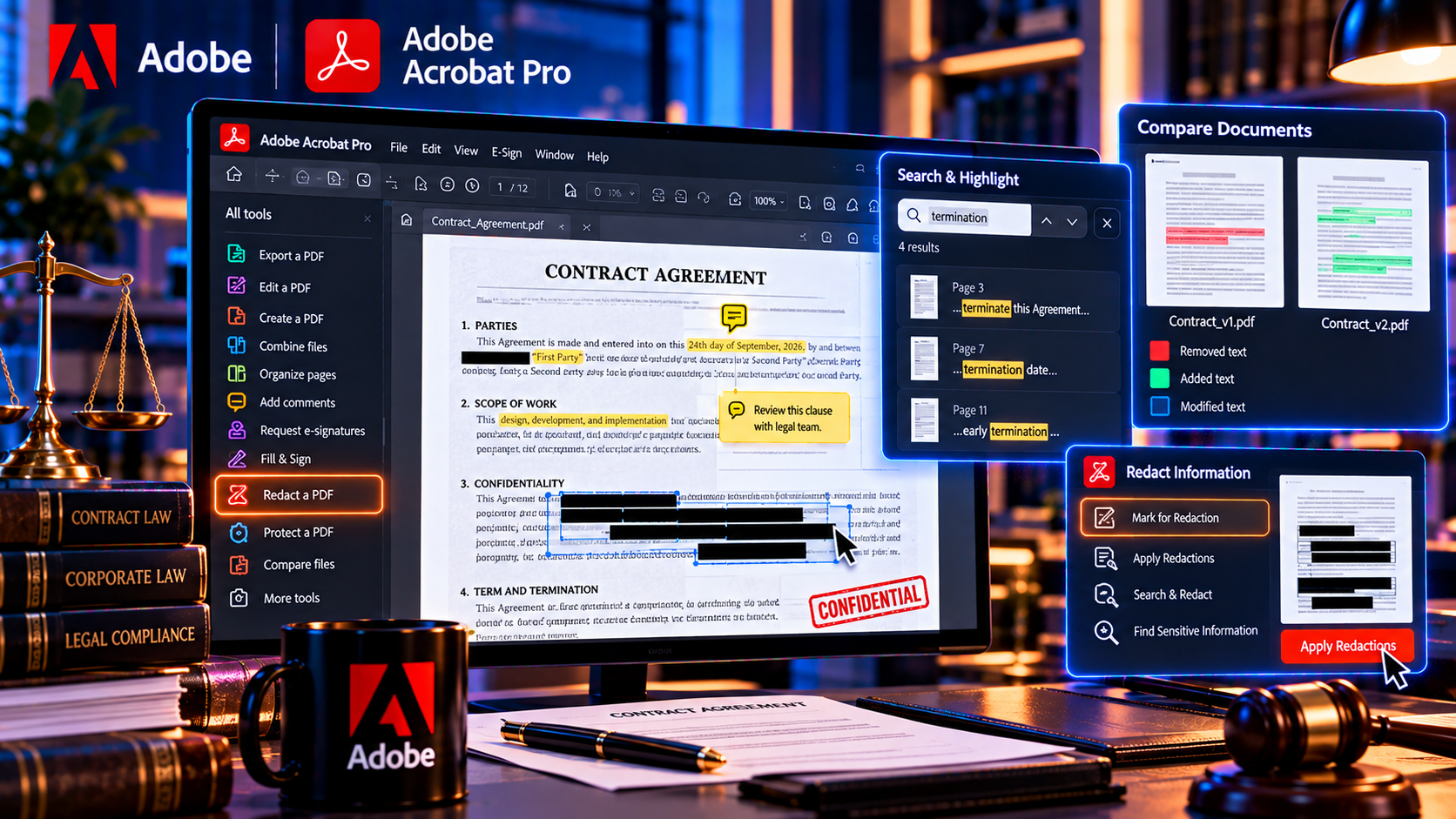
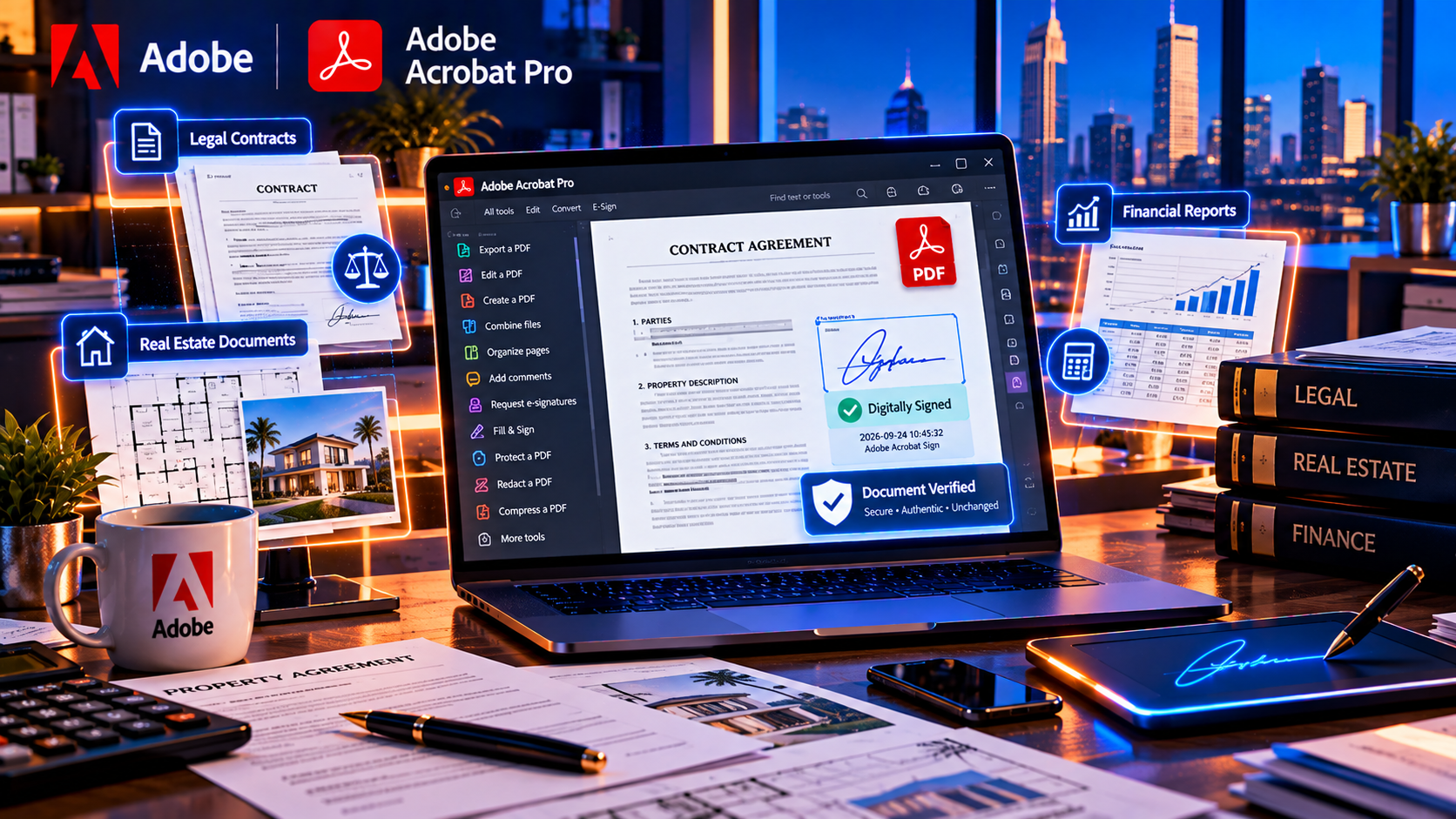
Legal teams handle documents where accuracy, confidentiality and traceability matter. Acrobat Pro can support the work around contracts, pleadings, exhibits, discovery files, signed agreements and client deliverables.
Useful legal workflows
- Convert Word documents and scans into consistent PDF files for review and filing.
- Search, compare and comment on versions of a contract or policy.
- Combine exhibits, reorder pages and create a clean submission copy.
- Redact names, account numbers, addresses and other protected information using the actual redaction tool.
- Apply passwords and permissions when the release process requires them.
- Collect or verify signatures and preserve a final signed copy.
Redaction deserves a formal review process. Drawing a black shape over text is not the same as permanently removing the underlying content. Legal teams should preserve the original, apply redactions to a separate copy, inspect hidden information and have a second person review high-risk releases.
Adobe Acrobat for Real Estate Agents
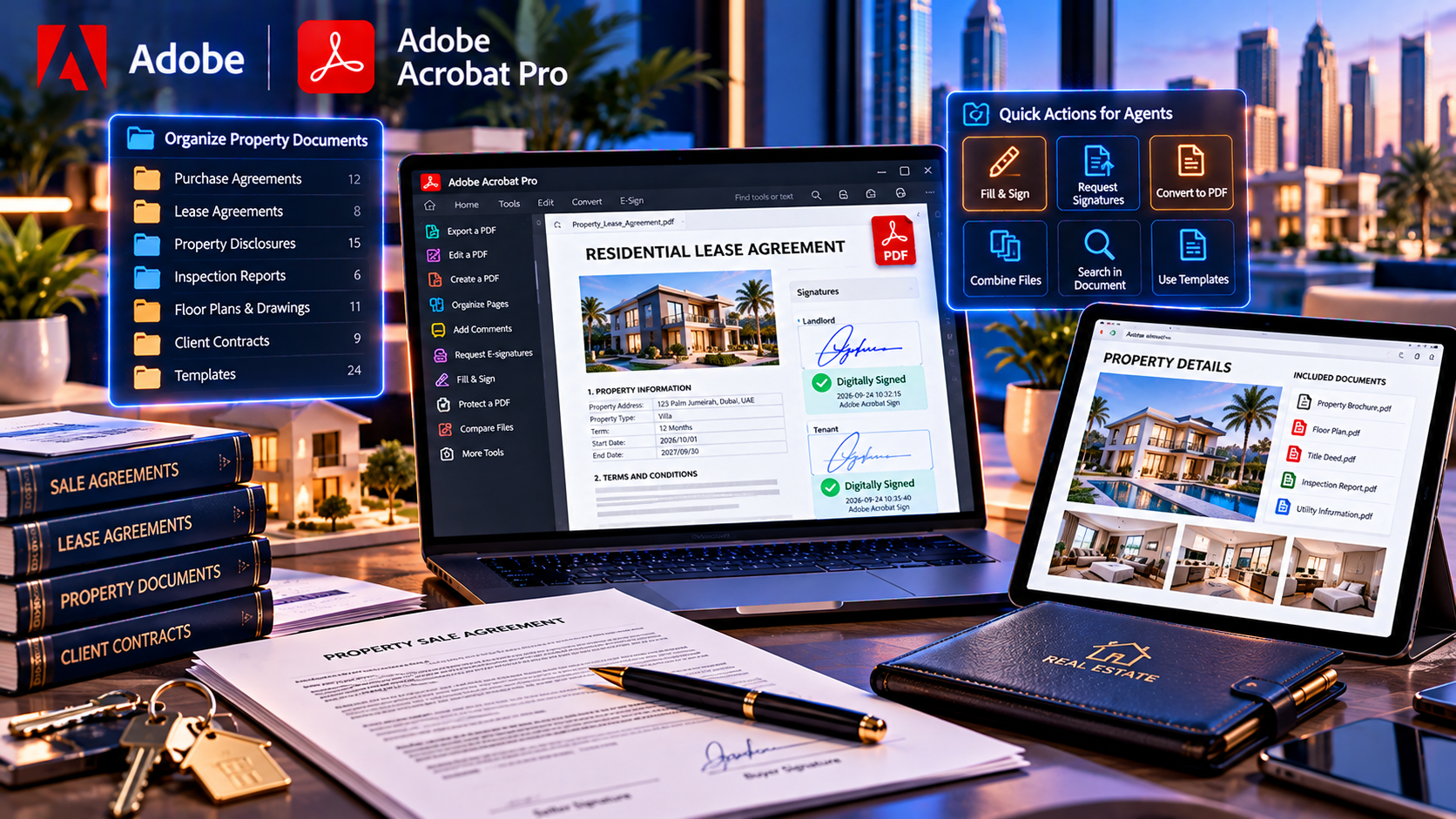
Real estate professionals move quickly between listings, disclosures, offers, inspection reports, leases and closing documents. PDF software helps keep these files readable and ready for signatures across clients, brokers, lenders and service providers.
- Create listing packets and property reports from mixed source files.
- Combine disclosures, inspection records and supporting documents in the right order.
- Fill and sign forms without printing every page.
- Add comments or highlight review points before sending a draft.
- Redact personal contact details or financial information from a shared copy.
- Convert scans into searchable records for faster retrieval.
The key benefit is consistency. A repeatable packet workflow reduces the chance that a page is missing, an outdated form is sent or a private detail is included in a document intended for a wider audience.
Adobe Acrobat for HR Teams
Human resources departments work with applications, offer letters, policy acknowledgements, benefits documents, employee records and performance files. These documents often contain personal information and may be shared with managers, payroll teams or external providers.
- Prepare fillable forms for onboarding, acknowledgements and internal requests.
- Convert scanned personnel files into searchable records with OCR.
- Collect signatures on offer letters and policy documents.
- Redact addresses, identification numbers, compensation details and unrelated employee data.
- Use permissions and controlled copies when sharing records outside HR.
- Standardize document names, page order and approval versions.
HR teams should pair Acrobat features with retention rules, access controls and approved storage. PDF software can help prepare a safe document, but it does not replace the organization’s privacy policy or records management process.
Adobe Acrobat for Accountants and Finance Teams
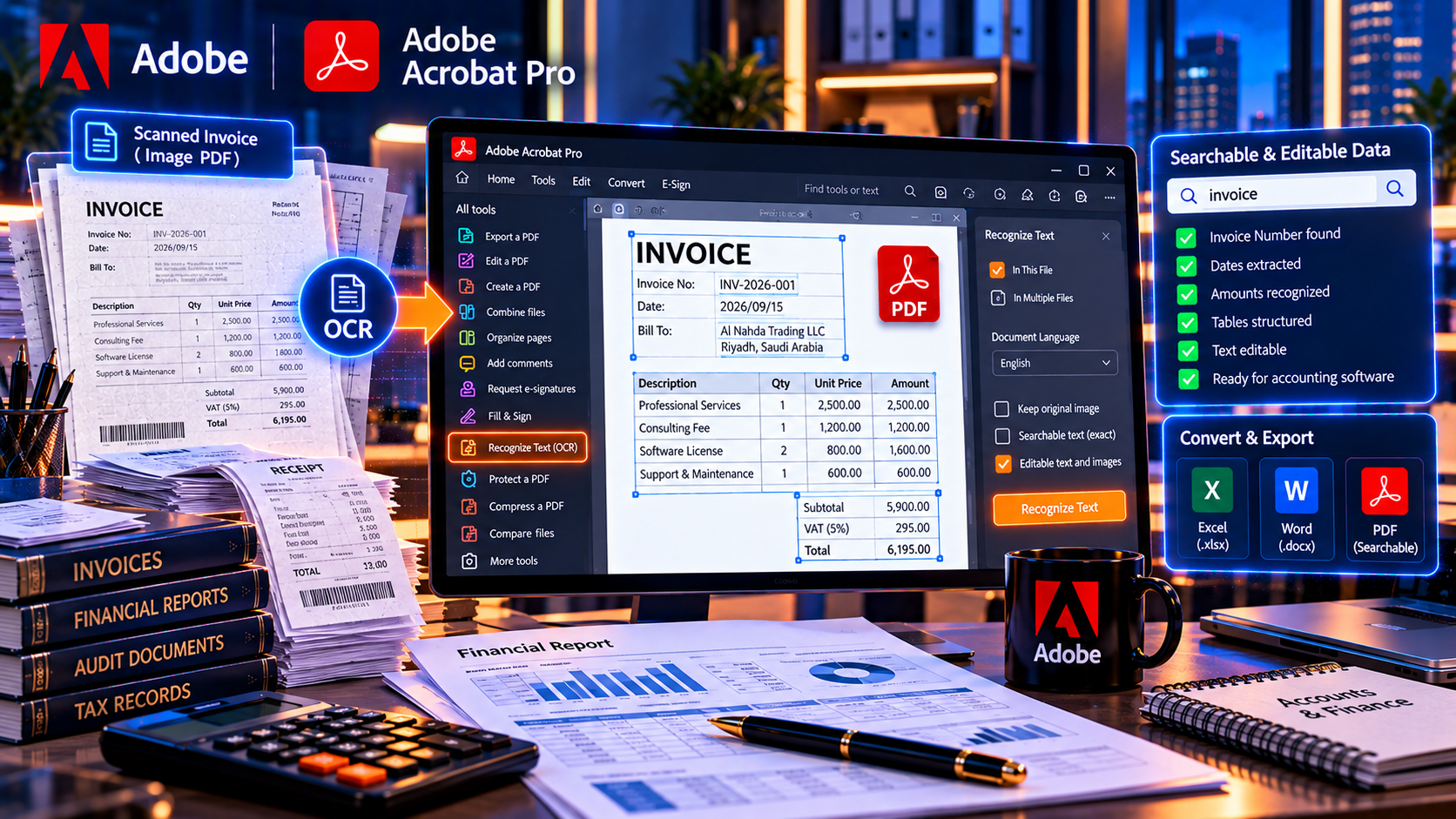
Accountants and finance teams receive invoices, statements, audit evidence, tax records, budgets and signed approvals in many formats. A professional PDF workflow helps turn those files into organized, reviewable records.
- OCR invoices and statements so key text can be searched and reviewed.
- Convert PDFs into editable or structured formats when the data needs further processing.
- Combine supporting evidence into an audit or client file.
- Compare reports or statements and mark changes for review.
- Protect payment details and account identifiers in files sent to clients or vendors.
- Collect signatures on approvals, engagement letters and financial forms.
Finance teams should validate extracted data before using it in a ledger or report. OCR and conversion save time, but a professional review is still necessary when a digit, decimal point or table column can change a financial result.
Document Workflow Automation
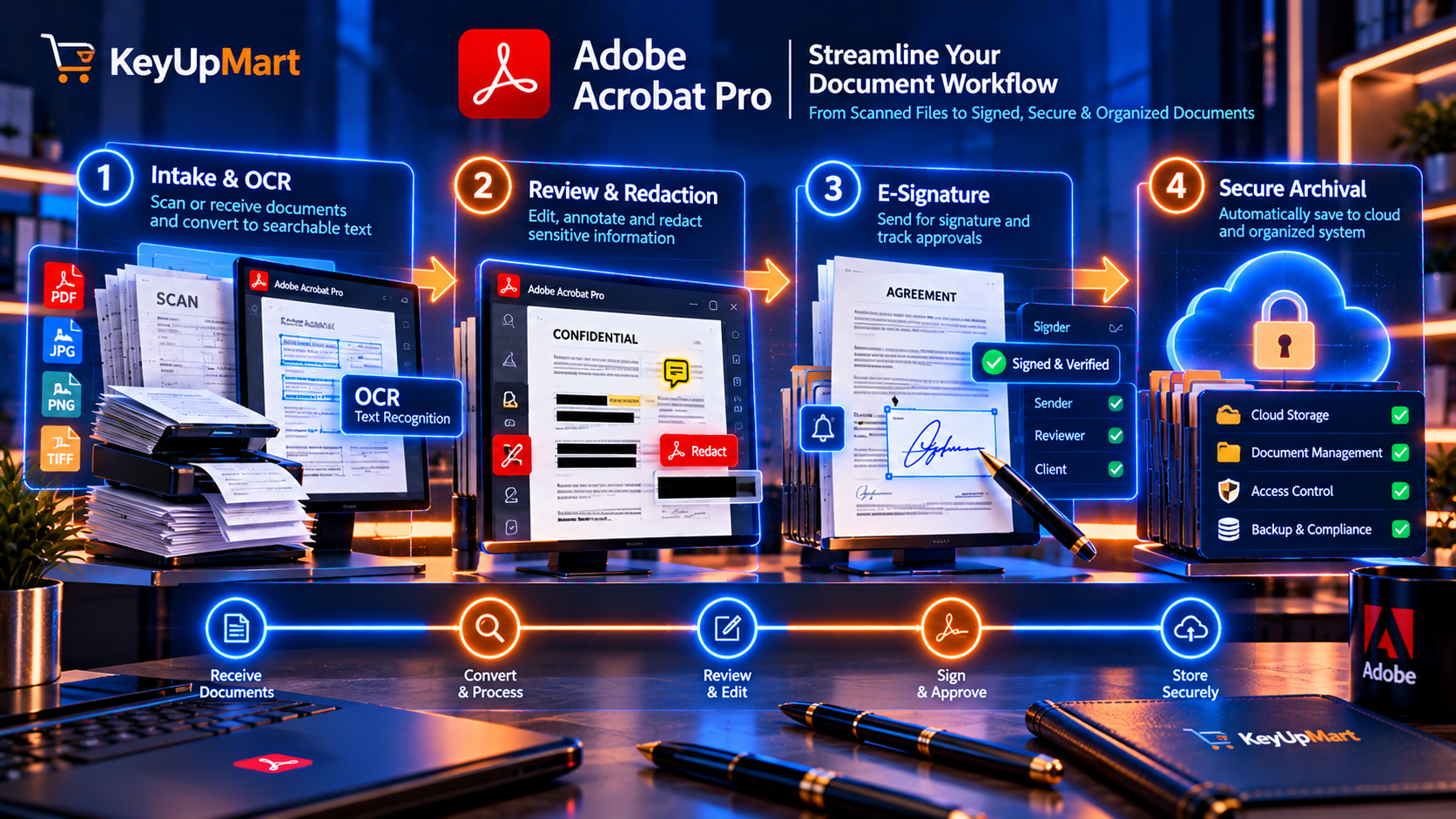
Acrobat becomes more valuable when it is used as a repeatable process rather than an occasional editor. Start by mapping the path of a document from intake to final storage:
- Receive a document from a client, vendor, employee or internal system.
- Convert or OCR it so the content is searchable and usable.
- Review, compare, comment or edit the working copy.
- Complete fields and obtain signatures where required.
- Redact or sanitize information that the recipient should not receive.
- Apply appropriate password or permission settings.
- Save a final named copy and store it in the approved location.
- Retain the original and release record according to policy.
This workflow reduces the common failure points of PDF handling: missing pages, inconsistent versions, accidental disclosure, unsigned forms and files that cannot be searched later.
Security and Compliance Considerations
Professional document handling requires more than putting a password on a file. Evaluate how the software supports the full release process:
- Use redaction tools for permanent removal of sensitive page content. Do not rely on black boxes or highlights.
- Review metadata, comments, attachments, hidden layers and form data before external release.
- Use permissions and encryption where appropriate, while remembering that a password must be delivered safely.
- Keep an unredacted original in a restricted location and work from a controlled copy.
- Verify the final PDF by searching, selecting and reviewing it in the same way a recipient might.
- Document who approved a high-risk document and when it was released.
- Check industry, contractual and jurisdictional requirements with the organization’s legal or compliance team.
Acrobat is a technical tool, not a complete compliance program. It supports the controls, but the organization must define who can access, edit, approve and release each document.
Collaboration and Professional Review
Teams need a clear distinction between a working copy and a final copy. Comments and annotations are useful during review, but they may reveal internal discussions if they remain in a file sent outside the team.
- Use a naming convention that identifies draft, review and final states.
- Assign one owner for the final release decision.
- Resolve or remove internal comments before sending the external copy.
- Compare the approved version with the delivered version when the document is high risk.
- Keep source files and final PDFs in an approved shared location rather than scattered email threads.
- Train staff to recognize the difference between an annotation, a visual cover and a permanent redaction.
Acrobat Pro Versus Basic PDF Tools
Free readers and browser viewers are useful for opening and commenting on PDFs, but professional teams often outgrow them when they need to edit content, create forms, run OCR, convert files or redact information. Lightweight online tools may be convenient, but uploading confidential documents can create a security or contractual issue.
Acrobat Pro is a stronger candidate when the team needs several advanced capabilities in one application. A smaller editor may be enough when the workflow is limited to viewing, simple annotation and occasional page merging. An online service may be acceptable for non-confidential files after the organization reviews its terms and data handling.
- Choose a free reader for viewing, printing and basic review only.
- Choose a lightweight editor for simple local edits and low-risk documents.
- Choose an online tool only after checking privacy, retention and upload requirements.
- Choose Acrobat Pro when advanced PDF tasks are frequent and document risk is meaningful.
- Choose an enterprise or team plan when administration, identity, support and centralized control are required.
For a broader alternative comparison, review the KeyUpMart guide to Adobe Acrobat alternatives and compare each option against your own document risk and workflow.
Lifetime License or Subscription for a Business
A lifetime license for a named desktop version can make sense for a small business or individual professional who works on one supported device and wants a predictable one-time cost. A subscription can be better for teams that need continuing feature updates, multiple devices, mobile access, cloud services, centralized administration or an official business agreement.
Do not use the word lifetime as shorthand for unlimited updates. Confirm the edition, device count, platform, activation method, support period, included features and upgrade rights. If a business has more than one user, check whether each person needs a separate license and whether the proposed purchase matches procurement rules.
Use KeyUpMart’s lifetime versus subscription comparison alongside the current official plan information before choosing a commercial model.
For a Windows lifetime option, review Adobe Acrobat Pro DC 2025 for Windows and verify the current specifications and terms.
Buying Checklist for Professionals
- The edition includes the PDF tools my role requires.
- The software works with my operating system and device count.
- The license model is clear and matches my budget and upgrade expectations.
- The activation method does not require a crack, shared account or unsafe installer.
- Sensitive documents can be handled without uploading them to an unapproved service.
- The seller provides support, an invoice and a written refund process.
- The team has a process for review, redaction, approval and final release.
- Staff know how to remove comments and hidden information before sharing.
- The product is tested on a representative document before a larger rollout.
Before ordering, review the published legality information and refund policy and use the site’s documented secure checkout process.
Frequently Asked Questions
What is the best PDF software for professionals
The best tool depends on the workflow. Adobe Acrobat Pro is a strong choice when a professional needs editing, conversion, OCR, forms, signatures, redaction, security and review in one application. A simpler or team specific tool may be better for narrower needs.
Why do businesses choose Adobe Acrobat Pro
Businesses choose it because it combines common PDF tasks in one established workflow. That can reduce format changes, manual printing, separate utilities and inconsistent document handling across roles.
Is Adobe Acrobat good for legal professionals
It can support legal document editing, comparison, forms, signatures, PDF organization and redaction. Legal teams should still use a formal approval process and verify that redactions and hidden information are removed before release.
Can real estate agents use Acrobat for forms and signatures
Yes. Acrobat can help prepare, fill, sign, combine and organize property documents. Confirm the exact signature workflow and any online service requirements for the edition you choose.
Is Acrobat suitable for HR teams
It can help HR teams prepare forms, collect signatures, OCR records, redact personal information and create controlled copies. HR should pair the software with access controls, retention rules and approved storage.
Is Acrobat Pro enough for a large business
The desktop application may cover the document tasks, but a large business should separately evaluate identity, deployment, administration, support, audit needs and licensing. Those requirements may point to an official team or enterprise plan.
Does Acrobat Pro replace document management software
No. Acrobat handles PDF creation and document tasks, while a document management system controls storage, permissions, workflow, retention and records governance. The tools can complement each other.
Conclusion
Adobe Acrobat Pro is a strong candidate for professionals because it connects the tasks that surround a business PDF: creation, editing, conversion, OCR, review, signatures, redaction, security and controlled sharing. Its value is highest when those tasks happen frequently and document errors or privacy mistakes would cost time or trust.
Legal professionals, real estate agents, HR teams, accountants and finance teams can all benefit, but the rollout should start with a real workflow and a representative document. Confirm the feature set, platform, license model, support and data handling requirements before buying.
If Acrobat Pro fits your workflow, review the Adobe Acrobat Pro 2025 lifetime product page and confirm the current license and compatibility details before purchase.