


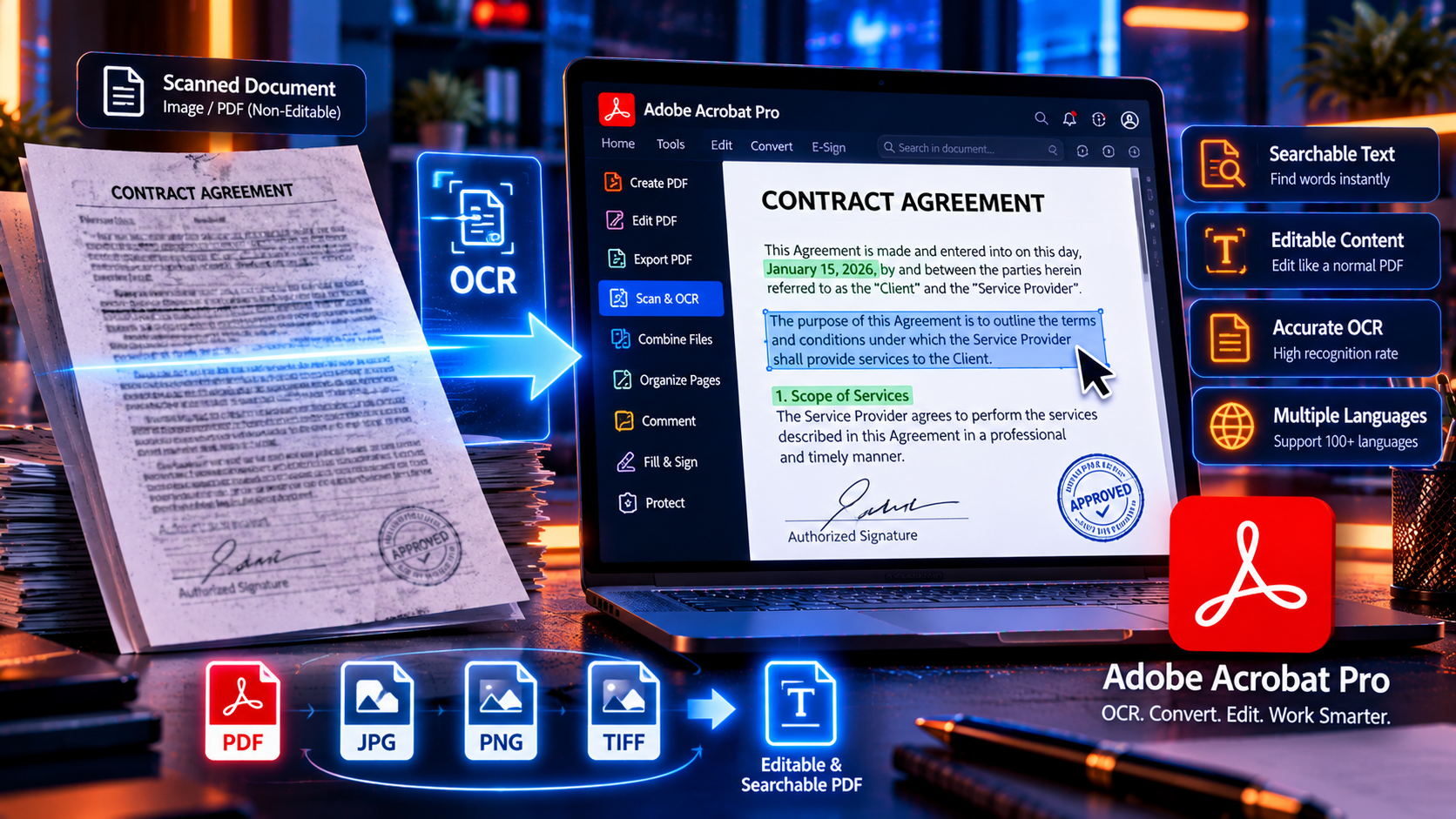
You scan a 100-page contract. You digitize years of paper archives. You receive image-only PDFs from clients. Then reality hits: you can’t search them, you can’t edit them, and you can’t copy text from them. They’re digital pictures, not functional documents.
Welcome to the most frustrating problem in document management—and the solution that makes Adobe Acrobat Pro indispensable for millions of professionals worldwide.
Adobe Acrobat Pro’s OCR (Optical Character Recognition) technology transforms image-only PDFs into fully searchable, editable, copyable documents in seconds. Whether you’re managing legal discovery, digitizing business records, archiving historical documents, or simply trying to find a specific clause in a scanned contract, OCR changes everything.
In this comprehensive guide, you’ll discover exactly how Adobe Acrobat Pro OCR works, why it’s the industry standard for document digitization, and how to use it to save hours every week. We’ll cover accuracy rates, language support, batch processing for thousands of files, troubleshooting tips, and real-world use cases from law firms, accounting practices, real estate agencies, and healthcare providers.
Ready to make every scanned document instantly searchable? Let’s unlock the power of Adobe Acrobat Pro OCR.
👉 Get Adobe Acrobat Pro DC 2025 with Advanced OCR – Special Offers Available →
What Is OCR (And Why Every Professional Needs It)?
OCR (Optical Character Recognition) is technology that analyzes images of text and converts them into actual, machine-readable text. Think of it as “reading” a picture of a document and converting it into selectable, searchable, editable content.
The Problem: Image-Only PDFs Are Digital Dead Weight
When you scan paper documents or receive PDFs created from scans, they’re technically just photographs arranged in PDF format. What looks like text to your eyes is actually a picture of text to your computer.
What this means in practice:
❌ You can’t search (Ctrl+F returns “no results” even though the word is visible)
❌ You can’t select or copy text (it’s an image, not text)
❌ You can’t edit content (you’d need to retype everything manually)
❌ Screen readers can’t access it (accessibility nightmare)
❌ Data extraction is impossible (can’t pull information into databases or spreadsheets)
❌ You’re stuck scrolling page by page (no keyword navigation)
The Solution: OCR Makes Scanned Documents Functional
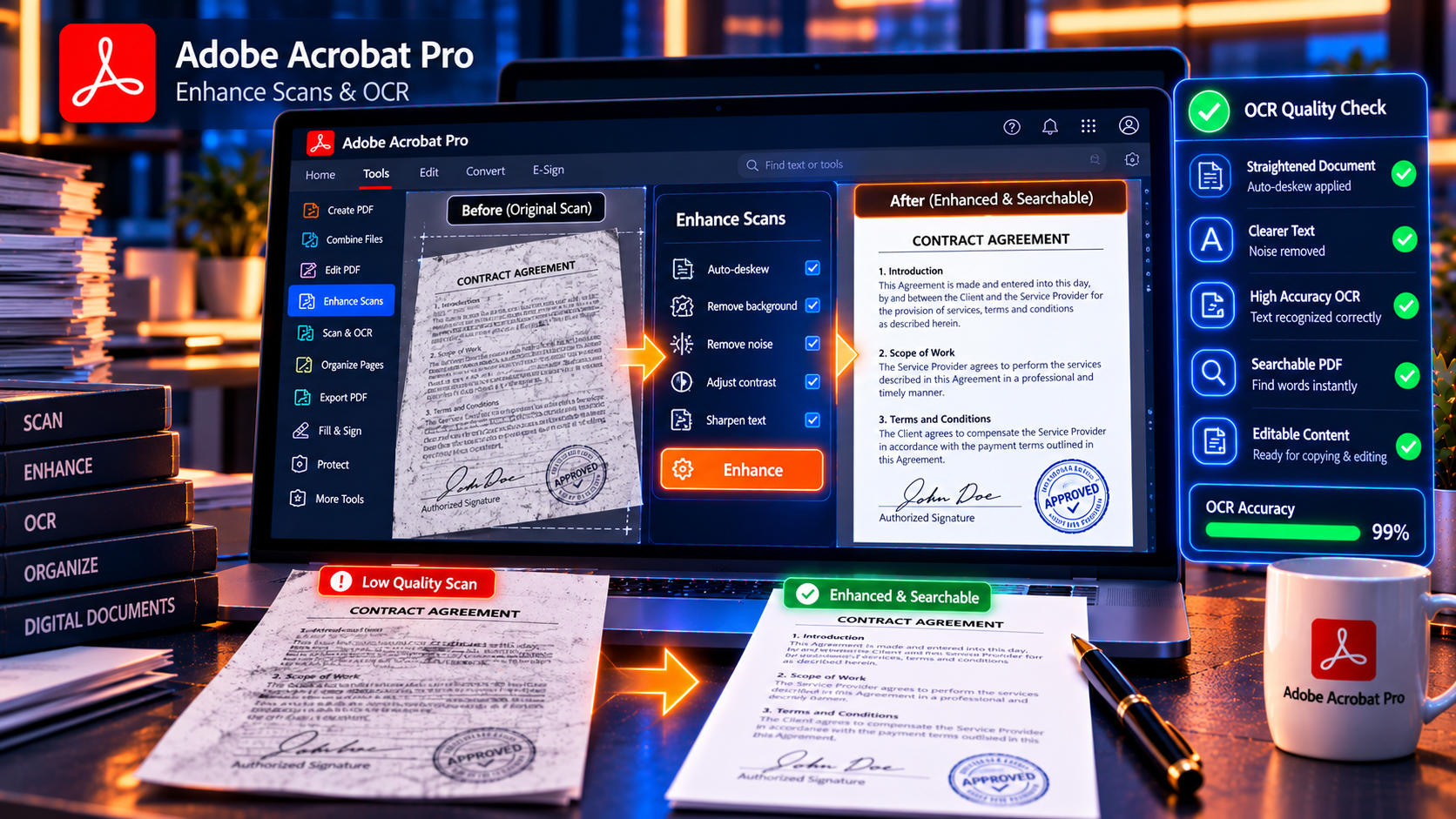
Adobe Acrobat Pro’s OCR analyzes each scanned page, identifies every letter, word, and paragraph, and converts the images into actual text—while maintaining the exact visual appearance of the original document.
After OCR processing:
✅ Full text search works (find any word, phrase, or number instantly)
✅ Text is selectable and copyable (extract quotes, data, clauses)
✅ Content becomes editable (fix typos, update information)
✅ Screen readers can access it (ADA/WCAG compliance)
✅ Data extraction is easy (pull information into other systems)
✅ File size often shrinks (text data is smaller than image data)
Who Needs OCR (Spoiler: Almost Everyone)
Legal professionals: Make discovery documents, depositions, and case files searchable
Accountants: Digitize receipts, invoices, and tax records for quick retrieval
Real estate agents: Search property records, title documents, and inspection reports
Healthcare providers: Convert patient charts and medical records for EHR systems
Researchers: Make historical documents, archives, and academic papers searchable
HR departments: Digitize employee files, applications, and performance reviews
Government agencies: Make public records and archives accessible and searchable
Small businesses: Convert paper contracts, invoices, and correspondence into digital workflows
If you’ve ever spent 20 minutes scrolling through a 100-page PDF looking for one specific sentence, you need OCR.
Adobe Acrobat Pro OCR: How It Works (And Why It’s the Best)
Adobe didn’t just add OCR as an afterthought—it’s been refining this technology for over 20 years. Adobe Acrobat Pro’s OCR engine is widely considered the gold standard for document digitization.
The Technology Behind Adobe Acrobat Pro OCR
Adobe’s OCR uses advanced machine learning algorithms trained on millions of documents to:
- Analyze page layouts (identifies headers, columns, tables, images)
- Recognize individual characters (handles fonts, sizes, styles, handwriting)
- Understand context (differentiates “O” from “0”, “l” from “1” based on surrounding text)
- Preserve formatting (maintains bold, italic, bullet points, alignment)
- Maintain visual appearance (the document looks identical before and after OCR)
OCR Accuracy: How Good Is Adobe Acrobat Pro?
Typical accuracy rates:
- Clean, typed documents: 98-99% accuracy (near-perfect)
- Good-quality scans: 95-98% accuracy (very usable)
- Poor-quality scans: 85-95% accuracy (still highly functional)
- Handwritten documents: 70-85% accuracy (depends on legibility)
Factors affecting accuracy: – Scan resolution (300 DPI or higher recommended) – Document quality (contrast, clarity, paper condition) – Font complexity (standard fonts = higher accuracy) – Language (English, Spanish, French, German = excellent support) – Skew/rotation (straight scans = better results)
Key advantage over competitors: Adobe Acrobat Pro handles challenging documents—faded text, colored backgrounds, watermarks, stamps, handwritten annotations—better than almost any other OCR engine.
Language Support: 30+ Languages Recognized
Adobe Acrobat Pro OCR supports over 30 languages, including:
Western European:
English, Spanish, French, German, Italian, Portuguese, Dutch, Swedish, Norwegian, Danish, Finnish
Central/Eastern European:
Polish, Czech, Slovak, Hungarian, Romanian, Croatian
Other:
Japanese, Korean, Chinese (Simplified & Traditional), Turkish, Greek, Russian
How it works: Select the document language before running OCR, and Acrobat applies language-specific recognition rules for maximum accuracy.
How to Use Adobe Acrobat Pro OCR (Step-by-Step Guide)
Running OCR in Adobe Acrobat Pro is simple—whether you’re processing one document or thousands. Here’s how.
Method 1: OCR a Single Document
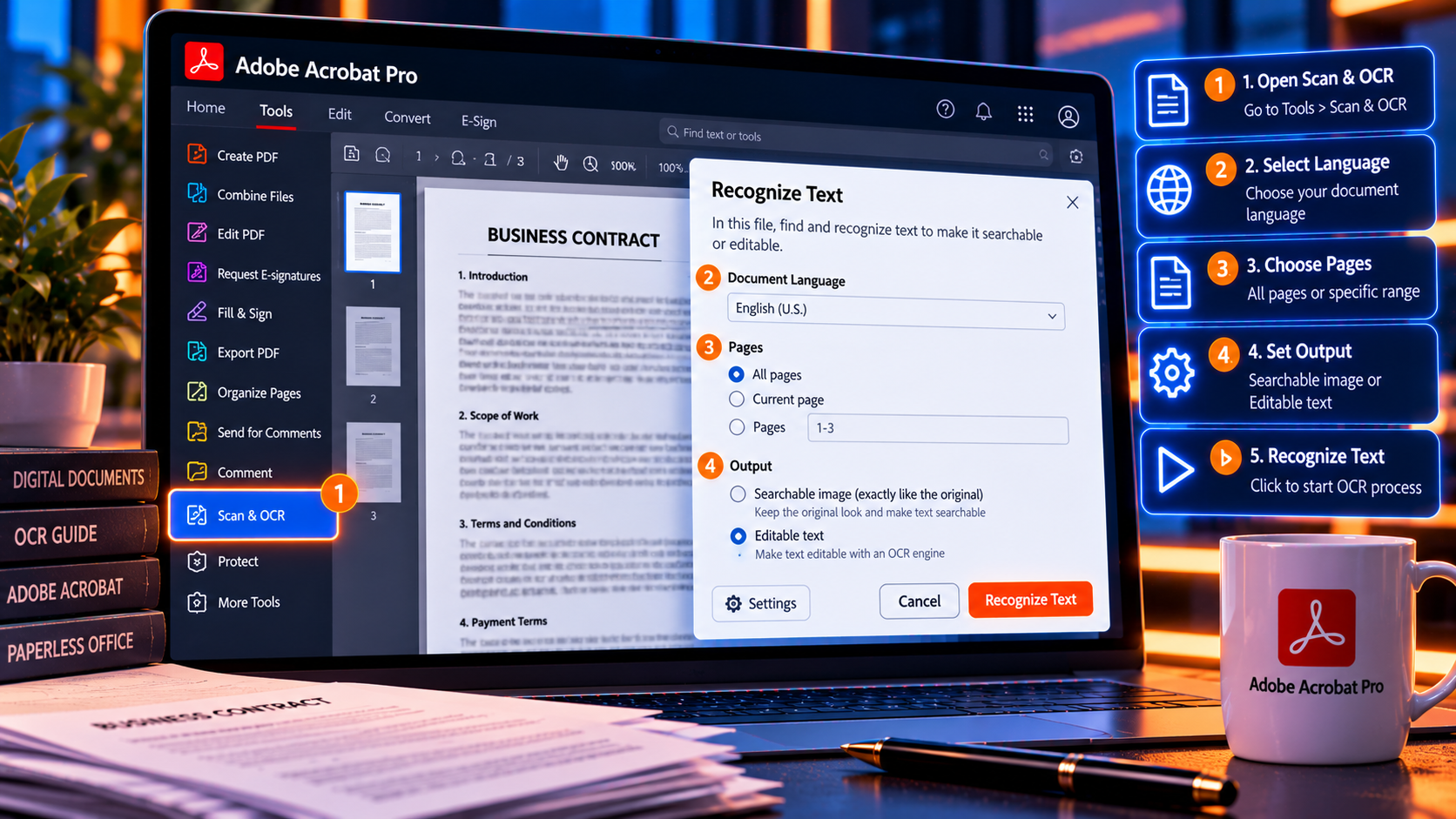
Step 1: Open your scanned PDF in Adobe Acrobat Pro
Step 2: Go to Tools → Enhance Scans
(Or: Tools → Recognize Text → In This File)
Step 3: Click “Recognize Text”
Step 4: Choose settings: – Pages: Current page, All pages, or specific range – Language: Select document language (e.g., English) – Output: Searchable Image (preserves original appearance) or Editable Text (allows full editing)
Step 5: Click “Recognize Text”
Step 6: Wait for processing (10-30 seconds for typical documents)
Step 7: Done! Your PDF is now searchable and editable
Verification: Press Ctrl+F and search for a word you can see on the page. If it highlights, OCR worked perfectly.
Method 2: Batch OCR (Process Multiple Files at Once)
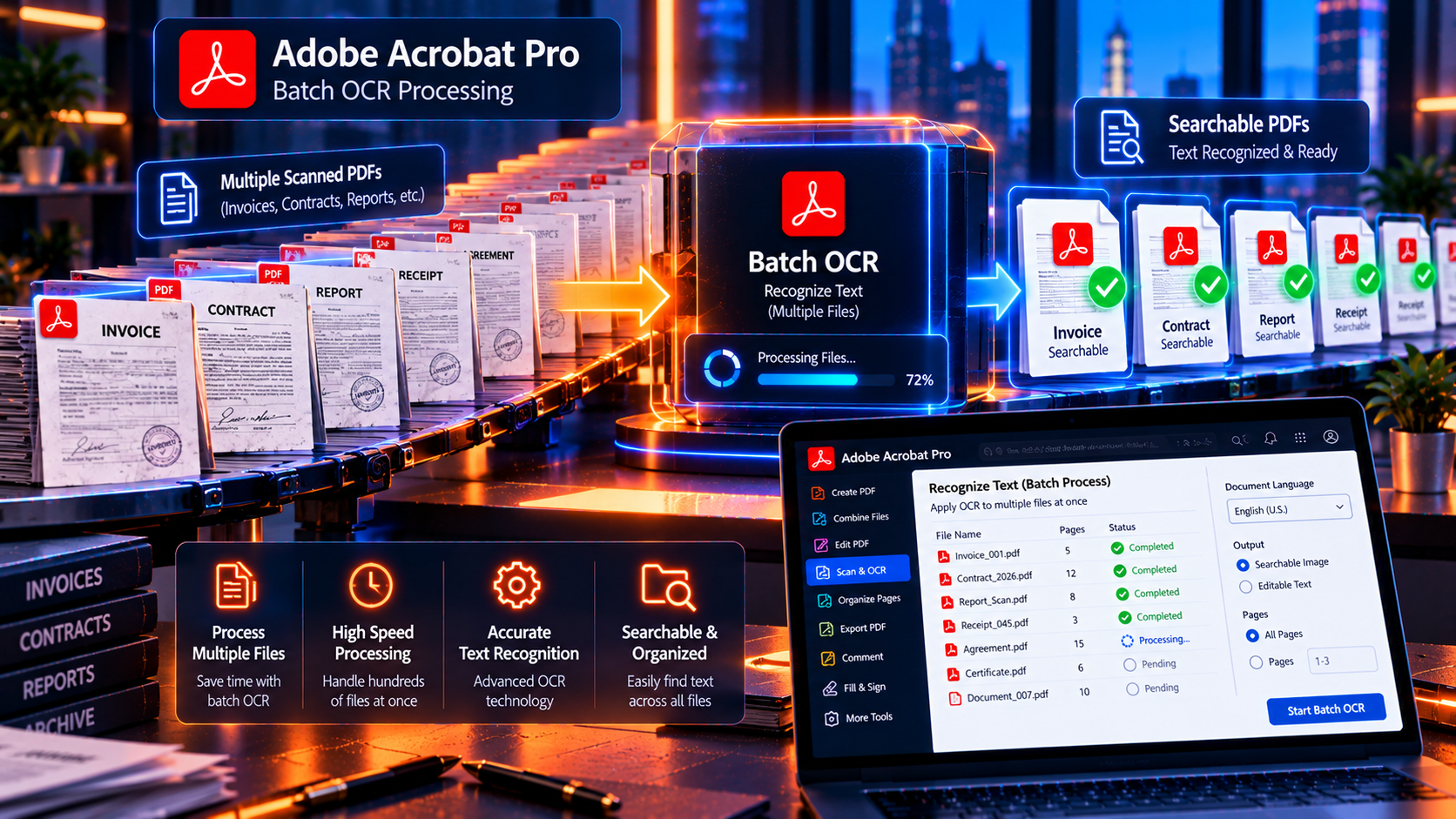
If you have dozens, hundreds, or thousands of scanned PDFs, batch OCR is a game-changer.
Step 1: Go to Tools → Enhance Scans
Step 2: Click “Recognize Text”
Step 3: Select “In Multiple Files”
Step 4: Click “Add Files” and select all PDFs you want to process
(You can select entire folders—Acrobat will process everything)
Step 5: Choose settings: – Language: Select primary document language – Output location: Same folder or new folder
Step 6: Click “OK”
Step 7: Acrobat processes all files automatically
(Processing time depends on file count and size—Acrobat shows progress)
Step 8: Done! All PDFs are now searchable
Use case: Law firms processing 10,000 pages of discovery, accounting firms digitizing years of tax records, real estate agencies archiving property files.
Method 3: Automatic OCR on Scan (Real-Time Processing)
If you frequently scan documents, set Adobe Acrobat Pro to automatically run OCR every time you scan.
Step 1: Go to Edit → Preferences (or Acrobat → Settings on Mac)
Step 2: Select “Scan” category
Step 3: Check “Recognize Text (OCR)” under “Optimize scanned PDF”
Step 4: Choose settings: – Language: Default language for your documents – PDF Output Style: Searchable Image (recommended)
Step 5: Click “OK”
Now, every time you scan a document:
Adobe Acrobat Pro automatically runs OCR in the background. Your scans are instantly searchable with zero extra steps.
Perfect for: Administrative assistants, paralegals, medical office staff—anyone who scans documents daily.
Searchable Image vs. Editable Text: Which OCR Output Should You Choose?
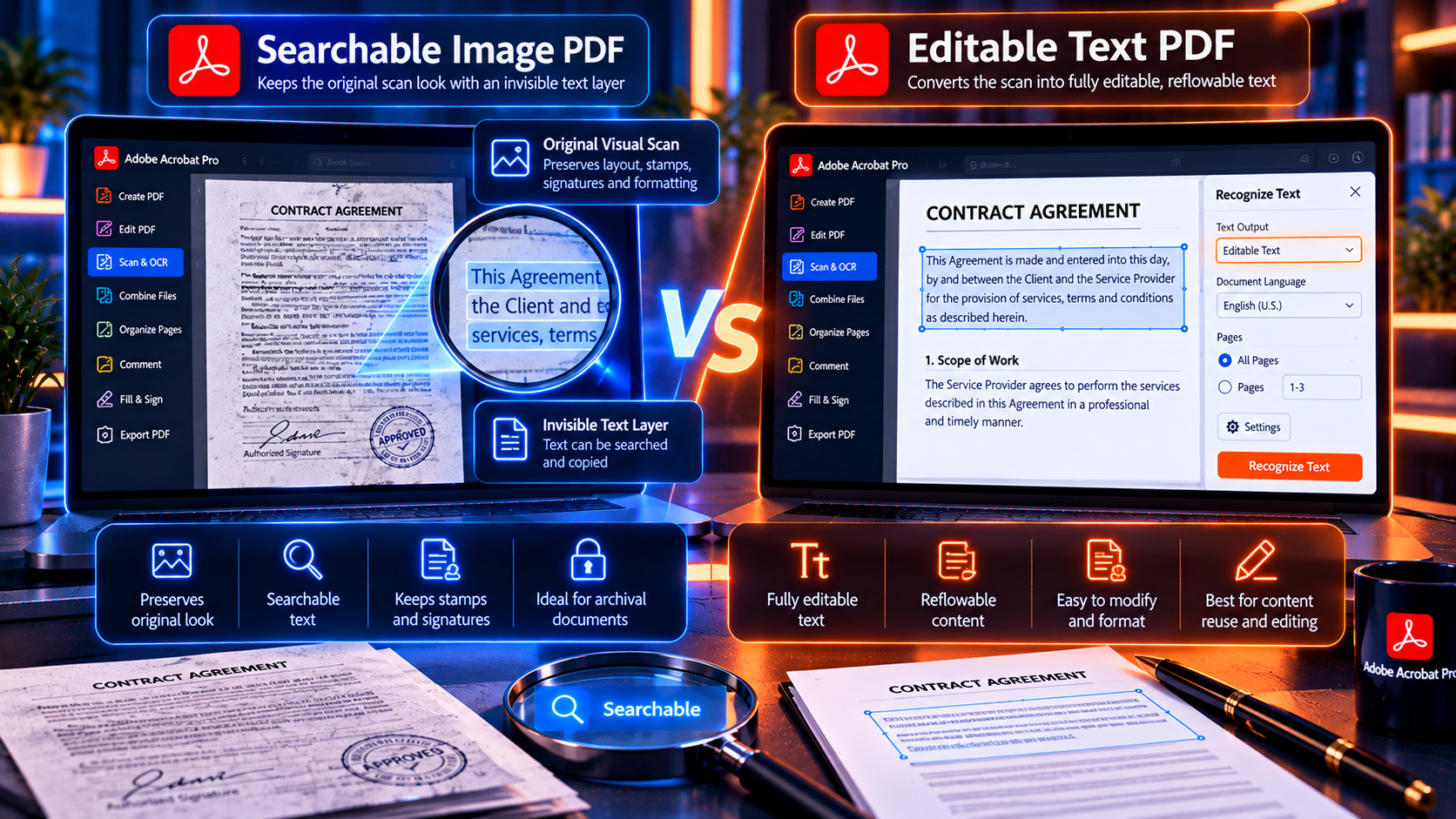
Adobe Acrobat Pro offers two OCR output modes. Here’s when to use each.
Searchable Image (Recommended for Most Users)
What it does:
– Keeps the original scanned image exactly as it appears – Places invisible text layer underneath (enables searching, copying, editing) – Maintains 100% visual fidelity (looks identical to original scan)
Advantages: ✅ Preserves original appearance (signatures, stamps, handwriting visible)
✅ Maintains formatting perfectly (no layout shifts)
✅ Keeps file size smaller (original image + compact text layer)
✅ Retains legal/evidentiary value (shows document “as scanned”)
When to use: – Legal documents (contracts, court filings, depositions) – Financial records (invoices, receipts, bank statements) – Historical documents (archives, manuscripts) – Any document where original appearance matters
Example: A signed contract with handwritten notes and stamps should use Searchable Image to preserve all visual elements.
Editable Text (Use When You Need Full Editing)
What it does:
– Converts scanned image into actual text formatting – Attempts to match fonts, sizes, and layout – Makes every word fully editable like a Word document
Advantages: ✅ Complete editing freedom (rewrite, reformat, restyle)
✅ Smaller file sizes (text-only PDFs are tiny)
✅ Better accessibility (screen readers handle it more easily)
Disadvantages: ❌ May not perfectly match original layout
❌ Loses signatures, stamps, handwritten annotations
❌ Formatting can shift slightly
When to use: – Documents you’ll heavily edit (old proposals to repurpose) – Text-heavy content with no special formatting (reports, articles) – When file size must be minimized
Example: A 10-year-old proposal you want to reuse for a new client—you’ll rewrite large sections anyway, so Editable Text makes sense.
Our Recommendation
Use Searchable Image 95% of the time. It gives you searchability and editability while preserving the original document’s exact appearance. Switch to Editable Text only when you’re planning major rewrites.
Real-World Use Cases: How Professionals Use Adobe Acrobat Pro OCR
Use Case #1: Law Firms Processing Discovery Documents
Scenario: A law firm receives 5,000 pages of discovery from opposing counsel—all scanned PDFs. Attorneys need to find every reference to specific witnesses, dates, and events.
Without OCR:
Paralegals spend 40+ hours manually reading through documents, highlighting key passages, and creating indexes.
With Adobe Acrobat Pro OCR:
1. Batch OCR all 5,000 pages (2-3 hours processing time) 2. Use Ctrl+F to instantly find every mention of “Dr. Martinez” across all files 3. Use advanced search to find date ranges (e.g., all mentions of “January 2024”) 4. Export search results to spreadsheet for case summary
Time saved: 35+ hours
ROI: At $150/hour paralegal rate = $5,250 saved on one case
Use Case #2: Accounting Firms Digitizing Tax Records
Scenario: An accounting firm manages 200 small business clients, each submitting shoebox-full of paper receipts at tax time.
Without OCR:
Accountants manually enter data from each receipt into spreadsheets—tedious, error-prone, hours wasted.
With Adobe Acrobat Pro OCR:
1. Scan all receipts into PDFs 2. Batch OCR to make every receipt searchable 3. Use search to pull all “Office Depot” receipts for office supply category 4. Select and copy vendor names, dates, amounts directly into tax software 5. Archive searchable PDFs for future audits (7-year retention requirement)
Time saved per client: 3-5 hours
Annual time saved (200 clients): 600-1,000 hours
ROI: At $100/hour = $60,000-$100,000 in recovered billable time annually
Use Case #3: Real Estate Agencies Managing Property Records
Scenario: A real estate agency has 15 years of property listings, title documents, inspection reports, and closing documents—all in paper file cabinets.
Without OCR:
Agents must physically visit the office, dig through file cabinets, and manually locate documents. Finding one specific inspection report takes 30-60 minutes.
With Adobe Acrobat Pro OCR:
1. Batch scan all paper records into PDFs 2. Batch OCR to make everything searchable 3. Organize by property address in digital filing system 4. Agents search “123 Main St foundation” and instantly find the relevant inspection report—from home, from showings, from anywhere
Time saved per document retrieval: 45 minutes
Annual time saved (10 agents × 5 searches/week): 1,950 hours
ROI: At $75/hour agent value = $146,250 in productivity gains
Use Case #4: Healthcare Providers Converting Patient Charts
Scenario: A medical practice is transitioning from paper charts to an Electronic Health Record (EHR) system. They have 10,000+ patient charts to digitize.
Without OCR:
Charts are scanned as image-only PDFs—impossible to search medical history, medication lists, or test results. Providers must scroll through entire charts manually during appointments.
With Adobe Acrobat Pro OCR:
1. Batch scan all patient charts 2. Batch OCR to make every page searchable 3. Import into EHR system with full-text search capability 4. Providers search patient name + “penicillin allergy” and instantly see all relevant notes
Time saved per patient appointment: 5-10 minutes (faster chart review)
Annual time saved (50 patients/day × 250 days): 1,042-2,083 hours
ROI: Faster patient care + reduced errors = priceless
Use Case #5: Researchers Digitizing Historical Archives
Scenario: A university is digitizing 100 years of historical documents, manuscripts, and newspapers for public access.
Without OCR:
Scanned documents are image-only—researchers must visually browse every page. A dissertation that requires reviewing 1,000 pages takes weeks.
With Adobe Acrobat Pro OCR:
1. Batch OCR all historical documents 2. Researchers search keywords (e.g., “suffrage movement 1920”) across entire collection 3. Instantly locate relevant pages across hundreds of documents 4. Export selected passages for citations
Time saved per research project: 20-40 hours
Research productivity increase: 500-1000%
ROI: Enables research that would otherwise be impractical
Troubleshooting Adobe Acrobat Pro OCR: Common Issues and Fixes
Even the best OCR occasionally encounters challenges. Here’s how to fix common problems.
Problem #1: OCR Results Are Inaccurate (Too Many Errors)
Causes: – Low scan resolution (below 300 DPI) – Poor document quality (faded, stained, wrinkled) – Skewed/rotated pages – Wrong language selected
Solutions:
✅ Re-scan at 300 DPI or higher (600 DPI for small text)
✅ Use “Enhance Scans” before OCR (Tools → Enhance Scans → Enhance → Scanned Document)—this improves contrast and clarity
✅ Manually rotate pages if skewed (Tools → Organize Pages → rotate thumbnails)
✅ Verify language setting matches document language
✅ Clean original documents before scanning (remove staples, unfold pages, flatten wrinkles)
Problem #2: OCR Isn’t Detecting Text at All
Causes: – Image resolution too low (below 72 DPI) – Document is entirely graphical (logo, map, diagram) – File is already OCR’d (text layer exists but hidden)
Solutions:
✅ Check if document is already searchable: Press Ctrl+F and search for a visible word—if it highlights, OCR already ran
✅ Re-scan at minimum 150 DPI (300 DPI ideal)
✅ Verify the page contains actual text (OCR won’t work on maps, photos, pure graphics)
✅ Remove password protection (Tools → Protect → Encrypt → Remove Security—OCR can’t process encrypted files)
Problem #3: OCR Takes Forever (Batch Processing Stalled)
Causes: – Processing thousands of large files – Computer running out of RAM – Files contain high-resolution color images
Solutions:
✅ Close other applications (free up RAM)
✅ Process in smaller batches (500 files at a time instead of 5,000)
✅ Reduce image resolution first (Tools → Optimize PDF → reduce to 300 DPI)
✅ Use “Searchable Image” instead of “Editable Text” (faster processing)
✅ Let it run overnight (batch OCR doesn’t require supervision)
Problem #4: OCR Messed Up Formatting (Text Is Jumbled)
Cause: – You used “Editable Text” output mode on complex layouts
Solution:
✅ Re-run OCR using “Searchable Image” mode (preserves original layout perfectly)
✅ For complex documents (tables, columns, mixed layouts), always use Searchable Image
Problem #5: File Size Increased After OCR
Cause: – Large scanned images + added text layer = bigger file
Solution:
✅ Compress after OCR (File → Save As Other → Reduced Size PDF)
✅ Use “Optimize PDF” (File → Save As Other → Optimized PDF → downsample images to 300 DPI)
✅ Consider “Editable Text” mode if file size is critical (text-only PDFs are tiny)
Adobe Acrobat Pro OCR vs. Free Alternatives: Why Pay for Premium?
Several free OCR tools exist—Google Docs, Microsoft OneNote, online converters. So why invest in Adobe Acrobat Pro?
Accuracy: Adobe Wins on Challenging Documents
Free tools:
Work well on clean, simple documents. Struggle with: – Faded text – Colored backgrounds – Watermarks – Mixed fonts – Handwritten annotations – Complex layouts (tables, columns)
Adobe Acrobat Pro:
Handles all of the above with 90-98% accuracy thanks to advanced machine learning trained on millions of real-world documents.
Real-world impact: A legal contract with signatures, stamps, and handwritten notes will OCR accurately in Acrobat Pro but fail or produce gibberish in free tools.
Batch Processing: Adobe Saves Hours
Free tools:
Process one file at a time. OCRing 500 documents requires uploading each individually—hours wasted.
Adobe Acrobat Pro:
Select 500 files, click “Recognize Text,” walk away. Acrobat processes everything automatically.
Time savings: What takes 10 hours with free tools takes 30 minutes with Acrobat Pro.
Security: Free Tools Upload Your Confidential Documents
Free online OCR services:
Require uploading your documents to their servers. Who has access? Where is data stored? Is it deleted afterward? You don’t know.
Adobe Acrobat Pro:
Runs 100% offline. Your documents never leave your computer. Perfect for legal, medical, financial, or any confidential content.
Compliance: HIPAA, GDPR, attorney-client privilege all require keeping confidential data secure—online OCR services don’t meet these standards.
Searchable Image Mode: Adobe’s Unique Advantage
Free tools:
Typically output plain text (loses original formatting, signatures, stamps).
Adobe Acrobat Pro:
“Searchable Image” mode preserves the exact original appearance while adding an invisible text layer. Best of both worlds.
Why it matters: Legal documents, signed contracts, and archival records must maintain visual authenticity—only Acrobat Pro delivers this reliably.
Language Support: Adobe Dominates
Free tools:
Usually support 5-10 major languages.
Adobe Acrobat Pro:
Supports 30+ languages with high accuracy, including non-Latin scripts (Japanese, Korean, Chinese, Arabic, Hebrew).
Global business: If you work with international documents, Adobe Acrobat Pro is essential.
ROI Calculation: How Adobe Acrobat Pro OCR Pays for Itself
Let’s quantify the value of professional OCR.
Scenario: Mid-Size Law Firm (10 Attorneys)
Document processing needs: – 500 pages of discovery per case – 20 cases per year firm-wide – Total: 10,000 pages/year requiring OCR
Without Adobe Acrobat Pro:
– Paralegals manually create indexes: 2 hours per 100 pages – Total time: 200 hours/year – Cost at $75/hour: $15,000/year
With Adobe Acrobat Pro:
– Batch OCR processing: 10 hours/year (mostly automated) – Total time: 10 hours/year – Cost: $750/year in staff time
Annual savings: $14,250
Payback period: Less than 1 month with a one-time lifetime license investment
Scenario: Accounting Firm (5 CPAs)
Document processing needs: – 200 small business clients – Average 50 receipts/invoices per client scanned annually – Total: 10,000 documents/year requiring OCR
Without Adobe Acrobat Pro:
– Manually type data from each scanned receipt: 3 minutes/document – Total time: 500 hours/year – Cost at $100/hour: $50,000/year
With Adobe Acrobat Pro:
– Batch OCR + copy/paste data: 30 seconds/document – Total time: 83 hours/year – Cost: $8,300/year
Annual savings: $41,700
Payback period: Less than 1 week
Scenario: Solo Real Estate Agent
Document processing needs: – 50 property transactions per year – Average 20 pages of documents per property – Total: 1,000 pages/year requiring OCR
Without Adobe Acrobat Pro:
– Manually locate documents in paper files: 30 minutes per search × 100 searches/year – Total time: 50 hours/year – Opportunity cost at $75/hour: $3,750/year
With Adobe Acrobat Pro:
– Instant keyword search: 2 minutes per search – Total time: 3.3 hours/year – Cost: $250/year
Annual savings: $3,500
Payback period: Under 2 months
Bottom line: For any professional who regularly handles scanned documents, Adobe Acrobat Pro OCR pays for itself in weeks or months—then delivers value for years with no additional cost (lifetime license).
Advanced OCR Tips for Power Users
Once you’ve mastered basic OCR, these advanced techniques unlock even more productivity.
Tip #1: Pre-Process Scans for Maximum Accuracy
Before running OCR, use Enhance Scans to improve image quality:
- Tools → Enhance Scans → Enhance → Scanned Document
- Acrobat automatically:
- Increases contrast
- Removes background noise
- Straightens skewed pages
- Filters out color casts
Result: 5-10% accuracy improvement on challenging documents
Tip #2: Use “Recognize Text” Settings for Specific Document Types
For forms and tables:
– Choose “Searchable Image” (preserves exact layout) – Use higher resolution scans (400-600 DPI)
For books and manuscripts:
– Enable “Detect page rotation” (handles mixed orientations) – Choose appropriate language (critical for historical documents)
For low-quality originals:
– Run “Enhance Scans” first – Consider manual review/correction after OCR
Tip #3: Create OCR Action Wizards for Repetitive Tasks
If you OCR the same type of documents regularly, automate it:
- Tools → Action Wizard → Create New Action
- Add steps:
- Recognize Text (set language, output mode)
- Optimize PDF (reduce file size)
- Save to specific folder
- Name your action (e.g., “OCR Legal Discovery”)
- Run on entire folders with one click
Use case: Law firms processing discovery, accounting firms handling tax season receipts, HR departments digitizing employee files.
Tip #4: Combine OCR with Redaction for Confidential Documents
When digitizing sensitive documents, OCR first, then redact:
- OCR the document (make it searchable)
- Tools → Redact → Search & Redact
- Search for sensitive terms (SSN patterns, account numbers, names)
- Review and apply redactions
- Save sanitized, searchable PDF
Perfect for: Legal discovery, medical records, government FOIA responses.
Tip #5: Export OCR’d Text for Analysis
After OCR, extract all text for advanced analysis:
- File → Export To → Text (Plain)
- Save as .txt file
- Import into Excel, data analysis tools, or AI/NLP platforms
Use cases:
– Sentiment analysis of customer feedback forms – Keyword frequency analysis in legal documents – Data extraction for research projects
Frequently Asked Questions About Adobe Acrobat Pro OCR
Q1: Can Adobe Acrobat Pro OCR handwritten documents?
A: Yes, but accuracy varies (70-85% typical). Handwriting recognition works best on clear, printed-style handwriting. Cursive and messy handwriting yield lower accuracy. For critical handwritten documents, manual review after OCR is recommended.
Q2: Does OCR work on documents in languages other than English?
A: Yes. Adobe Acrobat Pro supports 30+ languages including Spanish, French, German, Italian, Portuguese, Japanese, Korean, Chinese, Arabic, and more. Select the document language before running OCR for best results.
Q3: Can I OCR password-protected PDFs?
A: No. You must remove password protection first (Tools → Protect → Encrypt → Remove Security) before running OCR.
Q4: Will OCR reduce my PDF file size?
A: Sometimes. “Editable Text” mode often creates smaller files (text is compact). “Searchable Image” mode adds a text layer, which may slightly increase size—but you can compress afterward (File → Save As Other → Reduced Size PDF).
Q5: How long does OCR take?
A: Single page: 2-5 seconds. 100-page document: 1-3 minutes. Batch processing 1,000 documents: 1-3 hours (depending on file sizes and computer speed). Acrobat shows progress during batch operations.
Q6: Can I undo OCR if I’m not satisfied with results?
A: Not directly, but you can re-run OCR with different settings or revert to your original un-OCR’d file (if you saved it separately—always recommended).
Q7: Does Adobe Acrobat Pro OCR work offline?
A: Yes, 100%. Unlike online OCR services, Acrobat processes documents entirely on your computer. No internet required, no uploading to third-party servers.
Q8: Can I OCR scanned images (JPG, PNG, TIFF) or only PDFs?
A: Adobe Acrobat Pro can OCR image files too. Open the image in Acrobat (it converts to PDF automatically), then run OCR as usual.
Q9: Will OCR make my PDF ADA/WCAG compliant for accessibility?
A: OCR is the first step (makes text readable by screen readers), but full accessibility requires additional work: tagging structure, adding alt text to images, setting reading order. Use Tools → Accessibility → Full Check to verify.
Q10: Can I OCR directly from my scanner into Adobe Acrobat Pro?
A: Yes. If your scanner is Acrobat-compatible, use Tools → Create PDF → Scanner and check “Recognize Text (OCR)” in settings. Acrobat will scan and OCR in one step.
Final Verdict: Adobe Acrobat Pro OCR Is Essential for Modern Document Management
In 2026, there’s no excuse for working with unsearchable, image-only PDFs. Whether you’re managing legal cases, accounting records, real estate transactions, healthcare files, or business archives, Adobe Acrobat Pro OCR transforms unusable scans into fully functional digital documents in seconds.
The benefits are undeniable:
✅ Save hours every week (no more scrolling through unsearchable PDFs)
✅ Improve accuracy (copy/paste text instead of retyping)
✅ Enable advanced workflows (search, redact, extract, analyze)
✅ Meet compliance requirements (accessibility, archival standards)
✅ Work offline securely (no uploading confidential documents to sketchy websites)
✅ Handle any language (30+ supported)
✅ Process thousands of files (batch OCR automation)
The ROI is immediate: Most professionals recover their investment in Adobe Acrobat Pro within the first month just from OCR time savings alone—then enjoy years of productivity gains with no additional cost (lifetime license).
Stop wasting time on unsearchable PDFs. Invest in the industry-standard OCR solution trusted by Fortune 500 companies, top law firms, government agencies, and millions of professionals worldwide.
👉 Get Adobe Acrobat Pro DC 2025 with Advanced OCR – Special Offers Available →
Related Articles
- 10 Adobe Acrobat Pro Features That Pay for Themselves in the First Month (ROI Calculator) – Discover all the productivity features that make Acrobat Pro essential.
- Adobe Acrobat Pro for Legal Professionals: Redaction, Bates Numbering & E-Signatures – See how law firms use Acrobat Pro (including OCR for discovery).
- Adobe Acrobat Pro 2024 vs DC 2025: Which Version Should You Buy? – Compare versions to choose the right one for your needs.
- How to Cancel Your Adobe Acrobat Subscription and Switch to a Lifetime License – Escape recurring fees and own your software.
- Best Alternatives to Adobe Acrobat Pro (And Why a Lifetime License Still Wins) – How Acrobat compares to competitors.
- Browse All Adobe Acrobat Pro Products – View all available lifetime license versions.
Make every scanned document instantly searchable. Get Adobe Acrobat Pro’s industry-leading OCR technology and transform your document workflow forever.
👉 Click Here to Get Adobe Acrobat Pro DC 2025 – Lifetime License with Current Special Offers
About KeyUpMart: KeyUpMart is a trusted digital software retailer specializing in lifetime licenses for Adobe, Microsoft, Autodesk, and other professional software. We help professionals and businesses maximize productivity while minimizing software costs. All licenses are delivered instantly via email with 24/7 customer support.
Related posts:
 Adobe Photoshop CC Creative Cloud What’s Included and How Much Does It Cost


 Adobe Acrobat Pro 2024 vs DC 2025 What Is New and Is the Upgrade Worth It