





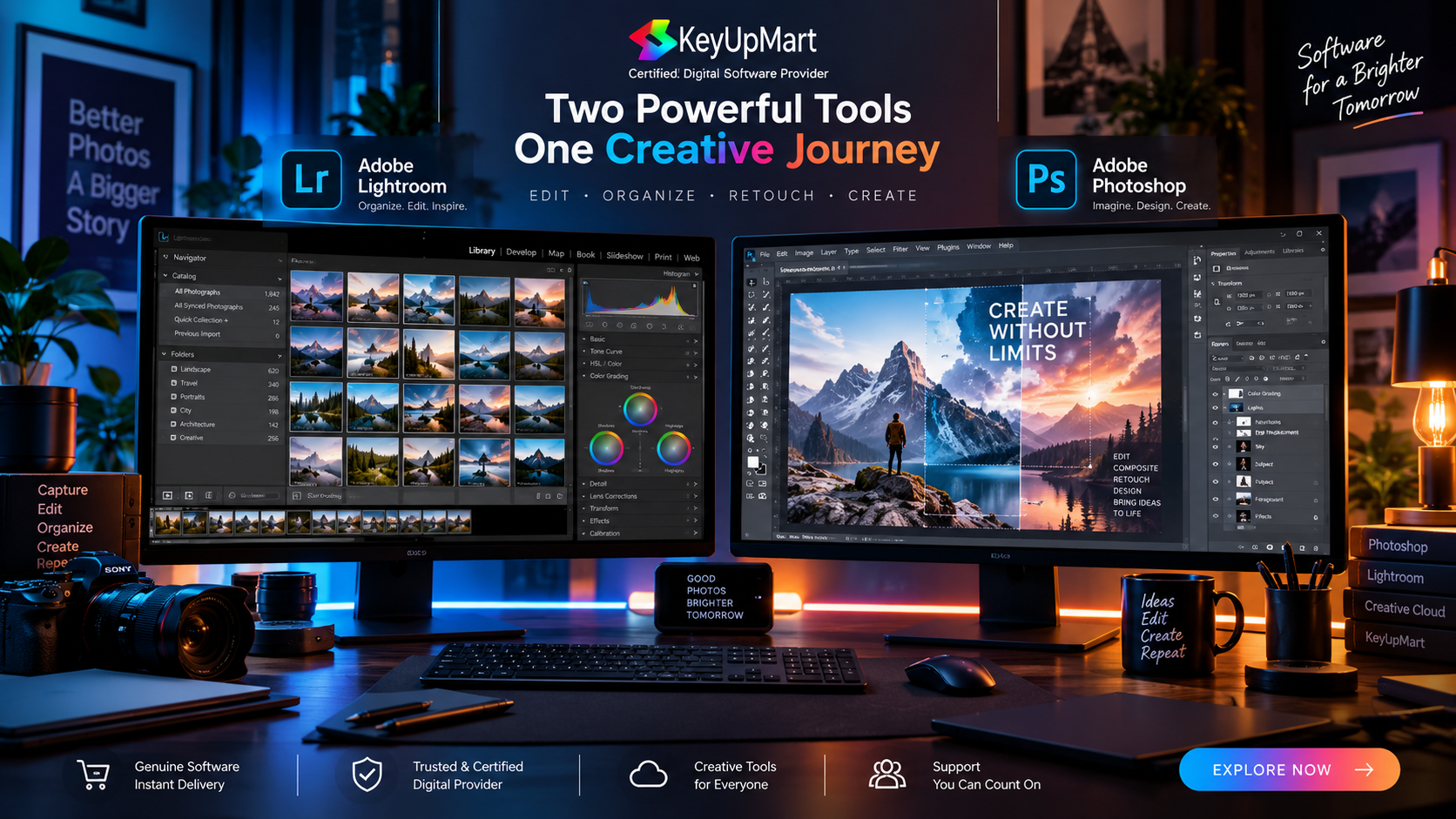
Photographers often need two different kinds of software. Lightroom is built around organizing, developing, and managing a photo library, while Photoshop is built around detailed retouching, compositing, layers, and pixel-level editing. That is why the question is not simply whether to buy Photoshop or Lightroom. The better question is whether you need a Photoshop and Lightroom bundle, a standalone Photoshop subscription, Lightroom on its own, or a wider Creative Cloud package.
The right option depends on how you shoot, how many images you manage, how often you retouch, and whether you need other Adobe applications. A photographer who edits hundreds of raw files may benefit from a Photography Plan-style workflow. A designer who rarely manages a photo library may need Photoshop alone. A creative team that also uses Illustrator, Premiere Pro, InDesign, or other tools may find an All Apps plan more practical.
This guide compares the main workflows, explains Lightroom Classic versus Lightroom, covers bundle pricing and standalone app cost, and shows how to choose a product without paying for applications you will not use. Plan names, prices, storage, credits, and included features can change by country and release, so verify current terms before buying.
What the Photoshop and Lightroom Bundle Includes
An Adobe Lightroom and Photoshop subscription combines two applications that solve different parts of the photography process. People also search for an Adobe Photoshop and Lightroom subscription or use the phrase Adobe Photoshop Lightroom when comparing their options. Lightroom is usually the starting point for importing, organizing, rating, culling, developing, and exporting a collection. Photoshop becomes useful when one image needs more detailed work than a global adjustment or standard raw development can provide.
A typical photographer’s workflow might look like this:
- Import a camera card into Lightroom and create a reliable backup.
- Cull the images, add ratings or keywords, and organize the photo library.
- Adjust exposure, white balance, color, highlights, shadows, and lens corrections.
- Send selected images to Photoshop for advanced retouching or compositing.
- Return the finished image to the library and export the correct size for print, web, or delivery.
Why Photographers Use Both Applications
Lightroom is efficient when the same type of adjustment needs to be applied across many photos. Photoshop is more precise when you need to work on individual objects, remove complex distractions, blend multiple images, edit pixels on separate layers, or build a design around a photograph. Using both can reduce the temptation to force one application to do a job it was not designed to handle.
The bundle is especially useful for wedding photographers, portrait photographers, product teams, travel photographers, and creators who manage a large library but also deliver polished hero images. It can also help a small studio keep its catalog and detailed retouching in one connected workflow.
Lightroom Classic vs Lightroom
What Lightroom Classic Is Best For
Lightroom Classic is a desktop-focused application built around a local catalog and a traditional file-management workflow. It is often preferred by photographers who manage large local libraries, use a structured folder system, rely on established desktop tools, and want direct control over original files and backups.
Classic can be a strong choice when you have large raw archives, external drives, a repeatable studio workflow, and a clear backup strategy. It also suits photographers who prefer to decide exactly where originals and catalog files live. The trade-off is that you must manage storage, backups, catalog health, and synchronization carefully.
What the Cloud Lightroom Experience Is Best For
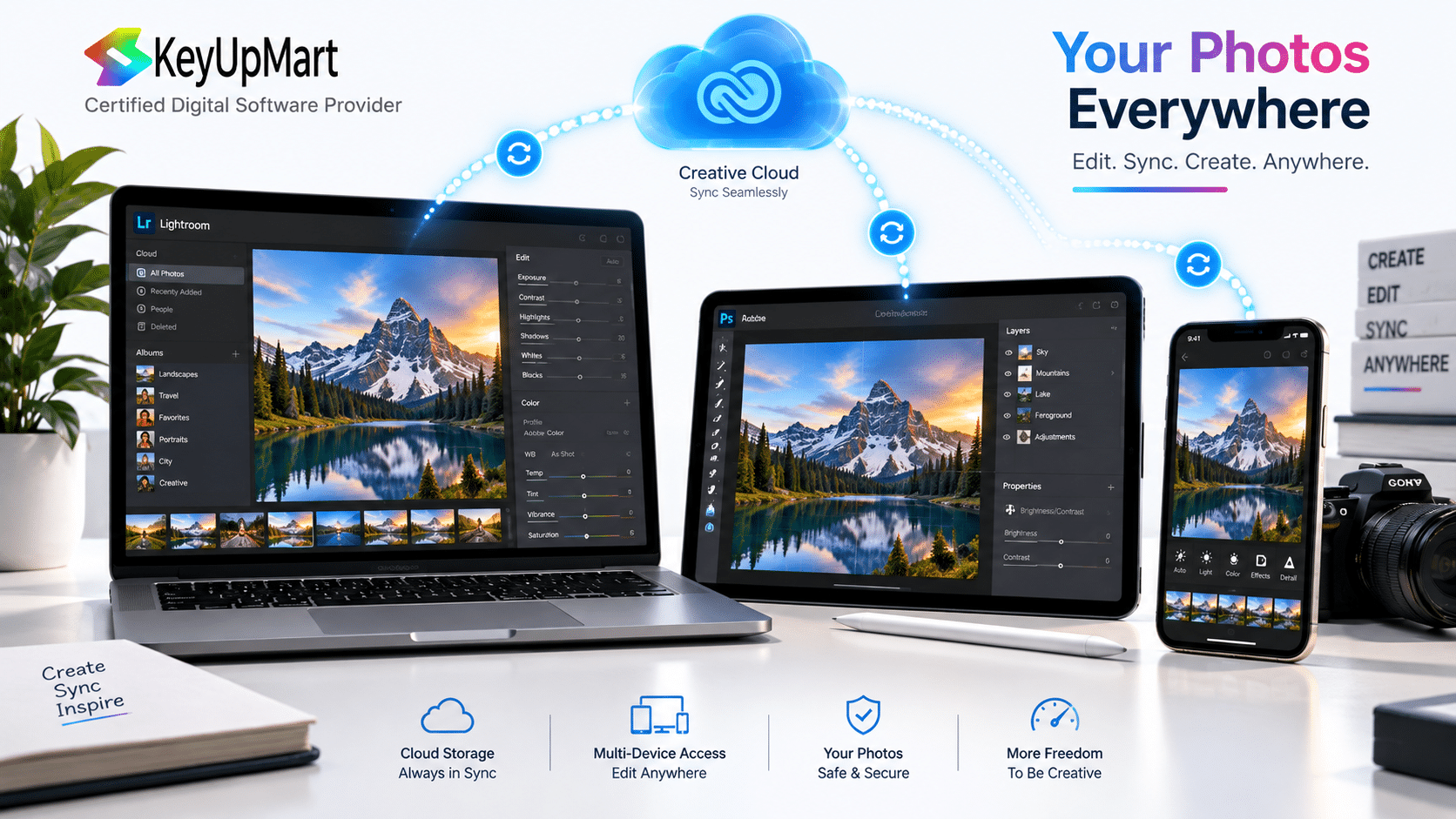
The newer cloud-centered Lightroom workflow is designed for users who want images and edits to stay synchronized across supported computers, tablets, and phones. It can be convenient for photographers who move between devices, want a simpler library experience, or prefer cloud-based access to their work.
Cloud convenience does not remove the need for backups and storage planning. Check the included storage, upload behavior, original-file handling, and export process before moving a large archive. The best Lightroom choice depends on whether local catalog control or multi-device access matters more to your workflow.
Need Photoshop and Lightroom for a complete photography workflow? View Adobe Creative Cloud All Apps or contact KeyUpMart support.
Buying Photoshop and Lightroom Separately
Buying the two applications separately can make sense when you use one heavily and the other only occasionally. For example, a designer may need Photoshop every day but use Lightroom only a few times each year. A photographer may already have access to Lightroom through another plan and only need a Photoshop subscription for advanced retouching.
The separate approach can also make budgeting easier because you can choose the application that directly supports your current work. The risk is that separate plans may cost more together than a suitable bundle, or that storage and account terms may not line up cleanly. Compare the total annual cost, included storage, AI credits, supported devices, and renewal terms rather than comparing only the first monthly price.
When a Standalone Photoshop Subscription Makes Sense
- You mainly create composites, marketing graphics, illustrations, thumbnails, or detailed retouching.
- You do not need a large raw photo catalog or library-management workflow.
- You already have another tool for importing, organizing, and backing up photos.
- You need Photoshop AI features, current releases, or current file compatibility.
When Buying Both Separately Makes Sense
- You use Lightroom and Photoshop at different frequencies and want separate control.
- One application is supplied by an employer, school, studio, or existing plan.
- You need a particular storage or device arrangement that a bundle does not provide.
- A current promotion or regional plan makes the combined standalone cost lower for your situation.
Bundle vs Standalone Price Comparison
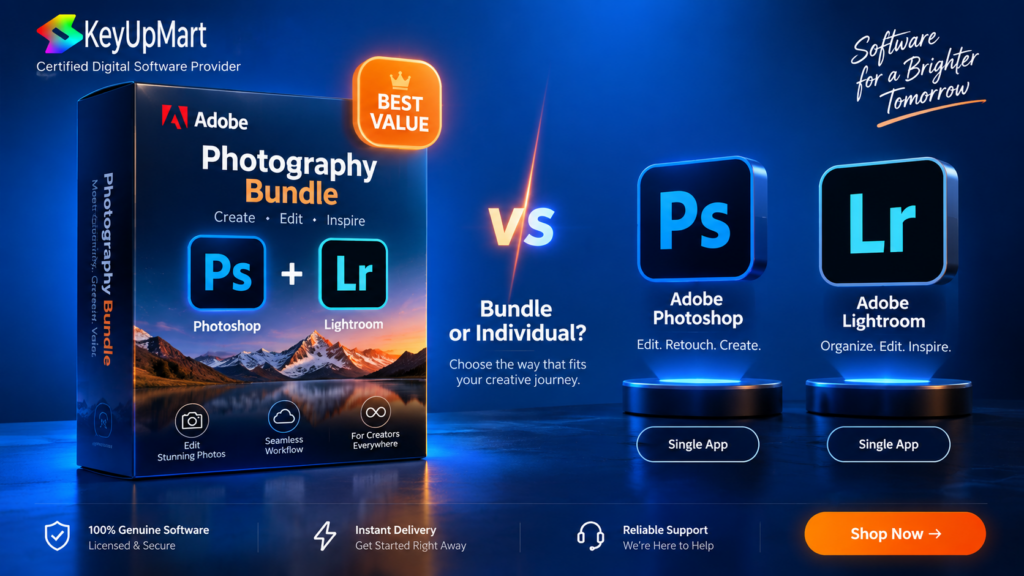
Bundle pricing should be evaluated over the period you expect to use the applications. Start with the effective annual cost of the bundle, then compare it with the annual cost of Photoshop plus the annual cost of Lightroom. Include taxes, renewal pricing, storage upgrades, AI credits, and any application you would otherwise buy separately.
A simple comparison can use three questions:
- What is the total cost for one year after any introductory promotion ends?
- What applications and services will I actually use every month?
- What would I have to buy separately if I choose the cheaper-looking plan today?
The cheapest plan on the first checkout screen is not automatically the best value. A bundle can be wasteful when it includes several applications you never open. A standalone plan can be expensive when you use both Photoshop and Lightroom every week. Make the decision from your real workflow, not the size of the application list.
Photography Plan vs Creative Cloud All Apps
When a Photography Plan Style Bundle Is Better
A photography-focused bundle is usually the natural match for photographers who primarily need Lightroom and Photoshop. It can provide a more direct path to raw processing, photo organization, detailed editing, and photography-related storage or services. Always confirm the current plan name and included features in your region because Adobe changes plan structures over time.
When Creative Cloud All Apps Is Better
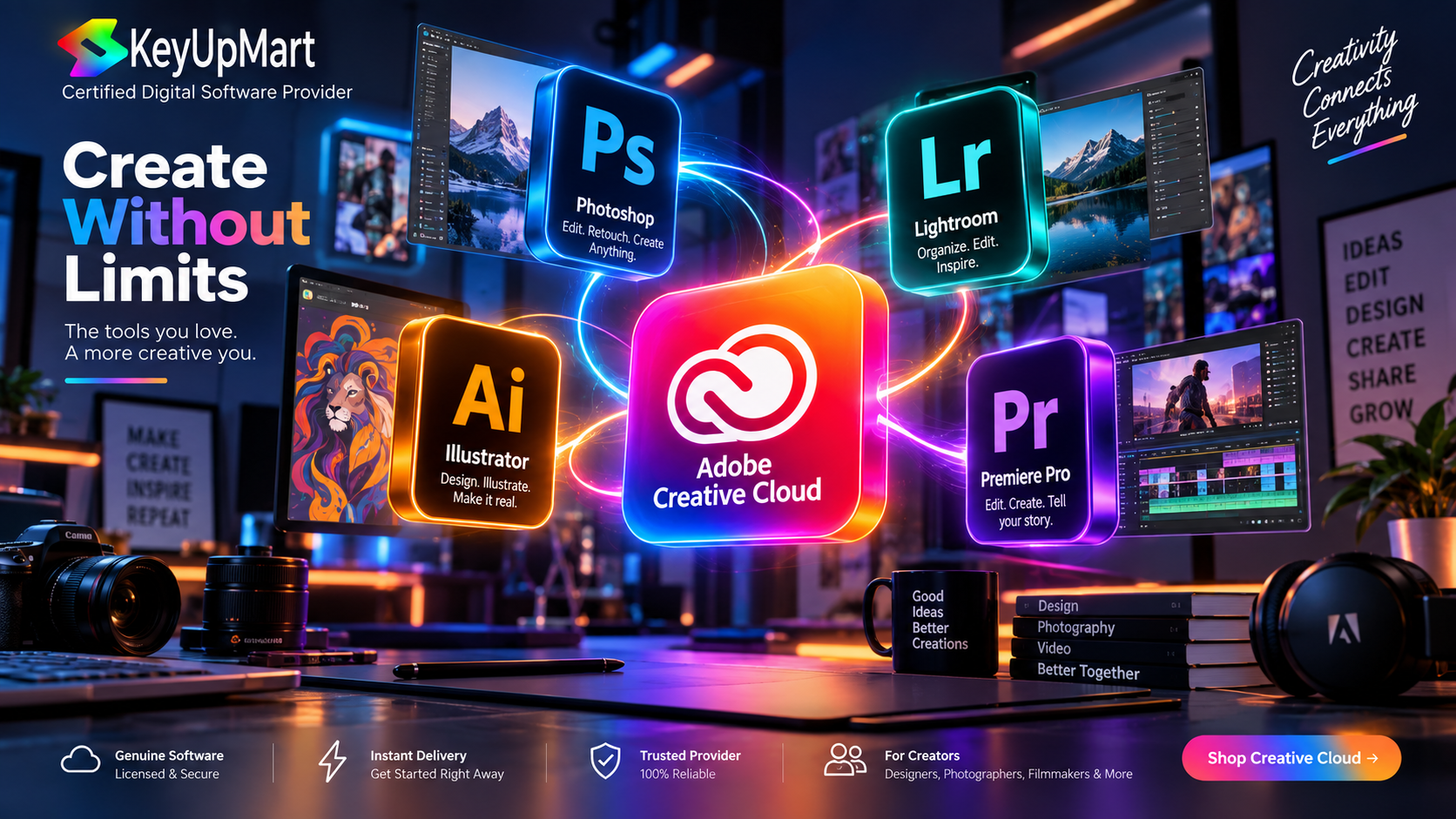
Creative Cloud All Apps is more appropriate when your work extends beyond photography. It can make sense for a designer who needs Photoshop and Illustrator, a content team that also creates video, or a studio that uses layout, motion, web, and illustration tools. A wider Creative Cloud bundle can be good value when those applications are part of your weekly workflow. The value depends on whether you will actually use the additional applications.
KeyUpMart lists Adobe Creative Cloud All Apps products with Photoshop and other Adobe applications. Read the current product page for the exact validity, platform, account, device, storage, AI credit, and refund terms before purchasing. Do not assume that every All Apps listing has identical conditions.
Compare the wider Adobe bundle before choosing standalone apps: View Creative Cloud All Apps or view the 1-Year Creative Cloud listing.
Photoshop and Illustrator Bundle Searches
Some users search for an Adobe Photoshop and Illustrator bundle because their work combines image editing with vector design. Photoshop is better suited to pixel-based image editing, compositing, and raster effects. Illustrator is designed for vector artwork, logos, icons, scalable shapes, and typography-heavy design.
If you regularly create logos, packaging, illustrations, or artwork that must scale to different sizes, Illustrator may be as important as Photoshop. If your work is primarily photography and raw development, Lightroom may add more value than Illustrator. Creative Cloud All Apps can be a better fit for a mixed design studio, but only when the wider application set is genuinely used.
RAW Photo Editing and File Management
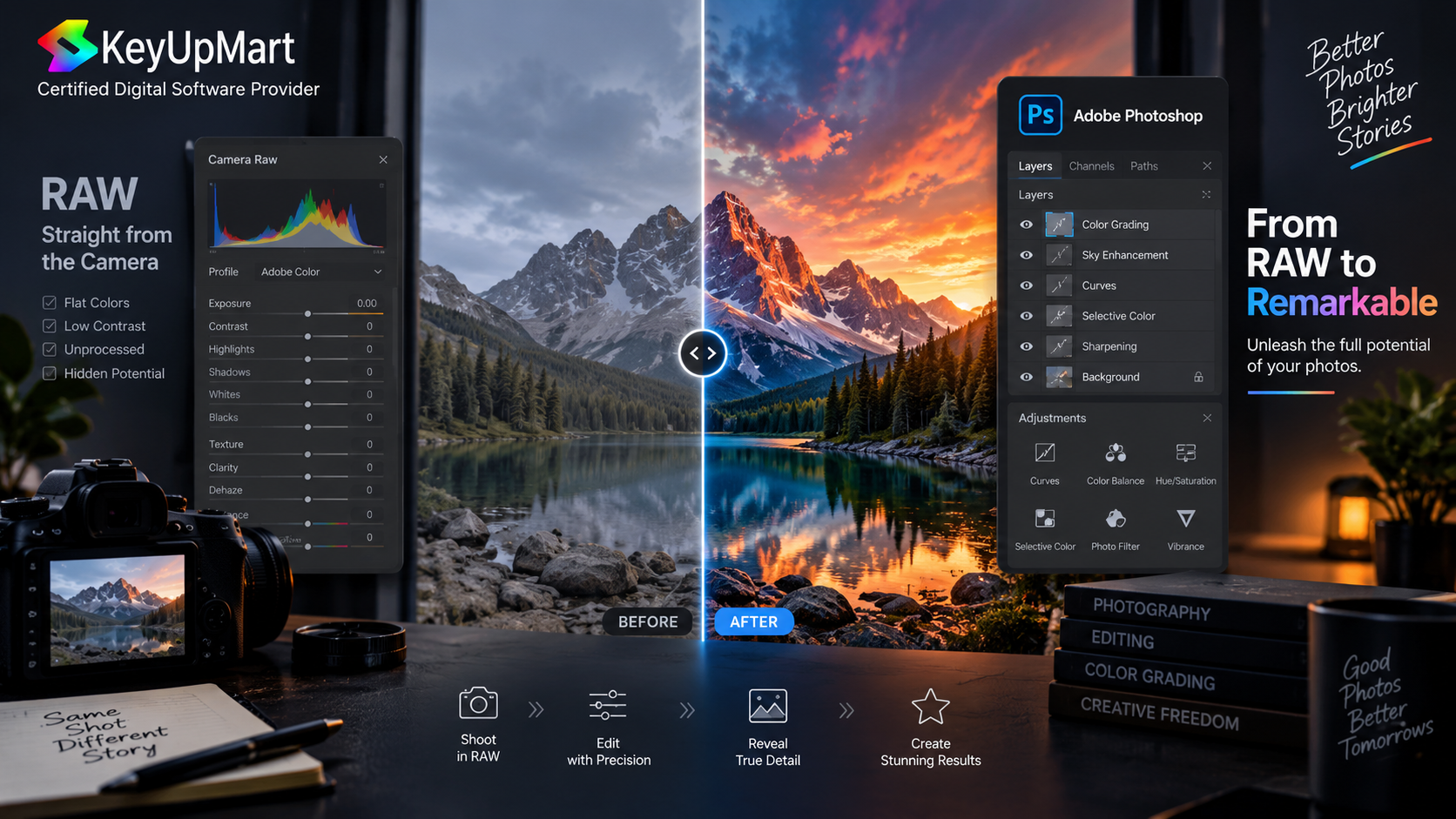
Lightroom is often the better starting point for raw photo editing because it is designed to process a large number of images with consistent adjustments. It can help you compare images, synchronize edits, manage metadata, and export multiple files. Photoshop becomes more important when the image requires detailed pixel editing, multiple layers, or a composite made from several sources.
A raw file is not the same as a finished JPEG. Keep the original files, preserve the editing instructions or catalog data, and maintain at least one verified backup. When sending an image from Lightroom to Photoshop, check whether the workflow creates a new rendered file and how that file is stored. This prevents confusion when you later search for the finished version.
Which Setup Should You Choose
Choose Photoshop and Lightroom Together If
- You photograph regularly and manage a library rather than a few isolated images.
- You need both raw development and advanced retouching or compositing.
- You deliver polished images but also need to keep originals organized.
- You want a connected workflow between a catalog application and a pixel editor.
Choose Standalone Photoshop If
- Your work is mainly design, retouching, composites, or social content.
- You use another catalog or photo-management tool.
- You rarely process raw files in batches.
- You need Photoshop AI features and do not need the additional Lightroom workflow.
Choose Creative Cloud All Apps If
- You need Photoshop, Lightroom, Illustrator, and other Adobe applications in one workflow.
- Your work crosses photography, vector design, video, layout, or web content.
- The wider application set costs less than buying the tools separately for your real usage.
Frequently Asked Questions
Is Photoshop and Lightroom the Same Application?
No. Lightroom focuses on photo organization, raw development, batch adjustments, and library workflows. Photoshop focuses on detailed pixel editing, layers, masks, compositing, and design. Many photographers use both because the applications solve different problems.
Is a Photoshop and Lightroom Bundle Worth It?
It can be worth it when you use both applications regularly. Compare the total annual cost, storage, AI credits, device support, and renewal terms against the cost of buying Photoshop and Lightroom separately. The value is lower when you only use one of the applications.
Is Lightroom Classic Better Than Lightroom?
Neither is always better. Lightroom Classic is suited to local catalogs, large archives, external drives, and direct folder control. Lightroom’s cloud-centered workflow is suited to users who want synchronized access across supported devices. Choose based on storage, backup, and device habits.
Can I Buy Photoshop and Lightroom Separately?
Yes, separate plans can be appropriate when you need different billing, storage, or application combinations. Compare the full combined cost and included services before deciding that separate plans are cheaper.
Does KeyUpMart Sell a Photoshop and Lightroom Bundle?
KeyUpMart lists Photoshop subscription products and Creative Cloud All Apps products. The Creative Cloud option may be the relevant path when you need Photoshop alongside other Adobe applications. Review the current product listing to confirm whether Lightroom is included in the exact product you select.
Can I Use a One-Time Photoshop License With Lightroom?
A one-time Photoshop license and Lightroom access can follow different product and account terms. The KeyUpMart Photoshop 2021 lifetime listing is a Windows-specific fixed edition, so confirm platform and workflow compatibility before assuming it will integrate with your Lightroom setup.
Conclusion
A Photoshop and Lightroom bundle is usually the best fit for photographers who need both library management and advanced image editing. Buying Photoshop and Lightroom separately can be better when you use only one application heavily, already have access to one of them, or need a different storage and device arrangement. Creative Cloud All Apps becomes more attractive when your work also depends on Illustrator, video, layout, or other Adobe tools.
Choose from the workflow first, then compare bundle pricing and standalone app cost. Confirm the current plan name, included applications, platform, storage, AI credits, account requirements, device limit, and refund terms before checkout. That makes it easier to buy the combination you will actually use instead of paying for an impressive list of tools that does not match your work.
Need Photoshop for advanced editing? View the Photoshop 1-Year Subscription.
Need Photoshop, Lightroom, and other Adobe apps together? View Creative Cloud All Apps.
Related posts:


 Is Your Adobe Photoshop License Key Genuine A Buyer’s Guide to Safe Purchases
