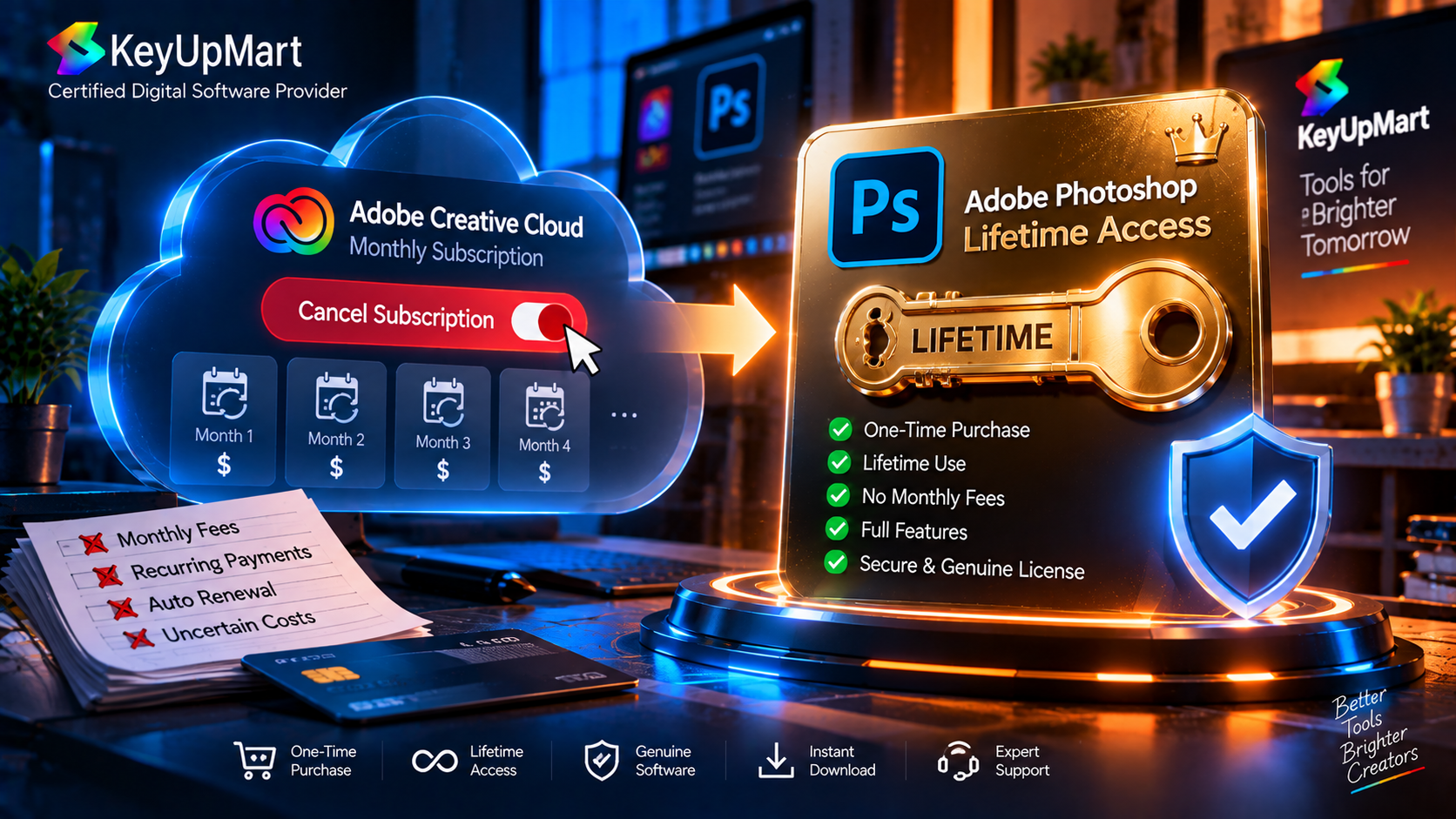
Many Photoshop users eventually ask how to cancel an Adobe Photoshop subscription. If you are searching for how to cancel Adobe Photoshop subscription billing, the first step is to identify the account and plan before changing anything. The reasons are familiar: the monthly or annual cost no longer fits the budget, the user is not using the application often enough, or the latest Creative Cloud features are not necessary for the work being done. Others want to replace recurring payments with a defined one-time Photoshop license.
The cancellation process should be handled carefully. You need to confirm which Adobe account owns the plan, understand the billing date and cancellation terms, protect your files and cloud documents, and decide what you will use after the subscription ends. This guide explains how to cancel Photoshop subscription plans safely and how to evaluate a one-time purchase without assuming that an older edition includes current Creative Cloud features.
The exact refund, renewal, and cancellation terms can vary by country, plan, billing arrangement, and purchase channel. Adobe’s account page and the terms shown during cancellation are the final source of truth. If you purchased through a reseller, also review the reseller’s product and refund policy.
Step by Step: How to Cancel Your Photoshop Subscription
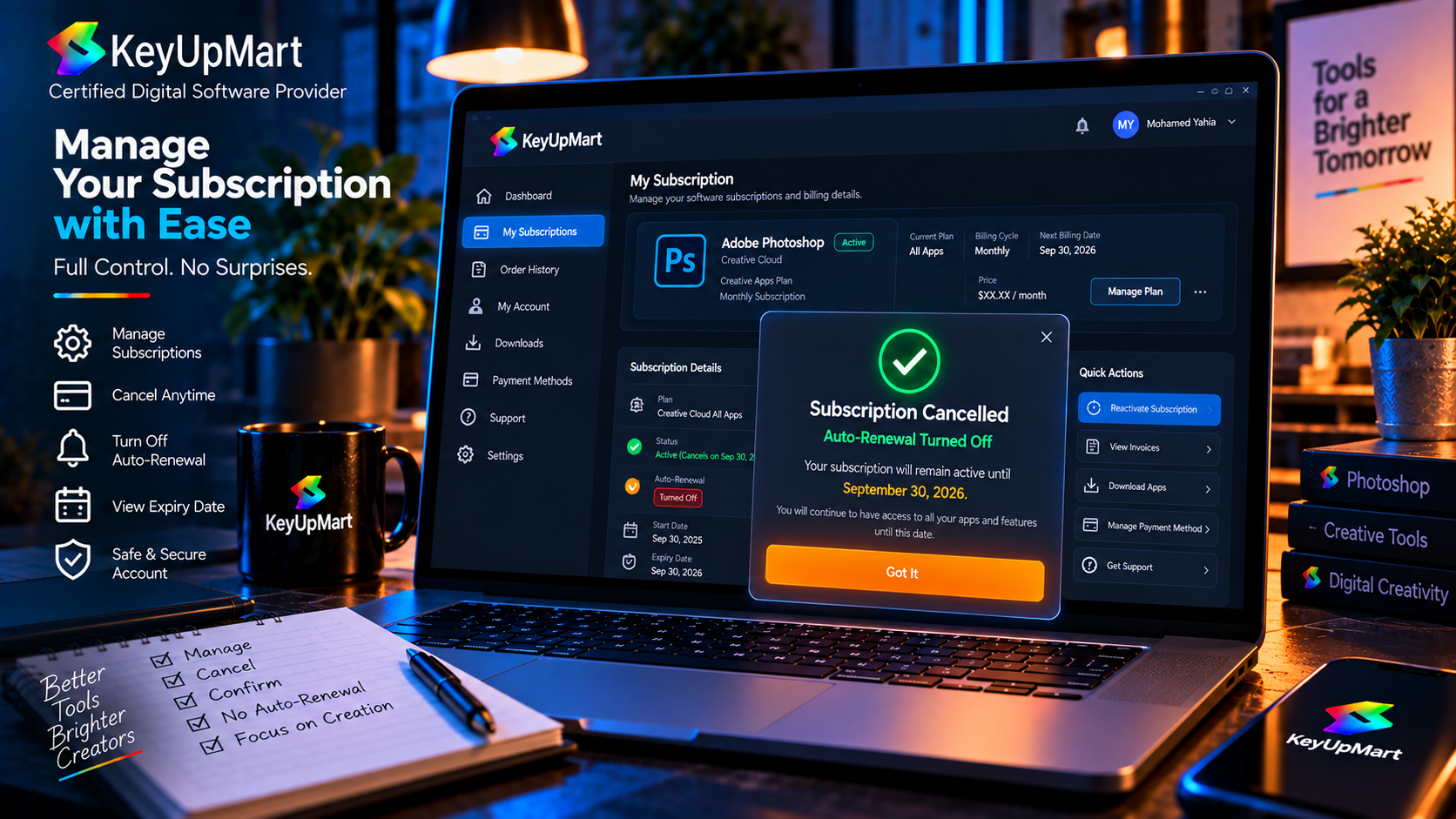
Step 1: Identify the Adobe Account and Plan
Before you cancel Creative Cloud or Photoshop, sign in to the Adobe account that owns the subscription. Many users have more than one email address, especially if they have a personal account, a work account, or a school account. Cancelling the wrong account will not stop the billing for the active plan.
Open the account plans or subscription management area and confirm the product name, billing frequency, renewal date, payment method, and status. Take a screenshot or save the confirmation details for your records, but do not share passwords or full payment information with anyone.
Step 2: Start the Adobe Photoshop Cancellation
From the active plan, choose the option to manage the plan and begin cancellation. Adobe may show information about the end date, remaining access, alternative plans, or other options before the cancellation is completed. Read each screen carefully so that you know whether you are cancelling immediately or stopping the next auto-renewal.
Do not close the browser before you reach the final confirmation screen. A change in plan settings is not complete just because you opened the cancellation flow. Wait for the confirmation message or email and keep it with your account records.
Step 3: Review Refund and Early Cancellation Terms
The refund result depends on the plan type, how long ago you purchased it, your billing arrangement, and the local terms shown by Adobe. If you are looking for a Photoshop subscription refund, check the account terms rather than assuming cancellation creates an automatic refund. Some annual plans can have different cancellation consequences from monthly plans, and a promotional price may have its own conditions. Never promise a refund based on a generic article; check the terms displayed in your account.
If the Adobe Photoshop subscription was purchased through a reseller, marketplace, or business account, the correct cancellation and refund route may be different. Keep the order number and contact the original seller when the seller, rather than Adobe, manages the subscription delivery or refund.
Step 4: Confirm the Cancellation
Finish the cancellation flow and confirm that the plan status has changed. Look for an email or account message that identifies the cancellation date and the last day of access. If you still see an active renewal after the cancellation, contact the relevant billing support channel before the next charge.
What Happens After You Cancel Photoshop
Access to the Application
Depending on the plan and cancellation terms, you may keep access until the end of the current billing period or lose access earlier. The account page and confirmation email should identify the relevant date. Do not uninstall Photoshop until you have copied the files and settings you need.
When the subscription ends, the application may stop allowing full editing or may require an active plan to continue. This is different from deleting your Adobe account. Cancelling a plan normally affects the subscription, while closing the account can affect other services, files, and data.
Cloud Documents, Libraries, and Storage
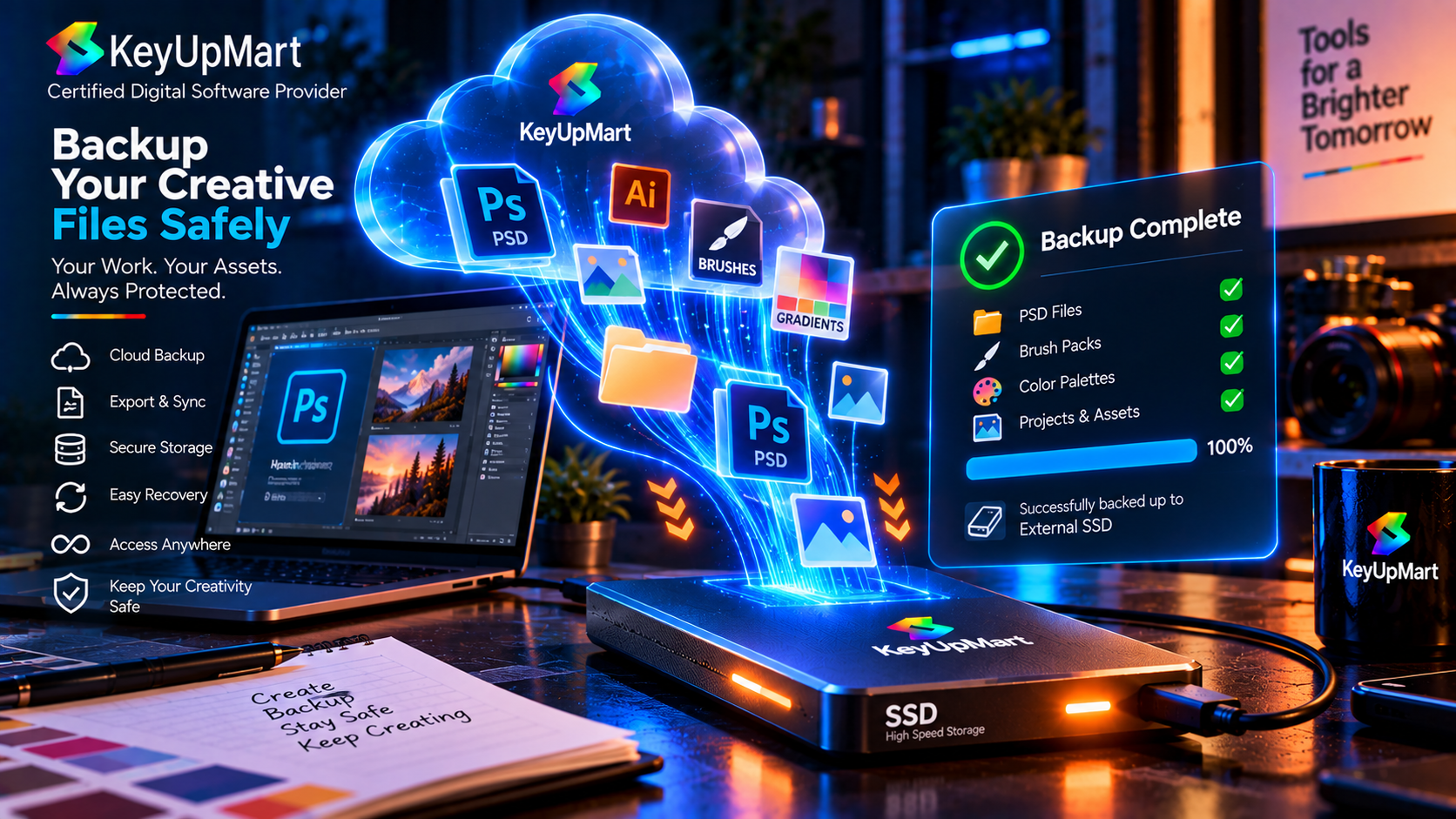
Before the final access date, download or export important cloud documents, library assets, brushes, templates, fonts, and project files. Open a few downloaded files to confirm that they are usable. If a project depends on linked assets, plug-ins, or fonts, collect those items as well.
A Photoshop project is not always self-contained. A layered file may depend on linked images, fonts, external drives, or color profiles. Create a local backup and keep the original file format when you may need to edit the project again.
Files and Adobe Account Data
Cancelling an Adobe Photoshop subscription does not automatically mean that every local file is deleted. Local files remain on your computer, but cloud storage and account access can follow separate rules. Review Adobe’s current storage and account terms, then make a local copy of the files that matter to you.
The Alternative: A One-Time Purchase Lifetime License
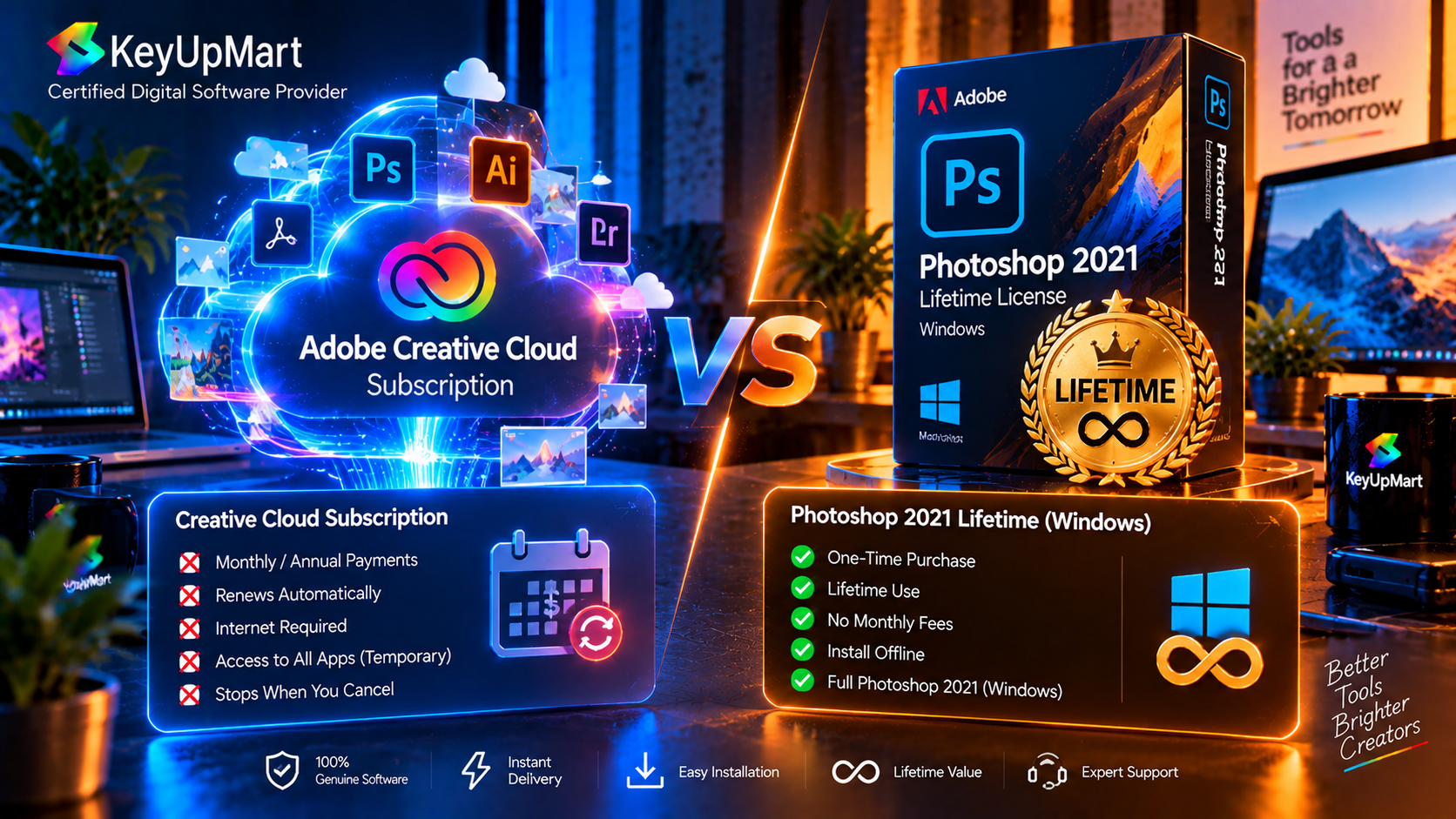
A one-time purchase can reduce recurring payments, but it is not the same product model as a current Creative Cloud subscription. You purchase access to a defined edition under its stated license terms. The product may not include future major releases, current AI services, cloud storage, or the newest camera and operating-system support. For some buyers, the goal is to switch to one-time purchase software and keep a stable workflow instead of renewing every year.
The phrase lifetime Photoshop license should be read together with the edition year, platform, device limit, activation process, and update policy. A lifetime license normally means continued use of the listed edition under the product terms. It does not automatically mean lifetime access to every future version of Photoshop.
What to Check Before Buying a One-Time Photoshop License
- Edition year and exact product name.
- Windows or Mac compatibility and supported operating-system versions.
- Whether activation uses an Adobe account, redemption code, or another stated process.
- Number of supported devices and whether the license is transferable.
- Whether future updates, AI features, cloud services, or major upgrades are included.
- Refund window, eligibility conditions, and the support process if activation fails.
KeyUpMart Photoshop One-Time Option
KeyUpMart lists Adobe Photoshop 2021 Professional Edition – Lifetime License for Windows as a one-time option. The product is identified for Windows and should be evaluated as a fixed 2021 edition. Buyers should read the current product page for platform, activation, device, update, delivery, and refund details before purchase.
This product can suit a buyer who wants a defined Windows workflow and does not need every current Creative Cloud feature. It is not the correct replacement for a Mac subscription, and it should not be presented as including the newest Photoshop AI tools unless the listing explicitly confirms that feature and access model.
Before ordering, review the product details and the current refund conditions.
Subscription Versus One-Time Purchase
When a Subscription Is Still the Better Choice
Keep or replace your subscription with another current plan when you need the newest Photoshop features, AI editing, current-operating-system compatibility, cloud-connected workflows, or support across Windows, Mac, and iPad. Professionals may consider the recurring cost part of their production budget because current tools and compatibility can save time and reduce workflow risk.
When a One-Time License May Be Enough
A one-time Photoshop license may be enough when you use Windows, work with a stable toolset, do not need current AI features, and want to avoid recurring payments. It can be appropriate for personal projects, occasional editing, older workflows, or users who are satisfied with the feature set of a defined edition.
Compare the total cost over the period you expect to use the product. Also compare the cost of losing current features, changing platforms, replacing plug-ins, or upgrading later. The lowest first payment is not always the lowest long-term cost.
How to Switch Without Losing Your Workflow
Back Up Projects and Assets
Create a local folder or external backup containing your PSD files, linked images, fonts you are allowed to use, brushes, actions, templates, export presets, and any client assets. Open representative projects from the backup so you know the copy is not corrupted.
Document Your Current Photoshop Setup
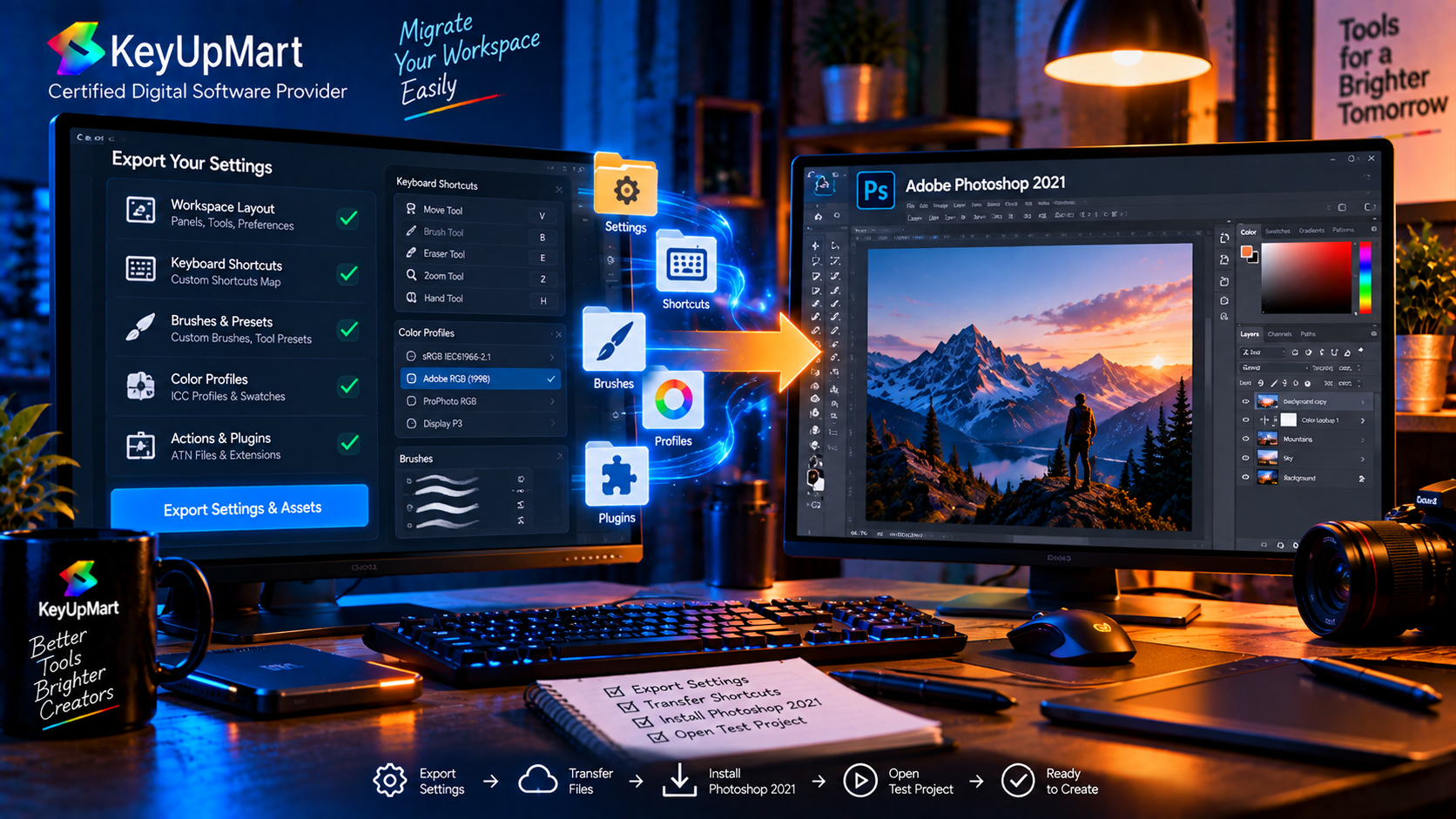
Write down the Photoshop version, plug-in list, color settings, scratch-disk configuration, keyboard shortcuts, and export presets that matter to your work. This makes it easier to reproduce the workflow after you cancel the subscription or install a different edition.
Install the Replacement Before the Last Day
If your license terms allow it, install and test the replacement before the subscription access ends. Use a copy of an important project, not the only original. Confirm that the files open, fonts load, plug-ins work, and the final export looks correct before relying on the new installation.
Common Cancellation Problems
The Cancellation Button Is Missing
You may be signed into the wrong Adobe account, using a business-managed plan, or viewing a product purchased through another channel. Confirm the account email and original order source. Contact the relevant account or billing support team rather than creating another account.
A Charge Appeared After Cancellation
Check the cancellation confirmation date, billing date, payment method, and plan status. Keep the confirmation email and contact the billing provider promptly. If a reseller processed the payment, send the order number through the reseller’s secure support process and do not include your full card information.
The Replacement License Does Not Activate
Confirm the product edition, platform, Adobe account, redemption address, and activation instructions. Do not try random keys or modified installers. Contact the seller with the order number and exact error message while protecting the full license key.
Frequently Asked Questions
How Do I Cancel Adobe Photoshop Subscription Billing?
Sign in to the Adobe account that owns the plan, open plan management, choose the cancellation option, review the displayed terms, and complete the final confirmation. Save the confirmation and check the account status afterward.
Can I Get a Refund After I Cancel Photoshop?
A refund is not automatic. It depends on the plan, purchase date, country, billing terms, and purchase channel. Check the terms shown in your Adobe account or contact the original seller if the subscription was purchased through a reseller.
Will I Lose My Photoshop Files After Cancelling?
Local files normally remain on your computer, but cloud documents and storage follow account and service terms. Download important files and assets before the last access date, and keep a verified local backup.
Can I Switch From Photoshop Subscription to Lifetime License?
You can choose a one-time license as an alternative, but the two products may support different editions, platforms, features, and activation methods. Confirm that the lifetime edition matches your computer and workflow before cancelling the subscription.
Does the Lifetime Photoshop Edition Include New AI Features?
Do not assume it does. A one-time edition normally provides a fixed feature set, while current AI tools are connected to newer releases, account access, plans, and credits. Check the product page for the exact included features.
Conclusion
To cancel an Adobe Photoshop subscription safely, confirm the correct Adobe account, review the cancellation and refund terms, complete the final confirmation, and back up your files before access changes. If you want to switch to a one-time Photoshop purchase, compare the edition, platform, activation, device limit, update policy, and refund terms instead of comparing price alone.
A current subscription remains the better fit for users who need new Photoshop releases, AI editing, cloud features, and cross-platform support. A defined one-time Windows edition may suit users who want a stable workflow without recurring payments. The right choice is the one that matches your device, projects, and expected feature needs.
Ready to choose your next Photoshop license? View Photoshop 2021 Lifetime for Windows and confirm compatibility before ordering.
Prefer a current recurring plan or need guidance? Compare Photoshop subscriptions or Contact KeyUpMart support.