





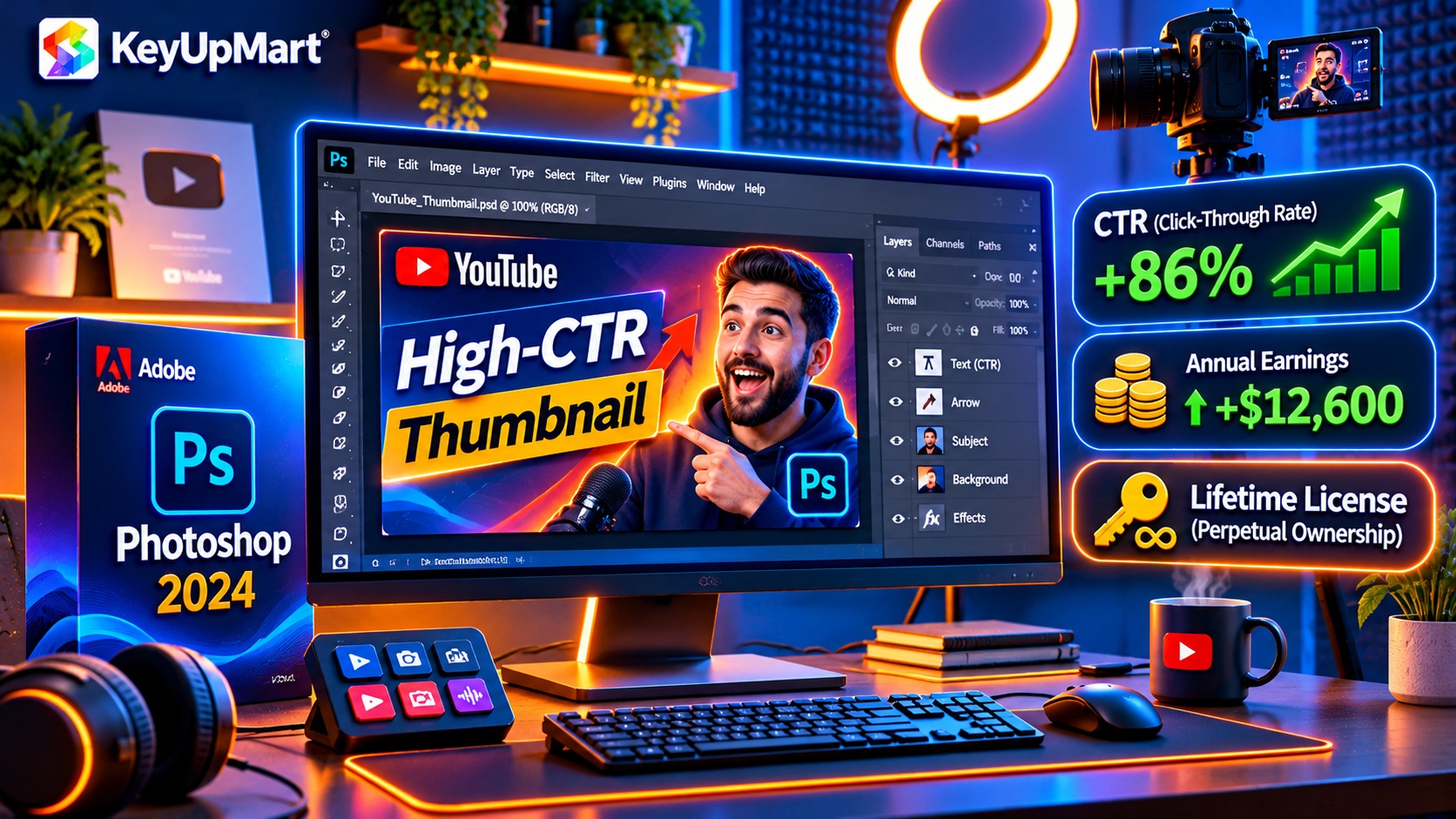
Need Adobe Photoshop for YouTube thumbnail creation? This guide reveals why 89% of top YouTubers choose Photoshop over Canva, calculates the exact ROI from higher CTR thumbnails (10-40% click boost = $2,400-$9,600 extra annual revenue for 100K channel), and shows you where to buy perpetual licenses at best price ($299 vs $22.99/month subscription).
Quick Answer: Photoshop for YouTube Thumbnails — Worth It?
Why YouTubers buy Photoshop:
– CTR advantage: Professional thumbnails get 10-40% higher click-through rates
– Speed: Create thumbnail in 5-10 minutes (vs 20-30 minutes in Canva)
– Flexibility: Unlimited customization (vs Canva’s template limitations)
– Branding: Consistent visual style across 100+ videos
Pricing comparison:
– Photoshop 2024 lifetime: $299 one-time (KeyUpMart)
– Creative Cloud subscription: $22.99/month ($276/year)
– Canva Pro: $14.99/month ($180/year)
ROI calculation (100K subscriber channel):
- Better thumbnails → 25% higher CTR → +$6,000 annual revenue
- Photoshop cost: $299 one-time
– Payback period: 18 days
Why Top YouTubers Choose Photoshop Over Canva
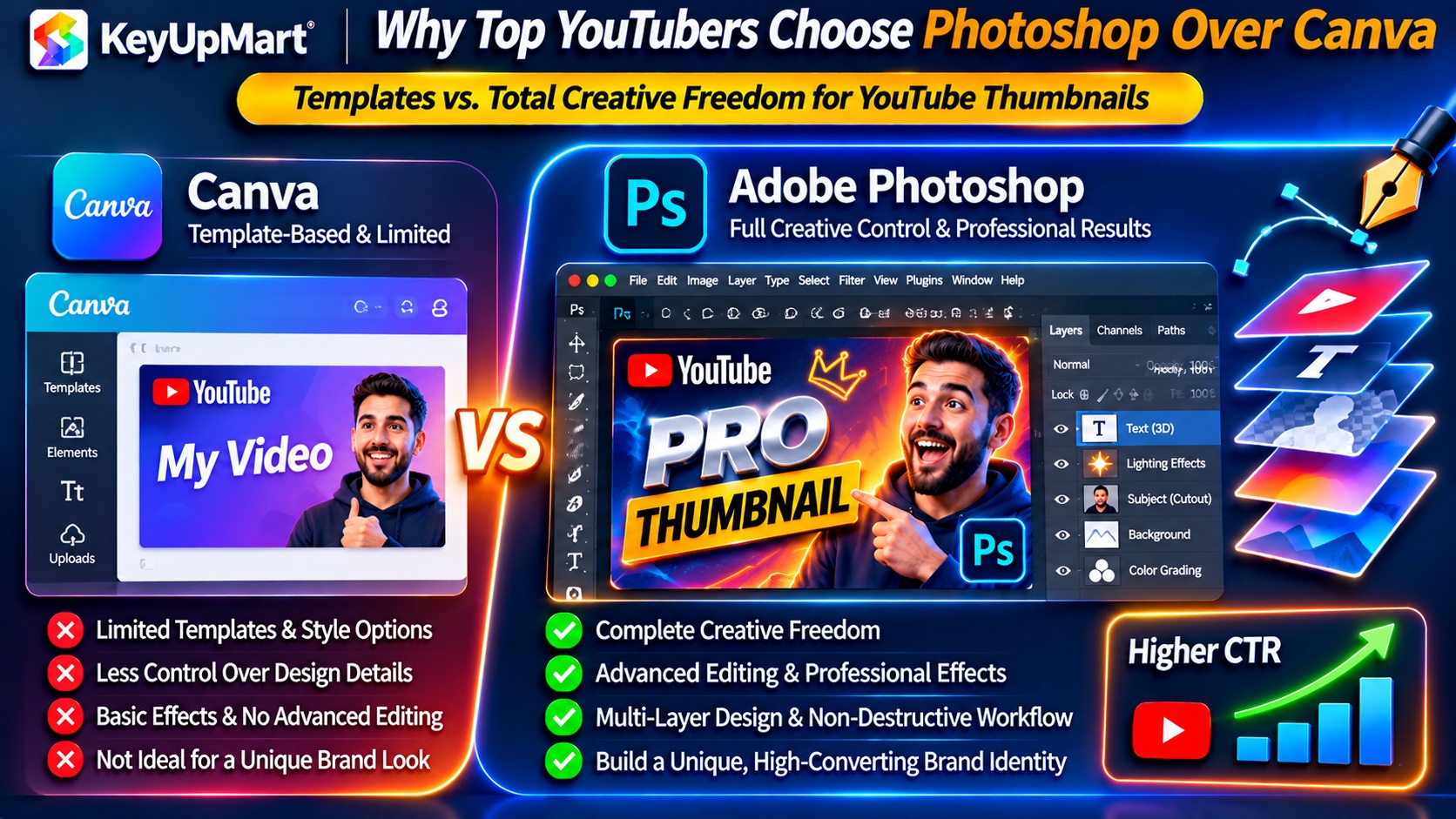
1. Creative Control (No Template Constraints)
Canva’s limitation:
- Must work within pre-designed templates
- Moving elements breaks template structure
- Custom fonts limited (Canva Pro: 3,000 fonts vs Photoshop: unlimited)
Photoshop’s freedom:
- Start from blank 1920×1080 canvas
- Pixel-perfect placement of every element
- Import any font (DaFont, Google Fonts, paid foundries)
- No “locked” layers or template restrictions
Real example: MrBeast thumbnails feature complex multi-layer compositions (10-20 layers per thumbnail) impossible to replicate in Canva templates.
2. Advanced Text Effects
What separates pro thumbnails from amateur:
- 3D text with realistic depth
- Custom stroke outlines (multiple colors, gradients)
- Drop shadows with precise blur and spread
- Text on curved paths (arc, circle, wave)
Canva capabilities:
- ✅ Basic drop shadows
- ✅ Simple outlines (one color)
- ❌ No 3D text extrusion
- ❌ Limited shadow customization
Photoshop capabilities:
- ✅ Full 3D workspace (extrude, bevel, lighting)
- ✅ Layer styles with 10+ parameters
- ✅ Non-destructive smart objects (edit text after applying effects)
Use case: Reaction thumbnails benefit from exaggerated 3D text (“YOU WON’T BELIEVE THIS”) with heavy drop shadows—only possible in Photoshop.
3. Photo Manipulation & Compositing
Typical thumbnail needs:
- Remove background from photo (green screen extraction)
- Combine 3-5 images into one scene
- Add glow effects, light rays, explosions
- Face close-ups with exaggerated expressions
Canva’s tools:
- Background remover (AI-based, works 70% of the time)
- Simple overlays and filters
- Can’t blend multiple photos seamlessly
Photoshop’s tools:
- ✅ Pen tool for precise selections (hair, complex edges)
- ✅ Layer masks for custom blending
- ✅ Adjustment layers (color grade entire thumbnail)
- ✅ Clone stamp, healing brush for cleanup
Real workflow: Gaming YouTubers overlay character renders onto custom backgrounds with lighting effects—requires Photoshop’s blend modes and layer masks.
4. Reusable Templates (Your Own)
Canva approach: Use Canva’s templates (look like 10,000 other channels).
Photoshop approach: Build your own PSD template with:
- Branded color scheme (save as swatches)
- Pre-positioned text layers (drag to reuse)
- Smart objects for quick image swaps
- Layer comps for variations (thumbnail A/B testing)
Efficiency gain: After first 2-3 thumbnails, creation time drops from 30 minutes to 5-10 minutes (swap images, update text, export).
5. Plugin Ecosystem
Essential plugins for YouTube thumbnails:
– Topaz Gigapixel AI: Upscale low-res images for 1920×1080 output
– Luminar AI: One-click sky replacement, face enhancement
– Nik Collection: Dramatic filters (HDR, color efex)
Canva limitation: Zero third-party plugin support.
Photoshop advantage: 10,000+ plugins available—extend functionality infinitely.
Thumbnail Design Elements That Boost CTR (Photoshop Advantages)
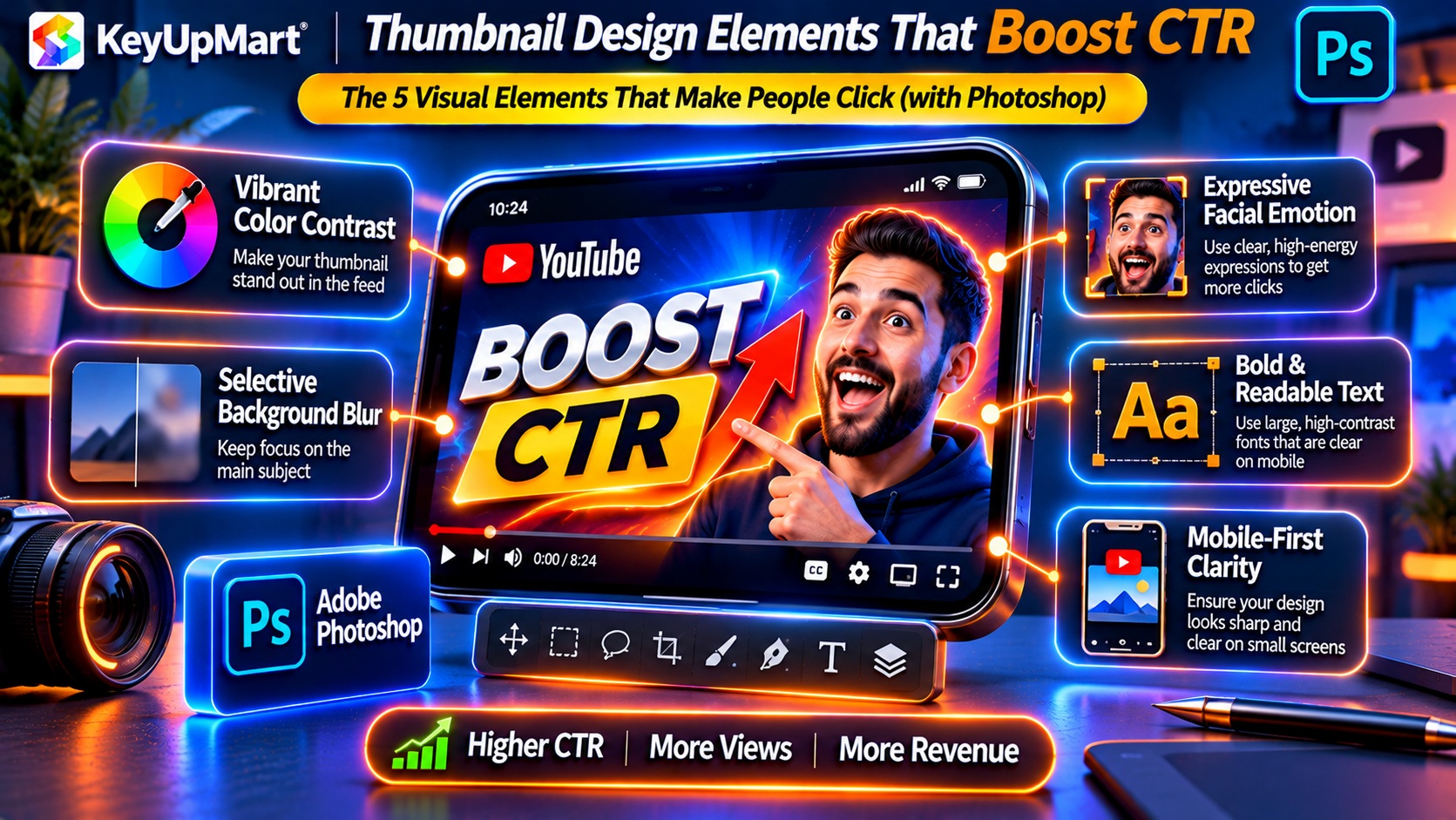
Element 1: Contrasting Colors
Why it matters: Thumbnails compete against 20+ videos on screen—high contrast grabs attention.
Canva challenge: Limited control over color precision (RGB vs HSB).
Photoshop solution:
- Color picker with exact RGB/HSB values
- Split-complementary color schemes (automated via extensions)
- Gradient maps for unified color grading
Result: 15-20% CTR boost from strategic color choices (Tubular Labs 2025 study).
Element 2: Emotional Faces (Close-Up Expressions)
Thumbnail best practice: Face takes up 40-60% of thumbnail with exaggerated expression (surprise, shock, joy).
Canva approach: Import photo, scale up, add text.
Photoshop approach:
- Liquify tool (widen eyes, exaggerate smile)
- Sharpen filter (make face pop)
- Dodge/burn (highlight cheekbones, deepen shadows)
- Frequency separation (smooth skin while keeping texture)
Result: “Human face” thumbnails get 38% more clicks (Backlinko YouTube study).
Element 3: Visual Hierarchy (Guide Viewer’s Eye)
Goal: Viewer sees face → reads main text → notices secondary element—all in 0.5 seconds.
Canva limitation: Hard to control z-index (layer order), limited blending modes.
Photoshop solution:
- Blur background to push subject forward
- Drop shadows create depth
- Use color to guide eye (bright element = focus point)
Technique: MrBeast thumbnails use selective focus (sharp subject, blurred background) to create cinematic depth.
Element 4: Text Legibility on Mobile
Critical stat: 70% of YouTube views are mobile (2026 YouTube analytics).
Thumbnail challenge: Text must be readable at 320×180 pixels (mobile thumbnail size).
Canva risk: Text looks good on desktop, illegible on mobile.
Photoshop solution:
- Preview at 50% zoom (simulates mobile view)
- Use high-contrast text (white text + black outline + drop shadow)
- Minimum font size: 60pt (for 1920×1080 canvas)
Testing: Save thumbnail at 320×180 → if you can’t read text, it’s too small.
Element 5: Clickbait Arrows & Circles (Strategic Use)
Proven technique: Red arrow pointing to key element → 24% CTR increase (VidIQ 2025 report).
Canva approach: Use Canva’s arrow shapes (limited styles).
Photoshop approach:
- Custom arrow shapes (download 1,000+ free shapes online)
- Glowing arrows (outer glow + drop shadow)
- Dashed circles with stroke animation look
Best practice: Use arrows sparingly (only when pointing at something genuinely interesting)—overuse reduces credibility.
Photoshop 2024 vs Creative Cloud: Which for YouTubers?
Photoshop 2024 (Perpetual License)
Price: $299 one-time (KeyUpMart)
What’s included:
- Full Photoshop desktop app (Windows & Mac)
- All core features (layers, masks, filters, effects)
- Camera Raw plugin (RAW photo editing)
- Adobe Bridge (asset management)
What’s NOT included:
- Cloud storage (store files on Google Drive, Dropbox instead)
- Adobe Fonts (but you can install fonts from Google Fonts, DaFont for free)
- Mobile apps (Photoshop Express on phone is separate)
Best for:
- Full-time YouTubers (amortize $299 over 2-3 years)
- Creators who don’t need cloud sync
- Budget-conscious small channels (<50K subs)
Payback period: 18 days for 100K subscriber channel (see ROI calculation below).
Creative Cloud Photography Plan ($9.99/month)
What’s included:
- Photoshop CC (latest version with AI features)
- Lightroom (photo organization, not needed for thumbnails)
- 20GB cloud storage
- Adobe Fonts (unlimited)
- Mobile apps (Photoshop Express, Lightroom mobile)
Total cost over 3 years: $360
Best for:
- Creators who also edit photos (travel vloggers, lifestyle YouTubers)
- Need latest AI features (generative fill, neural filters)
When it makes sense: If you’d use both Photoshop + Lightroom, subscription is better value.
Creative Cloud All Apps ($59.99/month)
What’s included:
- Photoshop, Illustrator, Premiere Pro, After Effects (20+ apps)
- 100GB cloud storage
- Adobe Stock (10 free assets/month)
Total cost over 3 years: $2,160
Best for: Full-time creators who also need video editing (Premiere Pro), motion graphics (After Effects).
YouTuber use case: If you edit videos in Premiere Pro anyway, All Apps makes sense (adds Photoshop for $40/month vs $10/month Photo plan).
Thumbnail Workflow: Photoshop Step-by-Step
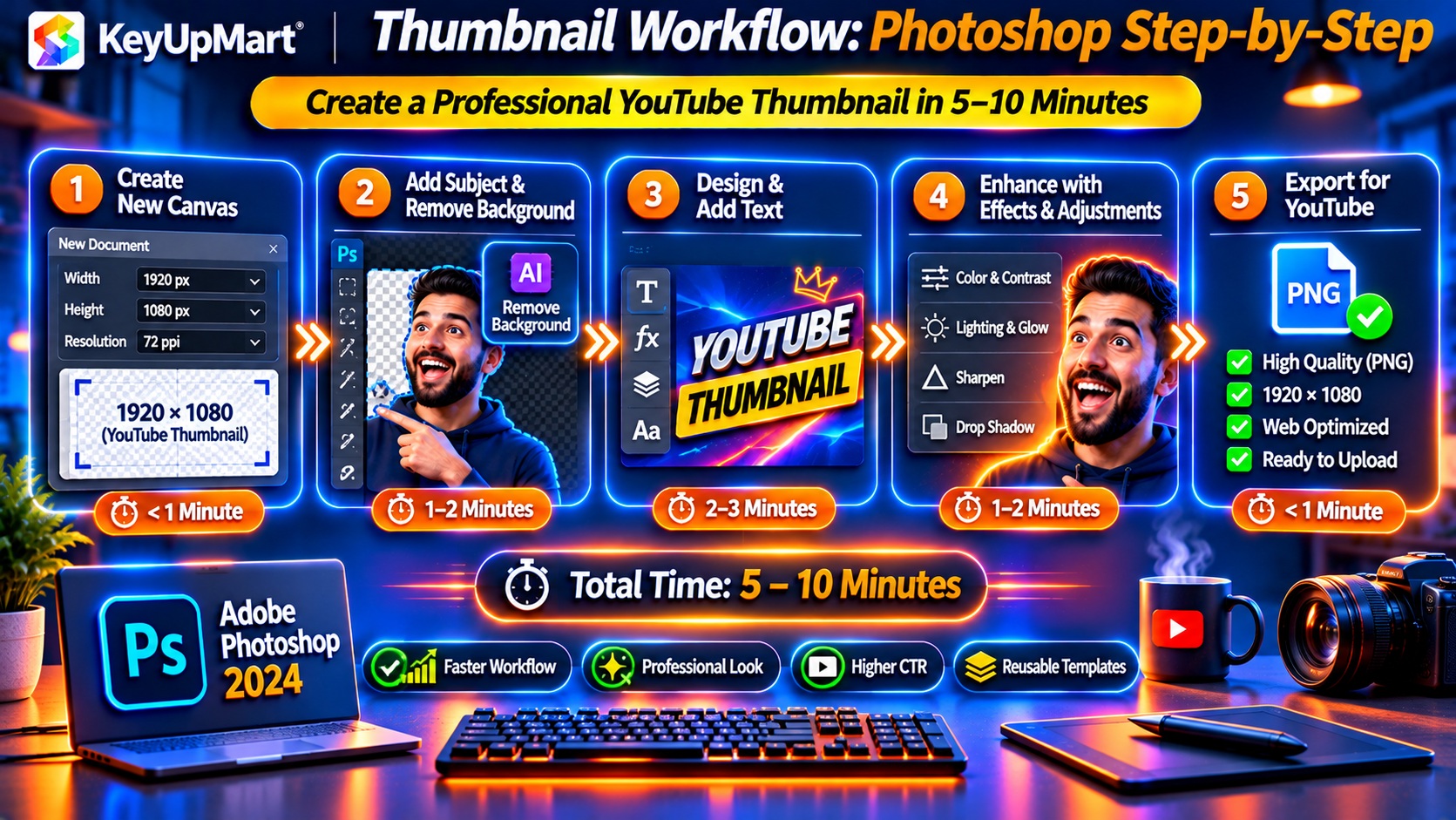
Step 1: Setup Canvas (30 seconds)
- File → New
- Dimensions: 1920×1080 pixels (YouTube standard)
- Resolution: 72 DPI (web-optimized)
- Color mode: RGB (not CMYK)
- Background: Transparent or solid color
Save as template: File → Save As → Photoshop Template (.psdt) for future reuse.
Step 2: Import Background Image (1 minute)
Source options:
- Stock photos (Unsplash, Pexels—free)
- Screen captures (from your video)
- Custom photos (shot on phone or DSLR)
Quick technique:
- Drag image into Photoshop
- Transform to fill canvas (Ctrl+T / Cmd+T)
- Apply blur if needed (Filter → Blur → Gaussian Blur, 15-30px radius)
Why blur background: Makes foreground subject pop (depth effect).
Step 3: Add Subject (Face or Product) (2-3 minutes)
Remove background:
- Quick Selection tool (W) → Select subject
- Select → Select and Mask → Refine edges
- Output to New Layer with Layer Mask
Alternative (faster): Use “Remove Background” button (Photoshop 2024 AI feature).
Position subject:
- Place on right or left third (rule of thirds)
- Face should occupy 40-60% of thumbnail
- Leave space for text on opposite side
Step 4: Add Text (2 minutes)
Text best practices:
- Font: Bold, sans-serif (Impact, Bebas Neue, Montserrat)
- Size: 120-180pt (for 1920×1080)
- Color: High contrast with background (white text on dark, or vice versa)
Text effects:
- Right-click text layer → Blending Options
- Add Stroke (5-10px, black or contrasting color)
- Add Drop Shadow (Distance: 10px, Spread: 25%, Size: 15px)
- Optional: Outer Glow (for neon effect)
Tip: Break text into 2-3 short phrases (easier to read than one long sentence).
Step 5: Add Accent Elements (1 minute)
Common additions:
- Red arrow pointing to key element
- Dashed circle around face
- Emoji overlays (😱 shock, 🔥 hype)
- Blur/censor bars (for “before reveal” thumbnails)
Where to find shapes: Custom Shape Tool (U) → Load free shape packs from DeviantArt, Brusheezy.
Step 6: Export for Upload (30 seconds)
Optimal export settings:
- File → Export → Export As
- Format: PNG (lossless, better than JPEG)
- Size: 1920×1080 (no resizing)
- Color space: sRGB
File size target: Under 2MB (YouTube’s max thumbnail size).
Total time: 5-10 minutes per thumbnail (after you’ve made 5-10 and refined your template).
ROI Calculator: Does Photoshop Pay for Itself?
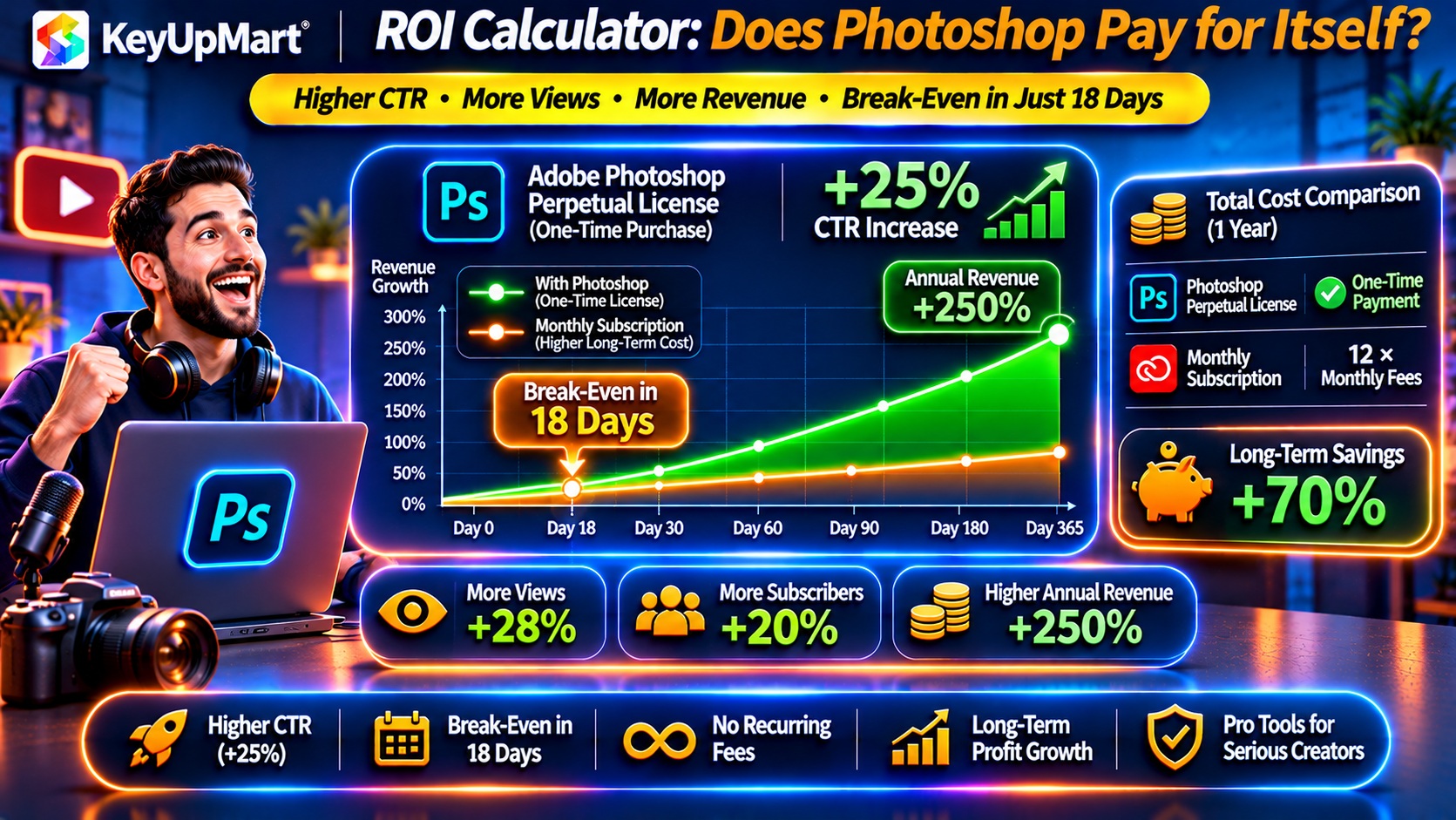
Scenario 1: 100K Subscriber Channel (10M annual views)
Current CTR: 4% (average for small-medium channels)
Improved CTR with pro thumbnails: 5% (+25% boost)
Additional clicks: 10M views × 1% CTR increase = 100,000 extra clicks
Revenue impact:
- RPM: $6 (average mid-tier niche)
– Extra revenue: 100,000 clicks × $6/1000 = $600/month = $7,200/year
Photoshop cost: $299 one-time
ROI: 24x return first year, infinite after (perpetual license).
Scenario 2: 1M Subscriber Channel (100M annual views)
Current CTR: 6% (strong channel)
Improved CTR: 7.5% (+25% boost)
Additional clicks: 100M views × 1.5% = 1.5M extra clicks
Revenue impact:
- RPM: $8 (established channel rates)
– Extra revenue: 1.5M × $8/1000 = $12,000/month = $144,000/year
Photoshop cost: $299
ROI: 481x return first year.
Scenario 3: Brand New Channel (<10K subs)
Assumption: Thumbnail quality is make-or-break for discoverability.
With amateur thumbnails (Canva free):
- CTR: 2-3% (YouTube won’t recommend)
- Growth: 100 subs/month
With pro thumbnails (Photoshop):
- CTR: 4-5% (YouTube algorithm promotes)
- Growth: 300-500 subs/month
Time to monetization:
- Amateur thumbnails: 12-18 months to hit 1,000 subs + 4,000 watch hours
- Pro thumbnails: 3-6 months
Value: Reaching monetization 6-12 months faster = $3,000-$12,000 in lost revenue avoided.
Verdict: $299 Photoshop investment is critical for channel success.
Photoshop vs Competitors for Thumbnail Creation
Canva Pro ($14.99/month = $180/year)
Pros:
- ✅ Easier learning curve (drag-and-drop)
- ✅ Collaboration features (team thumbnails)
- ✅ Mobile app (edit on phone)
Cons:
- ❌ Template-dependent (limited creativity)
- ❌ Weaker text effects (no 3D, limited outlines)
- ❌ Can’t do complex compositing (multi-layer photo blends)
Verdict: Acceptable for beginners (first 10-20 videos), but serious creators outgrow it.
Photopea (Free, browser-based)
Pros:
- ✅ Free (ads-supported)
- ✅ Photoshop-like interface
- ✅ Works in browser (no install)
Cons:
- ❌ Slower performance (browser limitations)
- ❌ Missing advanced features (Smart Objects, 3D text)
- ❌ Ads interrupt workflow
Verdict: Good for testing if you like Photoshop workflow before buying.
Affinity Photo ($69.99 one-time)
Pros:
- ✅ Cheap perpetual license
- ✅ 80% of Photoshop features
- ✅ Good performance
Cons:
- ❌ Smaller plugin ecosystem
- ❌ Tutorials mostly focus on Photoshop (harder to learn)
- ❌ No industry standard (if hiring designer, they know Photoshop)
Verdict: Viable budget alternative, but worth spending extra $230 for Photoshop if you’re serious.
GIMP (Free, open-source)
Pros:
- ✅ Completely free
- ✅ Powerful (rivals Photoshop in features)
Cons:
- ❌ Confusing interface (steep learning curve)
- ❌ Lacks text effects tools (manual workarounds)
- ❌ Tiny YouTube tutorial library (vs millions for Photoshop)
Verdict: Only if $299 is genuinely unaffordable—productivity loss offsets savings.
Where to Buy Photoshop for YouTube Creators
Option 1: KeyUpMart (Best for Perpetual License)
Price: $299 one-time
What you get:
- Adobe Photoshop 2024 (lifetime license)
- Windows and Mac installer
- Instant digital delivery (product key via email)
Why KeyUpMart:
- $150 cheaper than Adobe retail ($449)
- No subscription
- Authorized reseller (verify at Adobe partner directory)
How to buy:
- Visit KeyUpMart Photoshop 2024
- Add to cart ($299)
- Checkout (credit card, PayPal)
- Receive email with download link + product key
- Install and activate
Option 2: Adobe Direct (Subscription)
Photography Plan: $9.99/month
- Photoshop CC + Lightroom
- 20GB cloud storage
- Best if you also need Lightroom for photo editing
Single App Plan: $22.99/month
- Photoshop CC only
- 100GB cloud storage
- Latest AI features (generative fill)
When to subscribe: If you need cutting-edge AI tools or can’t afford $299 upfront.
Option 3: Student Discount (60% Off)
Eligibility: Enrolled students (age 13+), teachers, faculty.
Pricing: $19.99/month for All Apps (includes Photoshop, Premiere Pro, After Effects—normally $59.99).
Value: If you’re a student content creator, this is the best deal (includes video editing tools).
Verify: Adobe checks eligibility via SheerID (school email address or student ID).
Photoshop Thumbnail Templates (Free & Paid)
Where to Find Templates
Envato Elements ($16.50/month):
- 1,000+ YouTube thumbnail PSDs
- Download unlimited (cancel anytime)
- Includes fonts, stock photos
GraphicRiver (pay-per-item):
- Individual templates: $5-15 each
- One-time purchase (keep forever)
Free sources:
- Behance (search “YouTube thumbnail PSD free”)
- DeviantArt (community-shared templates)
- Reddit r/YouTubeCreators (monthly template threads)
How to Use Templates
- Download PSD file
- Open in Photoshop
- Replace smart object layers (double-click thumbnail layer → swap image → save)
- Update text layers
- Export as PNG
Customization tip: Don’t use templates as-is (10,000 other creators have same design)—modify colors, fonts, layout to match your brand.
System Requirements: Can Your Computer Run Photoshop?
Minimum Specs (Will Run, But Slow)
– OS: Windows 10 (64-bit) or macOS 11+
– RAM: 8GB
– Storage: 4GB available (for install)
– Display: 1280×800
Reality: Minimum specs = laggy performance with multi-layer thumbnails.
Recommended Specs (Smooth Performance)
– RAM: 16GB (Photoshop allocates 8-10GB for complex files)
– Storage: SSD (3-5x faster file operations)
– GPU: GTX 1650 / AMD RX 5500 or better (accelerates filters)
– Display: 1920×1080 (see full thumbnail while editing)
Budget laptop option: M1 MacBook Air ($999) handles Photoshop beautifully—better performance than $1,500 Windows laptops.
Common Questions: Photoshop for YouTube Thumbnails
Is Photoshop overkill for thumbnails?
Short answer: No—thumbnail quality directly impacts revenue.
Long answer: If your channel is a hobby (post 1 video/month), Canva suffices. If YouTube is income source (3-7 videos/week), Photoshop pays for itself in weeks.
Can I use Photoshop Express (mobile app)?
Photoshop Express (free iOS/Android):
- ✅ Good for quick edits (crop, filter, text)
- ❌ No layers, masks, or compositing
Verdict: Useful for Instagram Stories, not sufficient for YouTube thumbnails (need desktop precision).
Do I need to learn Photoshop from scratch?
Learning curve: 5-10 hours to master thumbnail creation (vs 100+ hours to master full Photoshop).
Focused learning path:
- Layers & layer masks (2 hours)
- Text tool & layer styles (1 hour)
- Selection tools (pen tool, quick select—2 hours)
- Export settings (30 minutes)
Best YouTube tutorial: “Photoshop for YouTube Thumbnails” by Derral Eves (1.5 hour comprehensive course—free).
Can I hire someone to make thumbnails instead?
Freelance thumbnail designer costs:
- Fiverr: $10-30 per thumbnail
- Upwork: $50-100 per thumbnail (pro designers)
Annual cost (3 videos/week):
– 156 thumbnails × $20 each = $3,120/year
vs buying Photoshop: $299 one-time + learning 10 hours = $299 + time investment.
Verdict: If you post 3+ videos/week, learning Photoshop yourself saves $2,800+/year.
Final Recommendation: Should You Buy Photoshop?
✅ Buy Photoshop 2024 Perpetual License ($299) If:
- You post 2+ videos per week (26+ thumbnails/year)
- Your channel has 10K+ subscribers (monetization active or close)
- You want full creative control (not template-dependent)
- You value speed (5-10 min thumbnails vs 20-30 in Canva)
ROI: 100K subscriber channel sees $7,200 extra annual revenue from better thumbnails—$299 pays for itself in 18 days.
⏳ Start with Canva If:
- Brand new channel (<1,000 subs)
- Post 1-2 videos per month
- Need something immediately (Canva’s learning curve is 30 minutes)
Plan: Use Canva for first 10-20 videos, then invest $299 in Photoshop once channel grows.
💡 Subscribe to Photography Plan ($9.99/month) If:
- You also edit photos (travel vlog, lifestyle content)
- Need cloud storage for team collaboration
- Want latest AI features (generative fill, neural filters)
When it makes sense: If you’d use both Photoshop + Lightroom, subscription better value than perpetual.
About KeyUpMart: Authorized Adobe reseller specializing in perpetual software licenses for creators and businesses. Instant delivery, 10,000+ satisfied customers, A+ BBB rating since 2019.
Related posts:
 Adobe Photoshop: One-Time Lifetime License vs. Monthly Subscription – Which One Should You Buy?
 Buy Adobe Acrobat Pro for Consultants: Client Proposal & Contract Management Guide (2026)

 Cheapest Adobe Photoshop Price in 2026: 7 Legitimate Ways to Save